# Connect Asana to Synk.to
Source: https://docs.synk.to/connect/asana
Guide on connecting Asana to Synk.to
Prerequisites:
1. Asana account with admin permissions in your workspace
2. Workspace GID (found in your Asana workspace URL)
## **Step 1**: **Create a Personal Access Token in Asana**
1. **Log in** to your [Asana account](https://app.asana.com/) using an account with admin permissions in your workspace.
2. Go to **My Settings** → **Apps** → **Developer apps** or navigate directly to [https://app.asana.com/0/my-apps](https://app.asana.com/0/my-apps).
3. Click "**Create new token**".
4. In the dialog that appears, enter "**SynkTo**" as the **Token name**, accept the API terms, and click "**Create token**".
5. Click **Copy** and save the **Personal Access Token**. Note that for security reasons it isn't possible to view the token after closing the creation dialog; if necessary, create a new token.
6. Get your **Workspace GID** ready. You can find it in your Asana workspace URL — it is the numeric ID that appears in the URL when you are in your workspace (e.g., `https://app.asana.com/0/{workspace_gid}/...`).
To find your Workspace GID, go to **Admin Console** → look at the URL in your browser's address bar. The numeric value is your Workspace GID.
## **Step 2**: Connect Asana to Synk.to
1. Go to the [SynkTo Systems](https://app.synk.to/systems) page, find **Asana** in "Choose a System" field, and click "**Add a System**".
2. Provide "**Custom Name**" and "**Description**" to the system in order to remember it. It will be used in "My Connections" section.
3. In "**Authentication settings**" provide your "**Personal Access Token**" and "**Workspace GID**" from Step 1 of the guide.
4. Click "**Check connection**".
5. If everything is fine, you will see "**Account Connected**" green mark and the number of users and groups (teams) in the system in the bottom.
6. Click "**Save**" and you will see the system in My Systems list. Congrats!!! Now you can use it in "My Connections" section of Synk.to.
### What data does Synk.to sync from Asana?
* **Users** — user profiles from your Asana workspace (email, first name, last name, active status).
* **Teams** — teams in your workspace are synced as groups in Synk.to.
* **Team memberships** — Synk.to can add and remove users from Asana teams.
# Connect BambooHR to Synk.to
Source: https://docs.synk.to/connect/bamboohr
Guide on connecting BambooHR to Synk.to
1. BambooHR administrator account
2. BambooHR site URL (e.g., [https://your-domain.bamboohr.com](https://your-domain.bamboohr.com))
## **Step 1**: **Create API token from your BambooHR account**
1. **Log in** to your BambooHR account using administrator credentials.
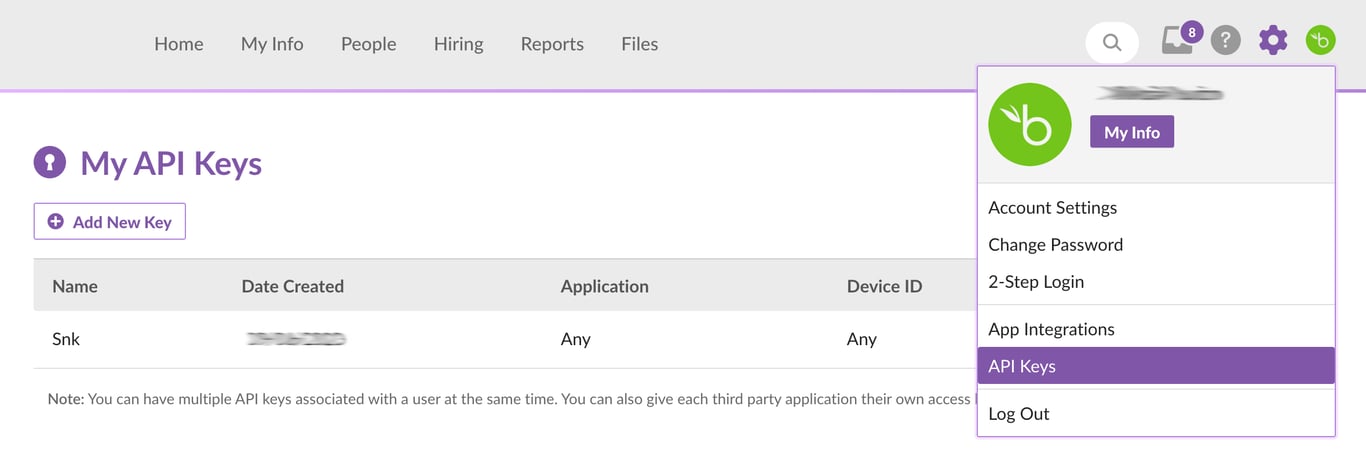
![]() 2. Click on your profile top right icon and choose “**API Keys**” in the menu.
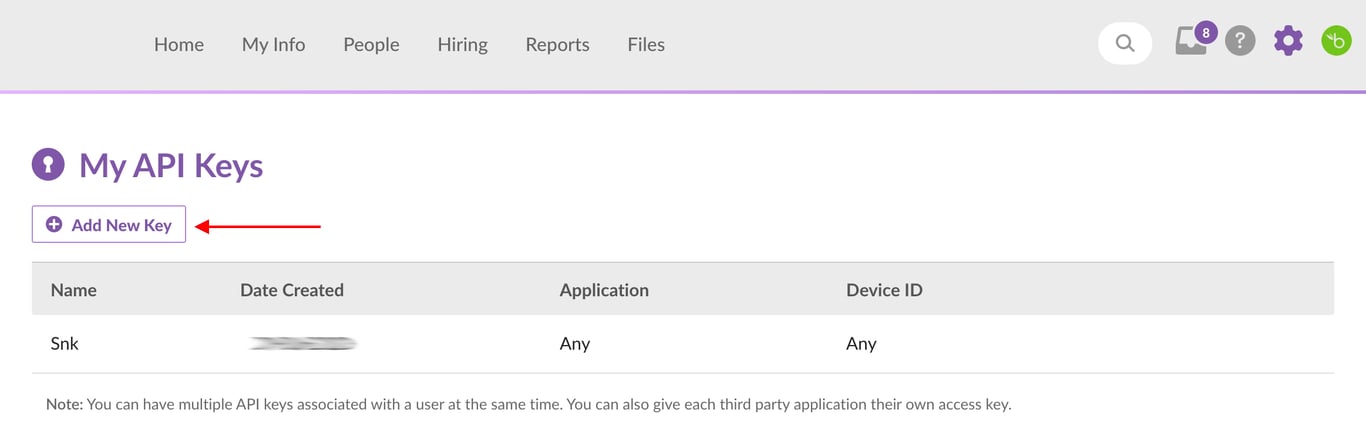
3. Click “**Add New Key**”.
4. In the opened window enter "**synkto**" as the API Key Name for your token and click “**Generate Key**”.
2. Click on your profile top right icon and choose “**API Keys**” in the menu.

3. Click “**Add New Key**”.

4. In the opened window enter "**synkto**" as the API Key Name for your token and click “**Generate Key**”.
![]() 5. Click “**Copy Key”** and save the **API key,** and click “**Done**”. Note that for security reasons it isn't possible to view the token after closing the dialog. If necessary, create a new token.
5. Click “**Copy Key”** and save the **API key,** and click “**Done**”. Note that for security reasons it isn't possible to view the token after closing the dialog. If necessary, create a new token.
![]() 6. Get your **BambooHR site URL** ready. It should look like: [https://your-domain.bamboohr.com](https://your-domain.bamboohr.com/)
## Step 2. Connect BambooHR to Synk.to
1. Go to the [SynkTo Systems](https://app.synk.to/systems) page, find BambooHR in “Choose a System” field, and click “**Add a System**”.
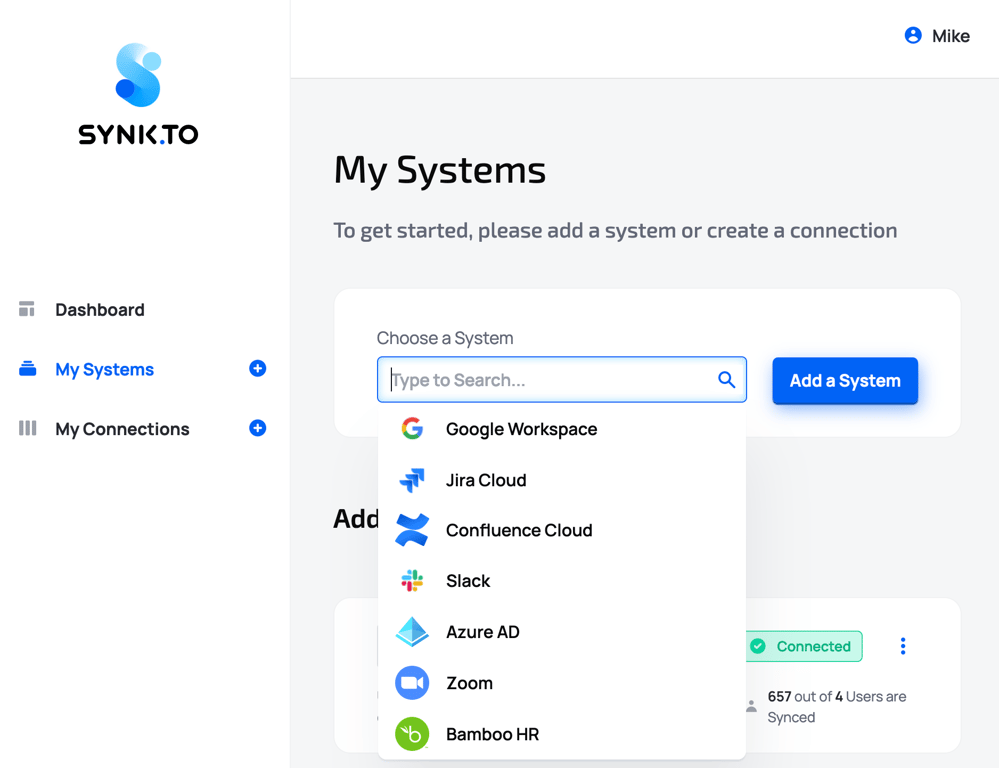
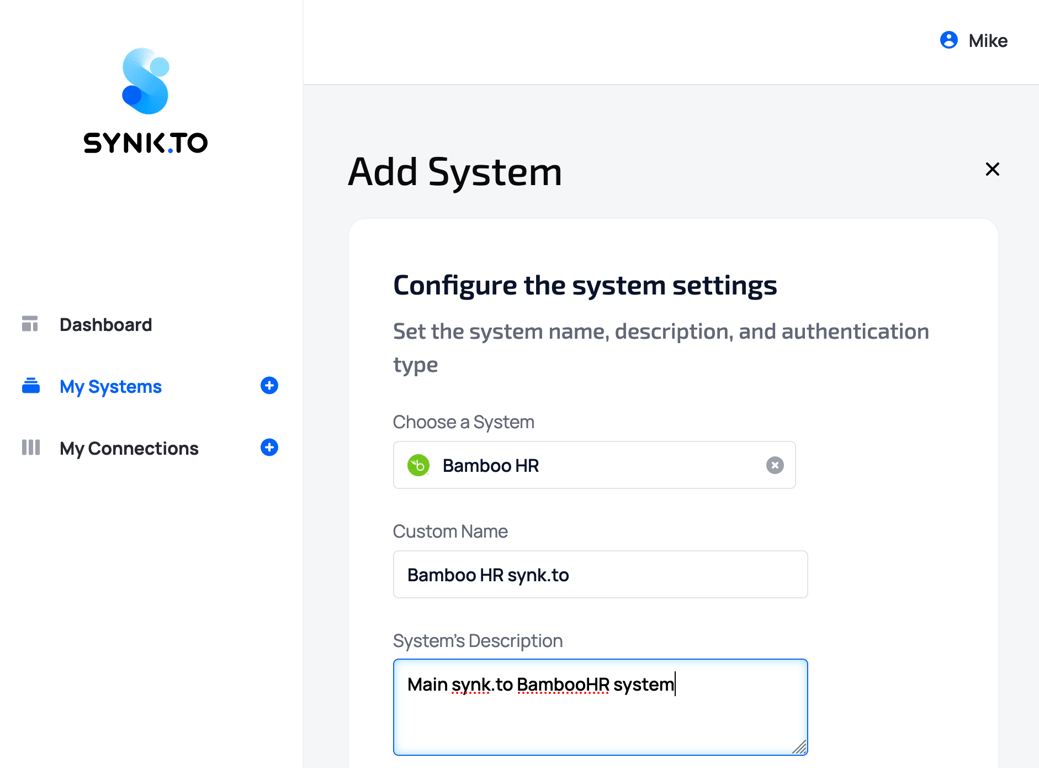
2. Provide “**Custom Name**” and “**Description**” to the system in order to remember it. It will be used in “My Connections” section.
3. In “**Authentication settings**” provide your “**BambooHR site URL**”, and “**API Token**” from Step 1 of the guide.
6. Get your **BambooHR site URL** ready. It should look like: [https://your-domain.bamboohr.com](https://your-domain.bamboohr.com/)
## Step 2. Connect BambooHR to Synk.to
1. Go to the [SynkTo Systems](https://app.synk.to/systems) page, find BambooHR in “Choose a System” field, and click “**Add a System**”.

2. Provide “**Custom Name**” and “**Description**” to the system in order to remember it. It will be used in “My Connections” section.

3. In “**Authentication settings**” provide your “**BambooHR site URL**”, and “**API Token**” from Step 1 of the guide.
![]() 4. Click “**Check connection**”.
5. If everything is fine, you will see “**Account Connected**” green mark and the number of users and groups in the system in the bottom.
4. Click “**Check connection**”.
5. If everything is fine, you will see “**Account Connected**” green mark and the number of users and groups in the system in the bottom.
![]() 6. Click “**Save**” and you will see the system in My Systems list. Congrats!!! Now you can use it in “My Connections” section of Synk.to.
6. Click “**Save**” and you will see the system in My Systems list. Congrats!!! Now you can use it in “My Connections” section of Synk.to.
![]() # Connect Confluence Cloud to Synk.to
Source: https://docs.synk.to/connect/confluence
Guide on connecting Confluence Cloud to Synk.to
Prerequisites:
1. Atlassian account with "Administer Jira" global permission
2. Confluence Cloud site URL (e.g., [https://your-domain.atlassian.net](https://your-domain.atlassian.net))
## **Step 1**: **Create an API token from your Atlassian account**
1. **Log in** to your [Atlassian account](https://id.atlassian.com/manage-profile) with account that have “**Administer Jira**” [global permission](https://support.atlassian.com/jira-cloud-administration/docs/manage-global-permissions/).
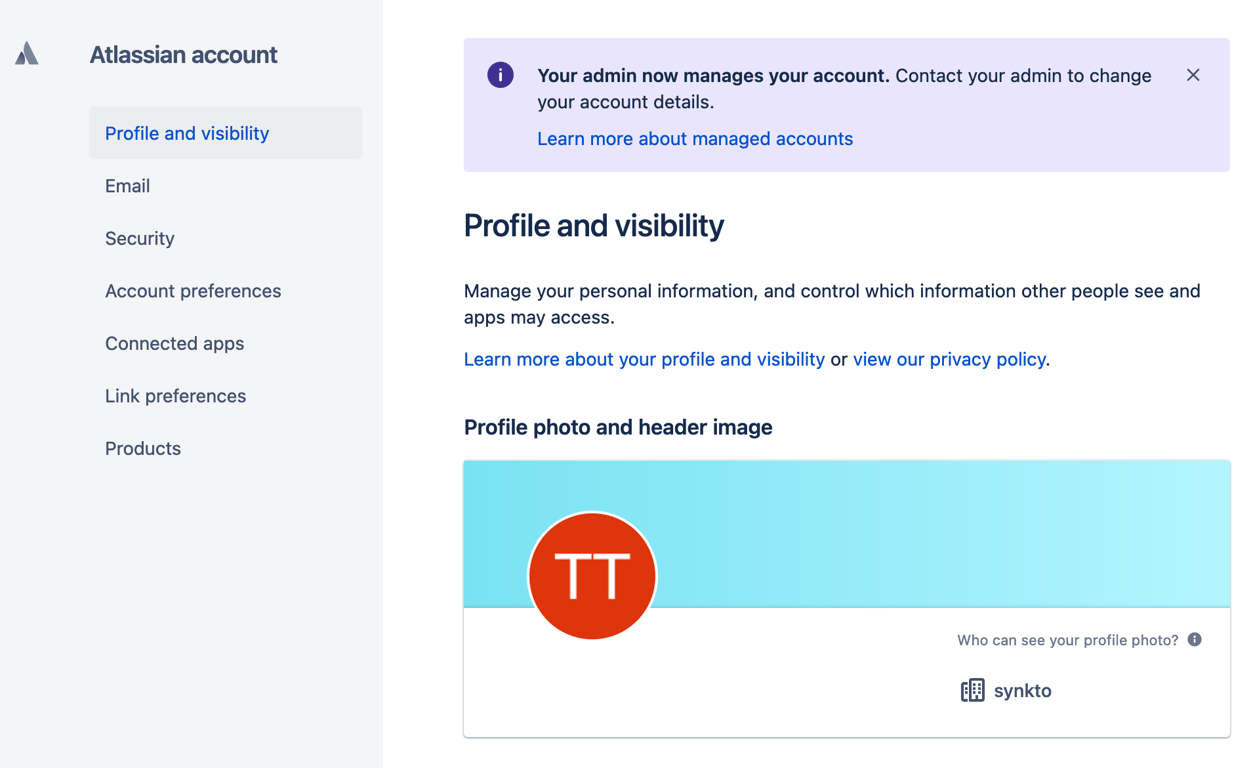
2. Go to **Security** → “[Create and manage API tokens](https://id.atlassian.com/manage-profile/security/api-tokens)” or just click [https://id.atlassian.com/manage/api-tokens](https://id.atlassian.com/manage/api-tokens).
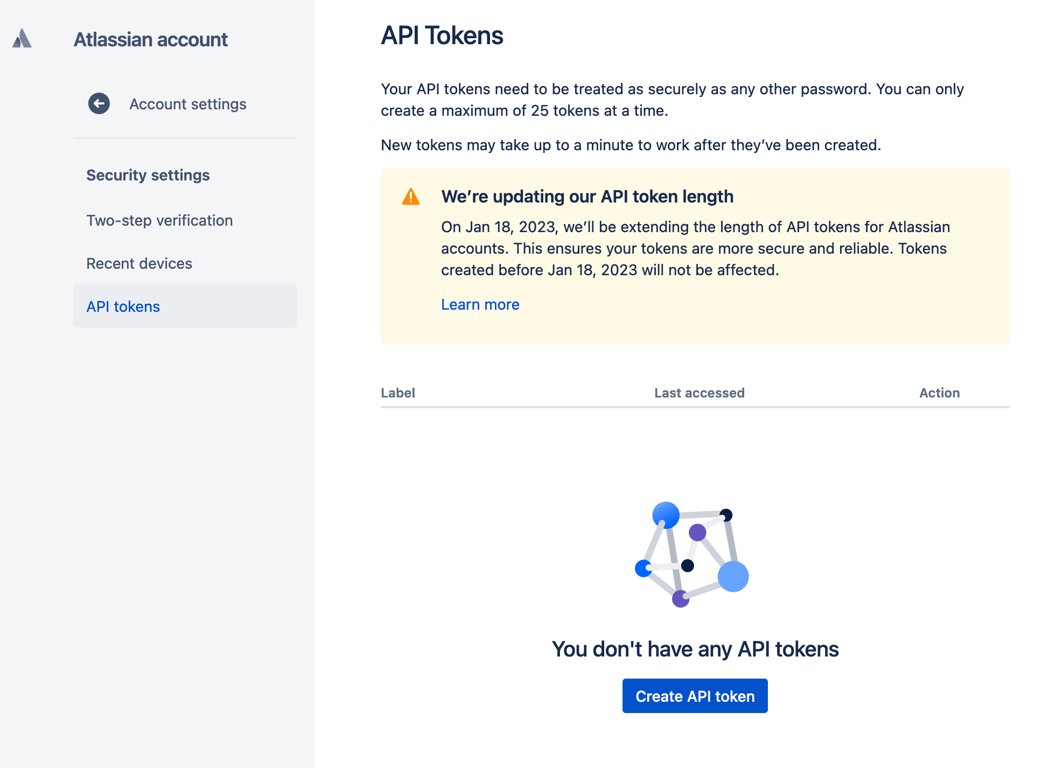
3. Click **Create API token**.
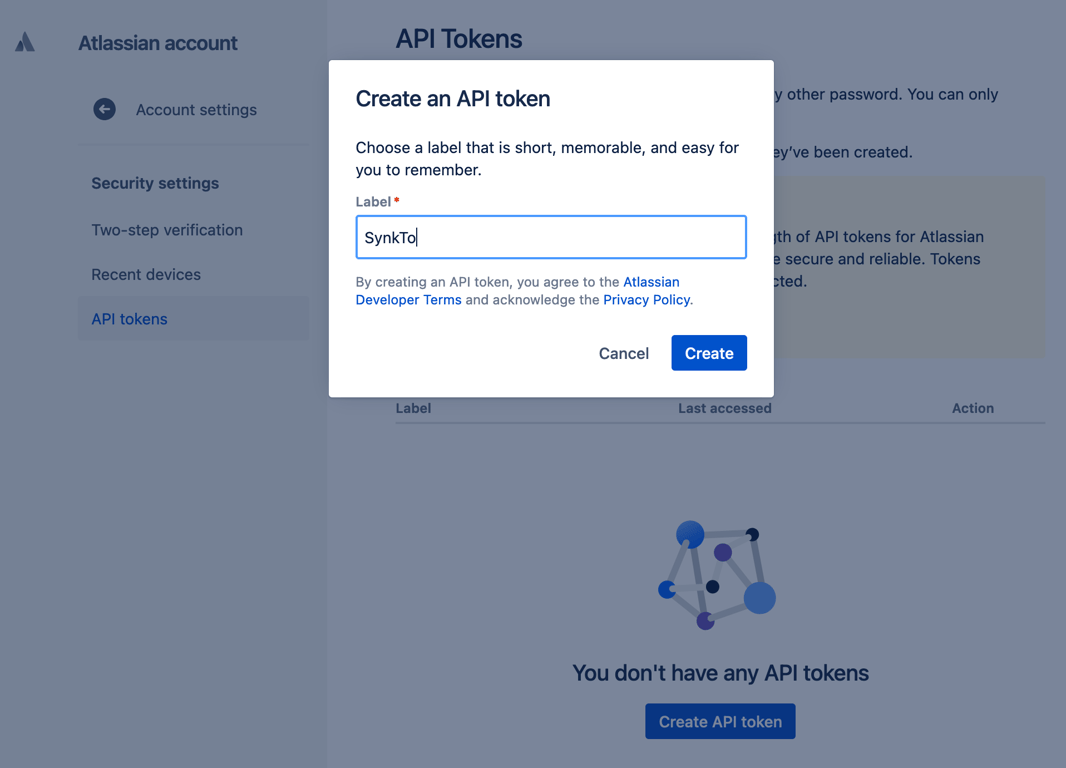
4. From the dialog that appears, enter "**SynkTo**" as the **Label** for your token and click **Create**.
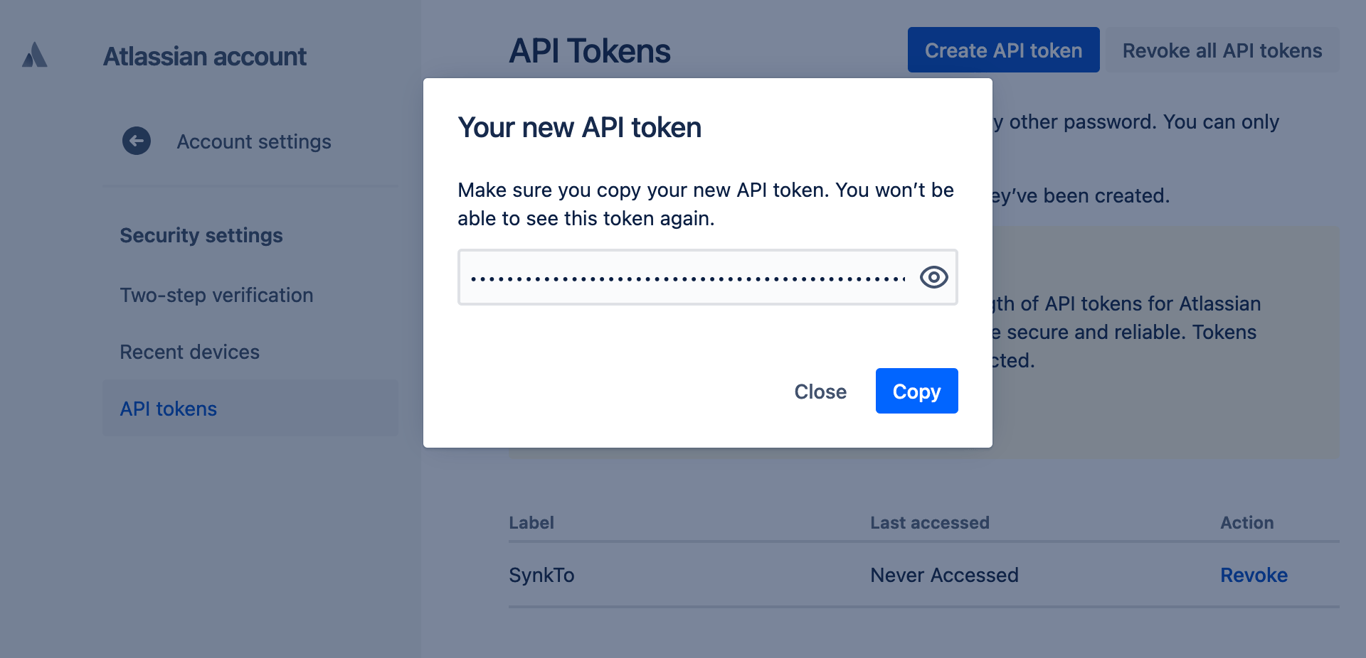
5. Click **Copy** and save the **API token**. Note that for security reasons it isn't possible to view the token after closing the creation dialog; if necessary, create a new token.
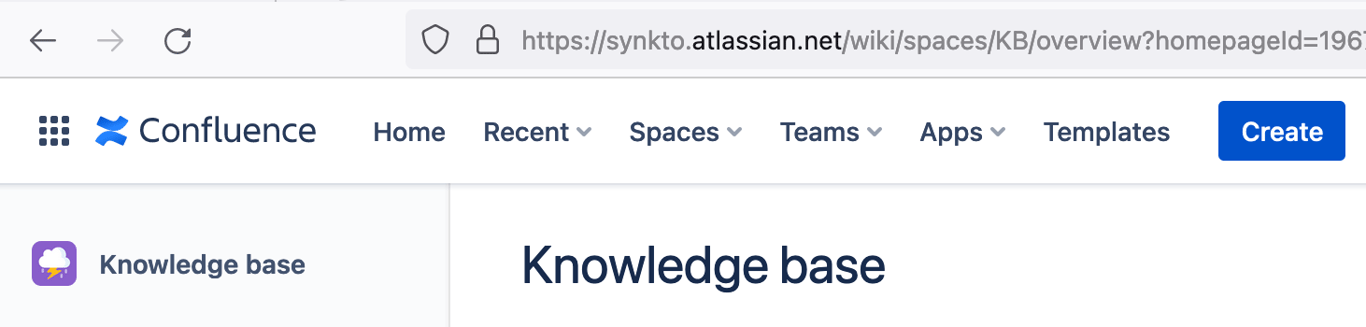
6. Get your **Confluence Cloud site URL**. It should look like: [https://your-domain.atlassian.net](https://your-domain.atlassian.net/)
## Step 2. Connect Confluence Cloud to Synk.to
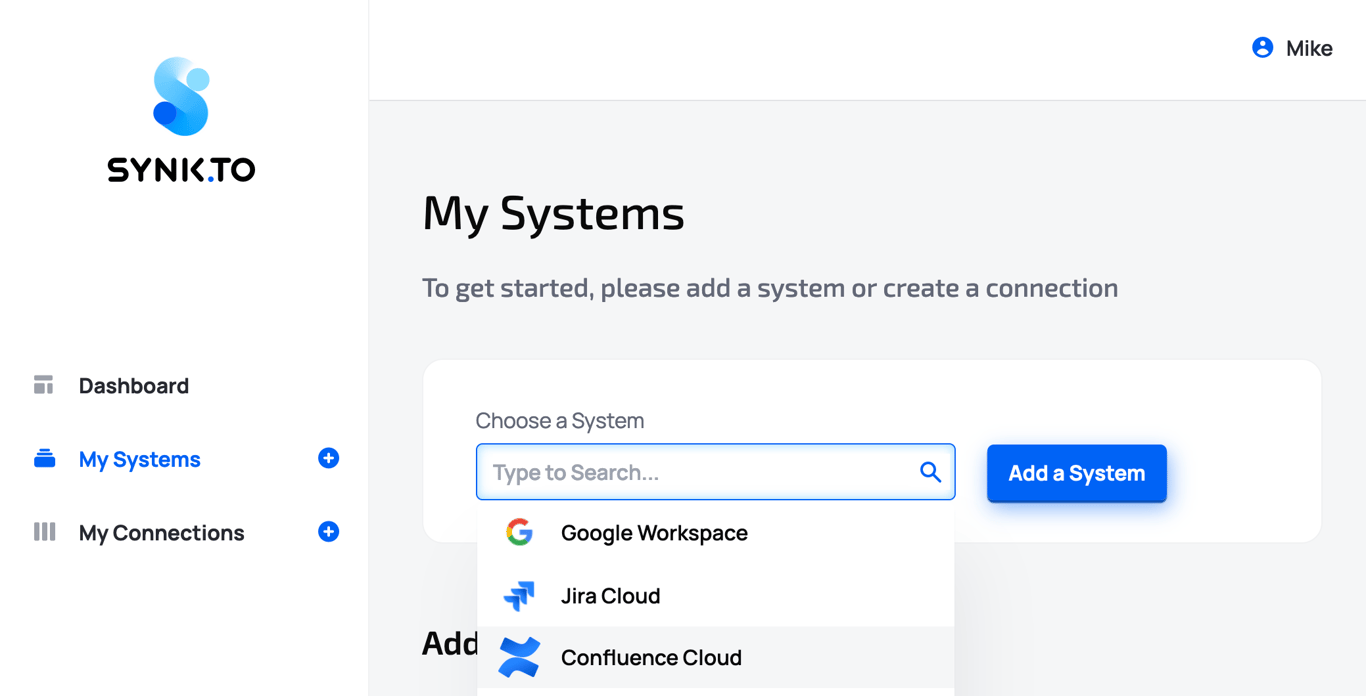
1. Go to the [SynkTo Systems](https://app.synk.to/systems) page, find **Confluence Cloud** in “Choose a System” field, and click “**Add a System**”.
2. Provide “**Custom Name**” and “**Description**” to the system in order to remember it. It will be used in “My Connections” section.
# Connect Confluence Cloud to Synk.to
Source: https://docs.synk.to/connect/confluence
Guide on connecting Confluence Cloud to Synk.to
Prerequisites:
1. Atlassian account with "Administer Jira" global permission
2. Confluence Cloud site URL (e.g., [https://your-domain.atlassian.net](https://your-domain.atlassian.net))
## **Step 1**: **Create an API token from your Atlassian account**
1. **Log in** to your [Atlassian account](https://id.atlassian.com/manage-profile) with account that have “**Administer Jira**” [global permission](https://support.atlassian.com/jira-cloud-administration/docs/manage-global-permissions/).

2. Go to **Security** → “[Create and manage API tokens](https://id.atlassian.com/manage-profile/security/api-tokens)” or just click [https://id.atlassian.com/manage/api-tokens](https://id.atlassian.com/manage/api-tokens).

3. Click **Create API token**.
4. From the dialog that appears, enter "**SynkTo**" as the **Label** for your token and click **Create**.

5. Click **Copy** and save the **API token**. Note that for security reasons it isn't possible to view the token after closing the creation dialog; if necessary, create a new token.

6. Get your **Confluence Cloud site URL**. It should look like: [https://your-domain.atlassian.net](https://your-domain.atlassian.net/)

## Step 2. Connect Confluence Cloud to Synk.to
1. Go to the [SynkTo Systems](https://app.synk.to/systems) page, find **Confluence Cloud** in “Choose a System” field, and click “**Add a System**”.

2. Provide “**Custom Name**” and “**Description**” to the system in order to remember it. It will be used in “My Connections” section.
![]() 3. In “**Authentication settings**” provide your “**Atlassian account email address**”, “**Confluence site URL**”, and “**API Token**” from Step 1 of the guide.
3. In “**Authentication settings**” provide your “**Atlassian account email address**”, “**Confluence site URL**”, and “**API Token**” from Step 1 of the guide.
![]() 4. Click “**Check connection**”.
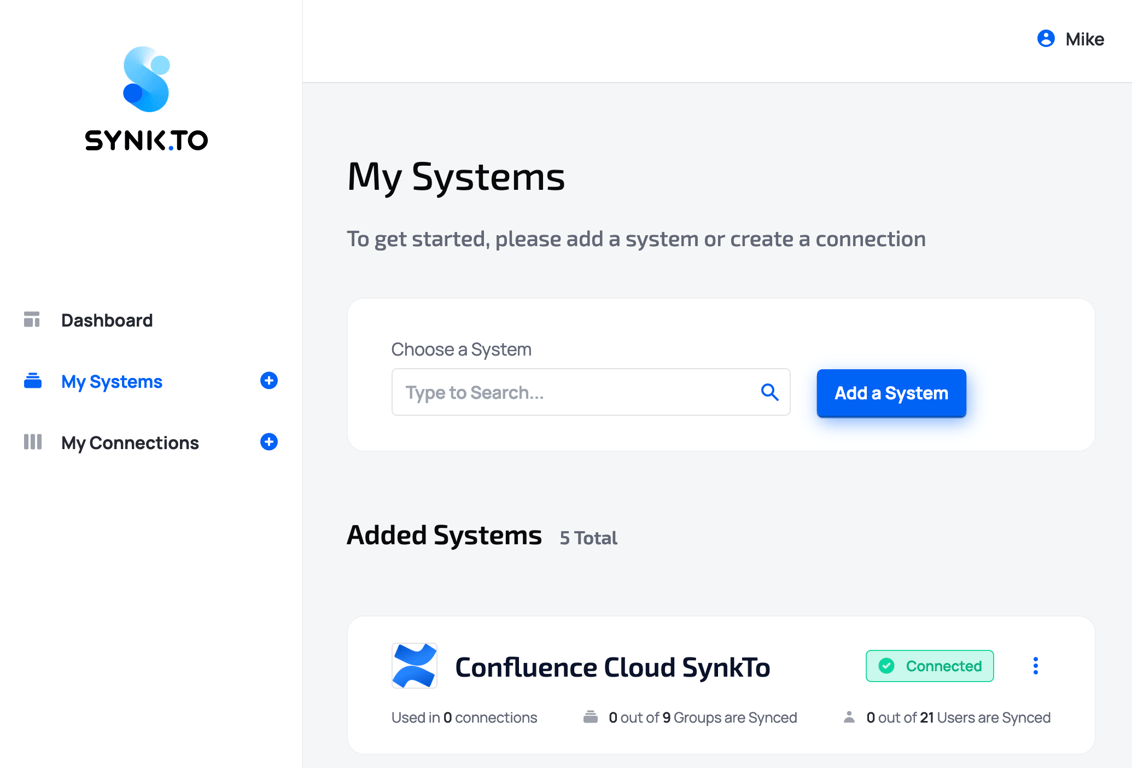
5. If everything is fine, you will see “**Account Connected**” green mark and the number of users and groups in the system in the bottom.
4. Click “**Check connection**”.
5. If everything is fine, you will see “**Account Connected**” green mark and the number of users and groups in the system in the bottom.
![]() 7. Click “**Save**” and you will see the system in My Systems list. Congrats!!! Now you can use it in “My Connections” section of Synk.to.
# Connect EntraID to Synk.to
Source: https://docs.synk.to/connect/entraid
Guide on connecting Entra ID to Synk.to
Prerequisites:
1. Microsoft Entra ID Global Administrator or Administrator role
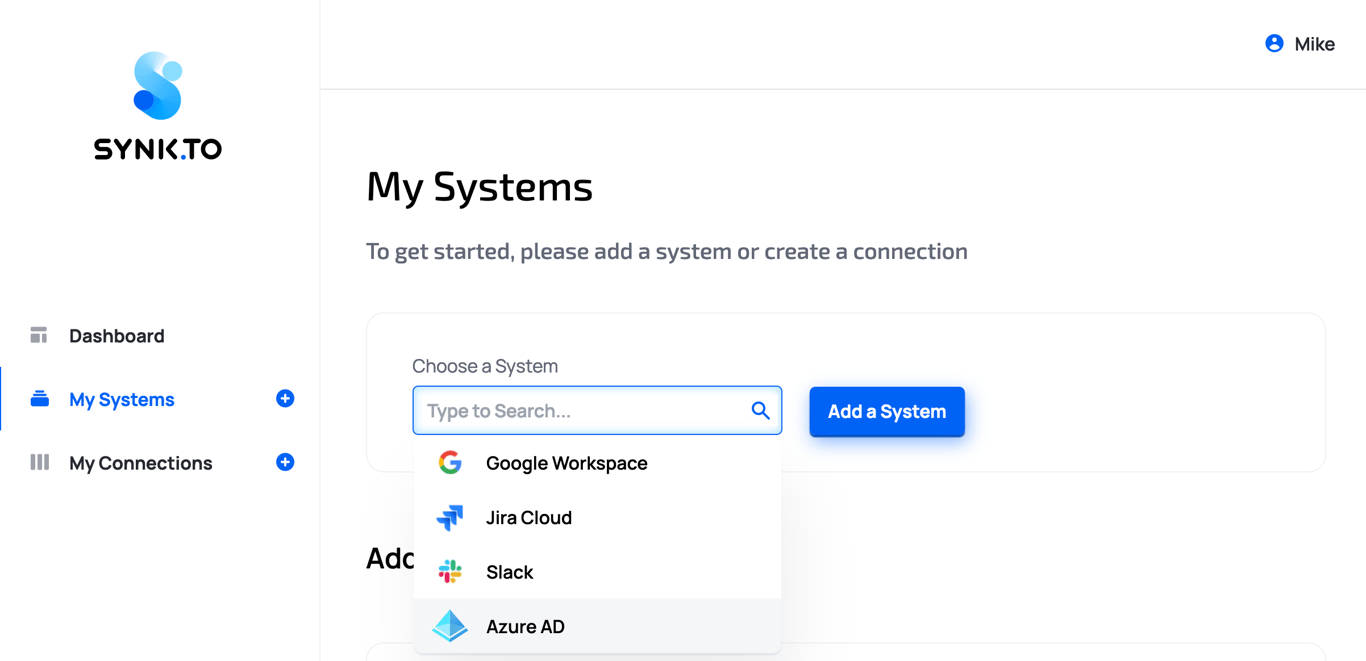
1. Go to the [SynkTo Systems](https://app.synk.to/systems) page, find Entra ID in “Choose a System” field, and click “**Add a System**”.
2. Provide “**Custom Name**” and “**Description**” to the system in order to remember it. It will be used in “My Connections” section.
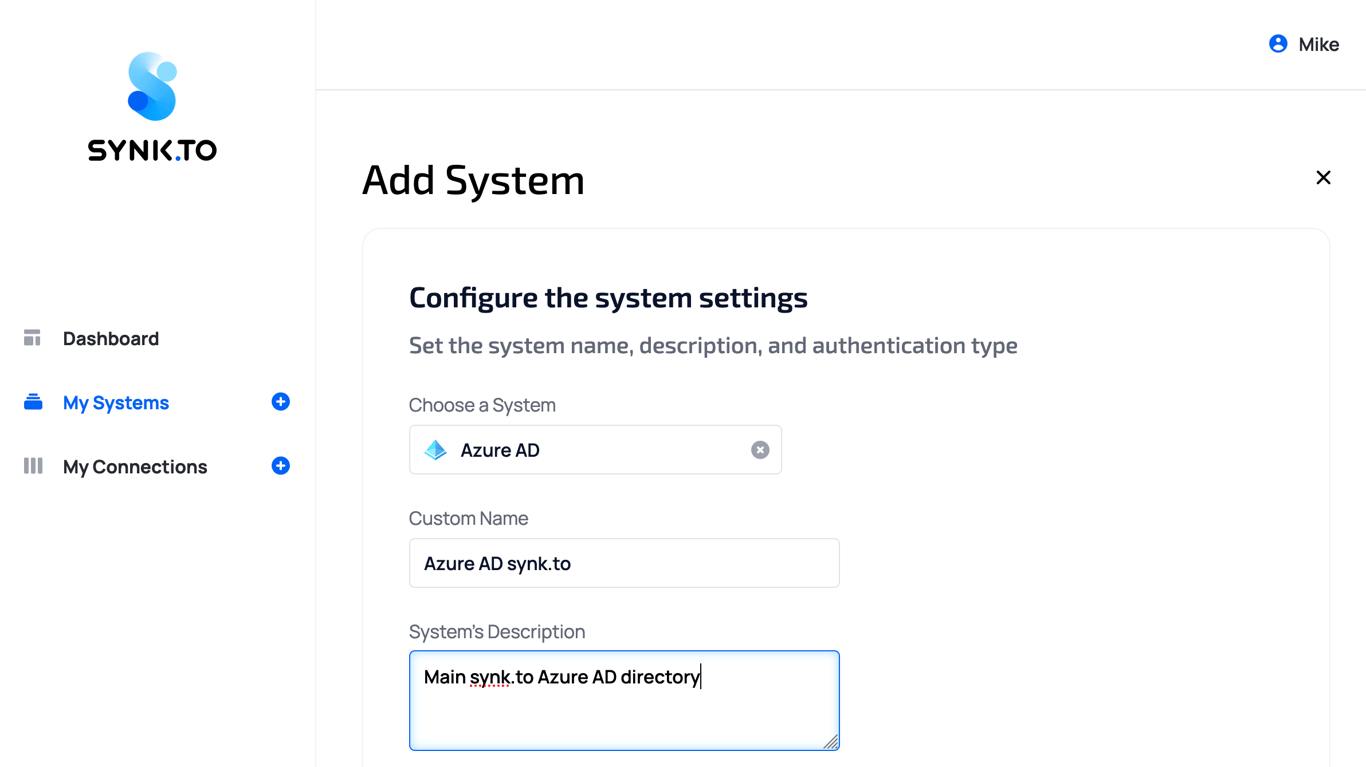
3. In “**Authentication settings**” choose configuration access type of your connection:
* **Option 1 - READ**. Provide **read\&write** **access** to manage groups, and only **read access** to manage users.
* **Option 2 - MANAGE (RECOMMENDED)**. Provide **read\&write** **access** to users and groups.
7. Click “**Save**” and you will see the system in My Systems list. Congrats!!! Now you can use it in “My Connections” section of Synk.to.

# Connect EntraID to Synk.to
Source: https://docs.synk.to/connect/entraid
Guide on connecting Entra ID to Synk.to
Prerequisites:
1. Microsoft Entra ID Global Administrator or Administrator role
1. Go to the [SynkTo Systems](https://app.synk.to/systems) page, find Entra ID in “Choose a System” field, and click “**Add a System**”.

2. Provide “**Custom Name**” and “**Description**” to the system in order to remember it. It will be used in “My Connections” section.

3. In “**Authentication settings**” choose configuration access type of your connection:
* **Option 1 - READ**. Provide **read\&write** **access** to manage groups, and only **read access** to manage users.
* **Option 2 - MANAGE (RECOMMENDED)**. Provide **read\&write** **access** to users and groups.
![]() 4. Click “**Check connection**”.
5. In a pop-up Microsoft window, sign in using your Azure AD account with **Global Administrator** or **Administrator** role.
4. Click “**Check connection**”.
5. In a pop-up Microsoft window, sign in using your Azure AD account with **Global Administrator** or **Administrator** role.
![]()
![]() 6. Click “**Accept**” button on a Microsoft permission pop-up window.
6. Click “**Accept**” button on a Microsoft permission pop-up window.
![]() 7. If everything is fine, you will see “**Account Connected**” green mark and the number of users and groups in the system in the bottom.
7. If everything is fine, you will see “**Account Connected**” green mark and the number of users and groups in the system in the bottom.
![]() 8. Click “**Save**” and you will see the system in My Systems list. Congrats!!! Now you can use it in “[My Connections](https://app.synk.to/connections)” section of Synk.to.
# Connect Google Workspace to Synk.to
Source: https://docs.synk.to/connect/google-workspace
Guide on connecting Google Workspace to Synk.to
Prerequisites:
* Google Workspace administrator account
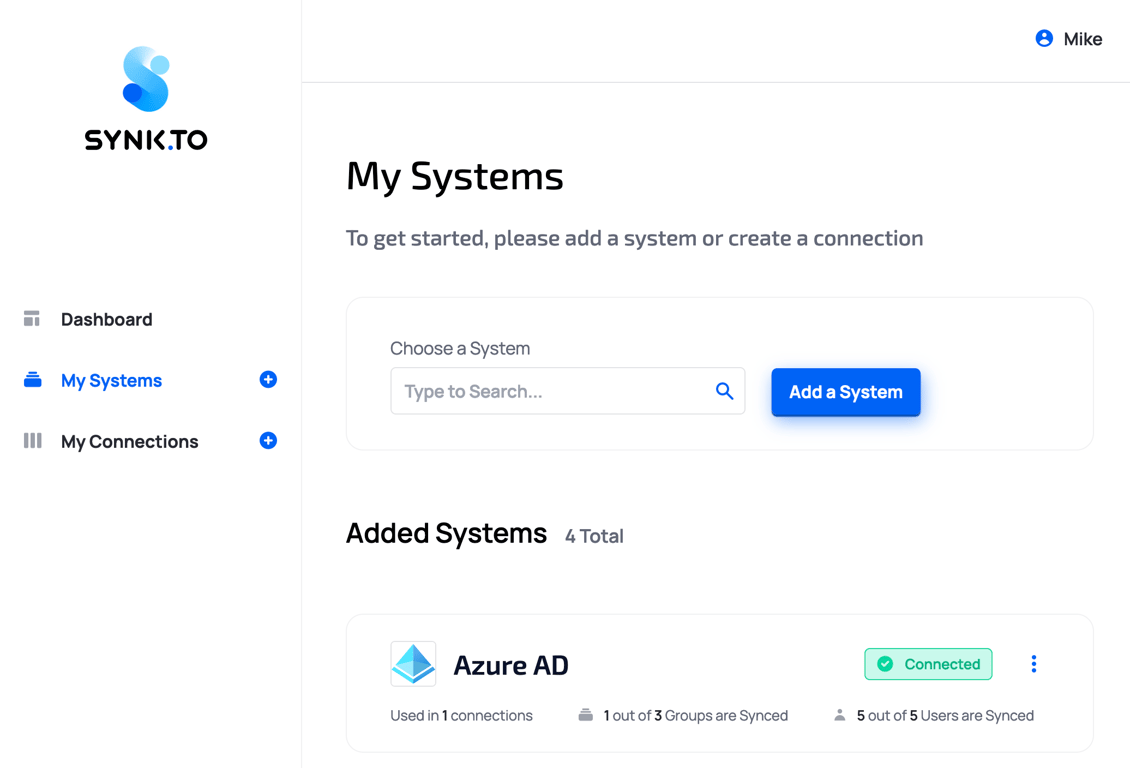
1. Go to the [SynkTo Systems](https://app.synk.to/systems) page, click “**Connect New System**” button, and next click on Google.
8. Click “**Save**” and you will see the system in My Systems list. Congrats!!! Now you can use it in “[My Connections](https://app.synk.to/connections)” section of Synk.to.

# Connect Google Workspace to Synk.to
Source: https://docs.synk.to/connect/google-workspace
Guide on connecting Google Workspace to Synk.to
Prerequisites:
* Google Workspace administrator account
1. Go to the [SynkTo Systems](https://app.synk.to/systems) page, click “**Connect New System**” button, and next click on Google.
![Screenshot 2026 10 08 At 23 59 03]() 2. Provide “**Custom Name**” and “**Description**” to the system in order to remember it. It will be used in “Connections” section.
2. Provide “**Custom Name**” and “**Description**” to the system in order to remember it. It will be used in “Connections” section.
![Screenshot 2026 10 08 At 23 59 20]() 3. In “**Authentication settings**” choose configuration access type of your connection:
* **Option 1 - READ**. Provide **read\&write** **access** to users and groups.
* **Option 2 - MANAGE**. Provide **read\&write** **access** to manage groups, and only **read access** to manage users.
4. Click “**Authenticate**”.
5. In a pop-up Google window, sign in using your Google Workspace **administrator** account.
3. In “**Authentication settings**” choose configuration access type of your connection:
* **Option 1 - READ**. Provide **read\&write** **access** to users and groups.
* **Option 2 - MANAGE**. Provide **read\&write** **access** to manage groups, and only **read access** to manage users.
4. Click “**Authenticate**”.
5. In a pop-up Google window, sign in using your Google Workspace **administrator** account.
![]()
![]() 6. Click “**Allow**” on a Google OAuth pop-up window.
6. Click “**Allow**” on a Google OAuth pop-up window.
![]() 7. If everything is fine, you will see “**Authenticated**” green mark and the list of provided scopes.
7. If everything is fine, you will see “**Authenticated**” green mark and the list of provided scopes.
 8. Click “**Save Changes**” and you will see the system in Systems list. Congrats!!! Now you can use it in “Connections” section of Synk.to.
![Screenshot 2026 10 09 At 00 04 56]() # Connect Jira Cloud to Synk.to
Source: https://docs.synk.to/connect/jira
Guide on connecting Jira Cloud to Synk.to
Prerequisites:
1. Atlassian account with "Administer Jira" global permission
2. Jira Cloud site URL (e.g., [https://your-domain.atlassian.net](https://your-domain.atlassian.net))
## **Step 1**: **Create an API token from your Atlassian account**
1. **Log in** to your [Atlassian account](https://id.atlassian.com/manage-profile) with account that have “**Administer Jira**” [global permission](https://support.atlassian.com/jira-cloud-administration/docs/manage-global-permissions/).

2. Go to **Security** → “[Create and manage API tokens](https://id.atlassian.com/manage-profile/security/api-tokens)” or just click [https://id.atlassian.com/manage/api-tokens](https://id.atlassian.com/manage/api-tokens).

3. Click **Create API token**.
4. From the dialog that appears, enter "**SynkTo**" as the **Label** for your token and click **Create**.

5. Click **Copy** and save the **API token**. Note that for security reasons it isn't possible to view the token after closing the creation dialog; if necessary, create a new token.

6. Get your **Jira Cloud site URL**. It should look like: [https://your-domain.atlassian.net](https://your-domain.atlassian.net/)
## Step 2. Connect Jira Cloud to Synk.to
1. Go to the [SynkTo Systems](https://app.synk.to/systems) page, find **Jira** in “Choose a System” field, and click “**Add a System**”.
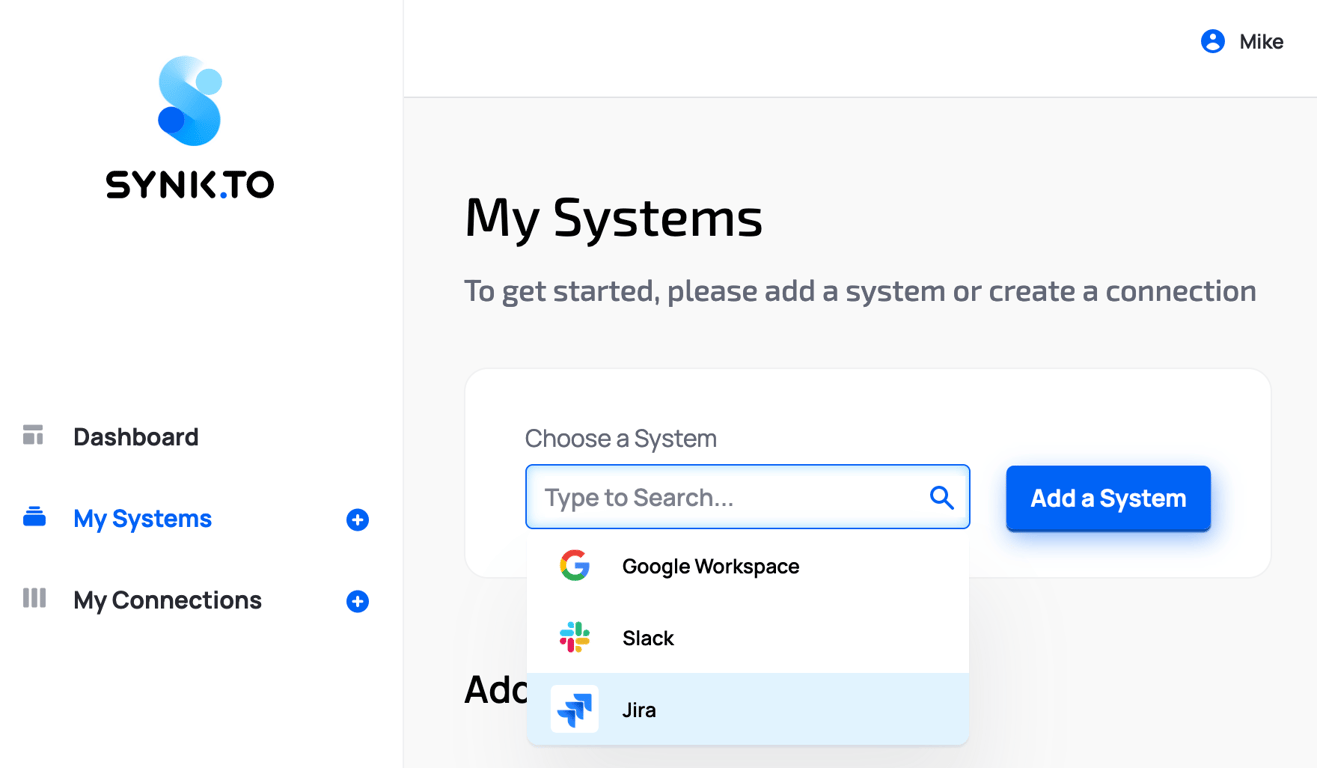
2. Provide “**Custom Name**” and “**Description**” to the system in order to remember it. It will be used in “My Connections” section.
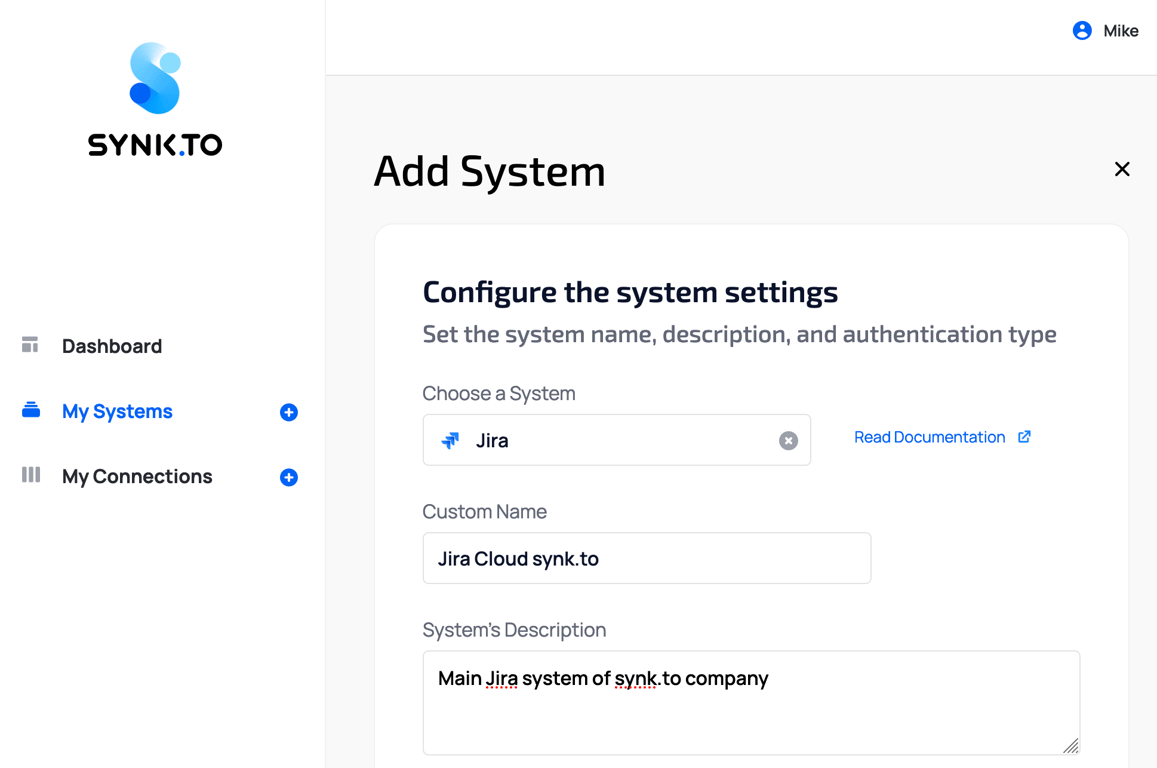
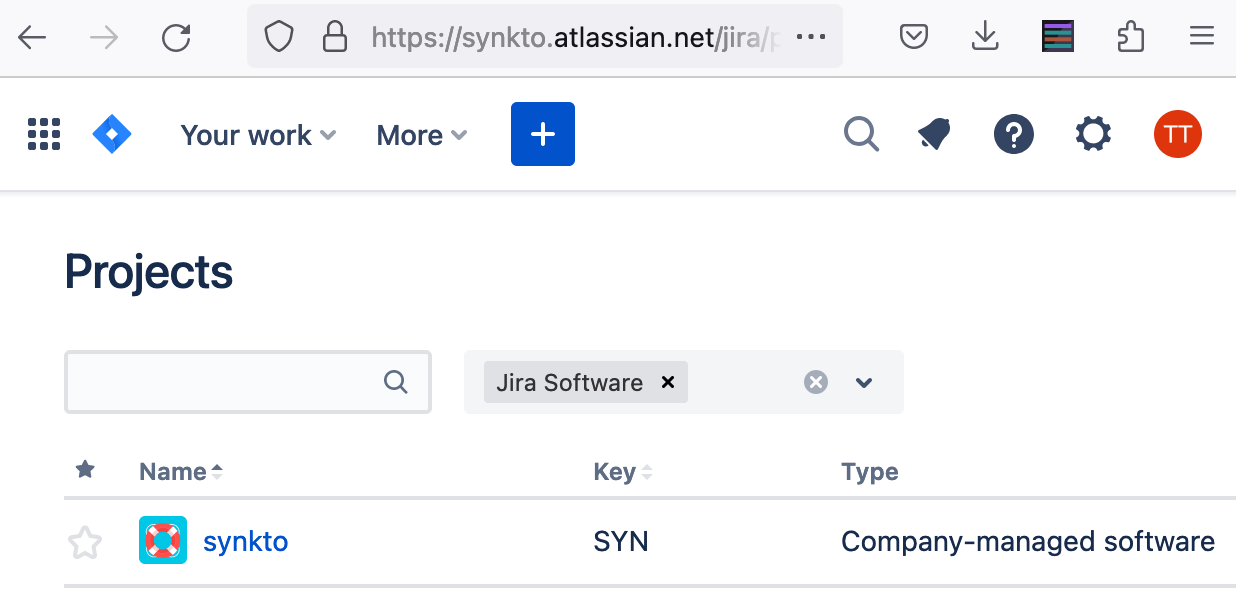
3. In “**Authentication settings**” provide your “**Atlassian account email address**”, “**Jira site URL**”, “**API Token**” from Step 1 of the guide, and “**Jira project name**” (the list of the projects can be found at [https://your-domain.atlassian.net/jira/projects](https://your-domain.atlassian.net/jira/projects)).
# Connect Jira Cloud to Synk.to
Source: https://docs.synk.to/connect/jira
Guide on connecting Jira Cloud to Synk.to
Prerequisites:
1. Atlassian account with "Administer Jira" global permission
2. Jira Cloud site URL (e.g., [https://your-domain.atlassian.net](https://your-domain.atlassian.net))
## **Step 1**: **Create an API token from your Atlassian account**
1. **Log in** to your [Atlassian account](https://id.atlassian.com/manage-profile) with account that have “**Administer Jira**” [global permission](https://support.atlassian.com/jira-cloud-administration/docs/manage-global-permissions/).

2. Go to **Security** → “[Create and manage API tokens](https://id.atlassian.com/manage-profile/security/api-tokens)” or just click [https://id.atlassian.com/manage/api-tokens](https://id.atlassian.com/manage/api-tokens).

3. Click **Create API token**.
4. From the dialog that appears, enter "**SynkTo**" as the **Label** for your token and click **Create**.

5. Click **Copy** and save the **API token**. Note that for security reasons it isn't possible to view the token after closing the creation dialog; if necessary, create a new token.

6. Get your **Jira Cloud site URL**. It should look like: [https://your-domain.atlassian.net](https://your-domain.atlassian.net/)

## Step 2. Connect Jira Cloud to Synk.to
1. Go to the [SynkTo Systems](https://app.synk.to/systems) page, find **Jira** in “Choose a System” field, and click “**Add a System**”.

2. Provide “**Custom Name**” and “**Description**” to the system in order to remember it. It will be used in “My Connections” section.

3. In “**Authentication settings**” provide your “**Atlassian account email address**”, “**Jira site URL**”, “**API Token**” from Step 1 of the guide, and “**Jira project name**” (the list of the projects can be found at [https://your-domain.atlassian.net/jira/projects](https://your-domain.atlassian.net/jira/projects)).
![]() 4. Click “**Check connection**”.
5. If everything is fine, you will see “**Account Connected**” green mark and the number of users and groups in the system in the bottom.
4. Click “**Check connection**”.
5. If everything is fine, you will see “**Account Connected**” green mark and the number of users and groups in the system in the bottom.
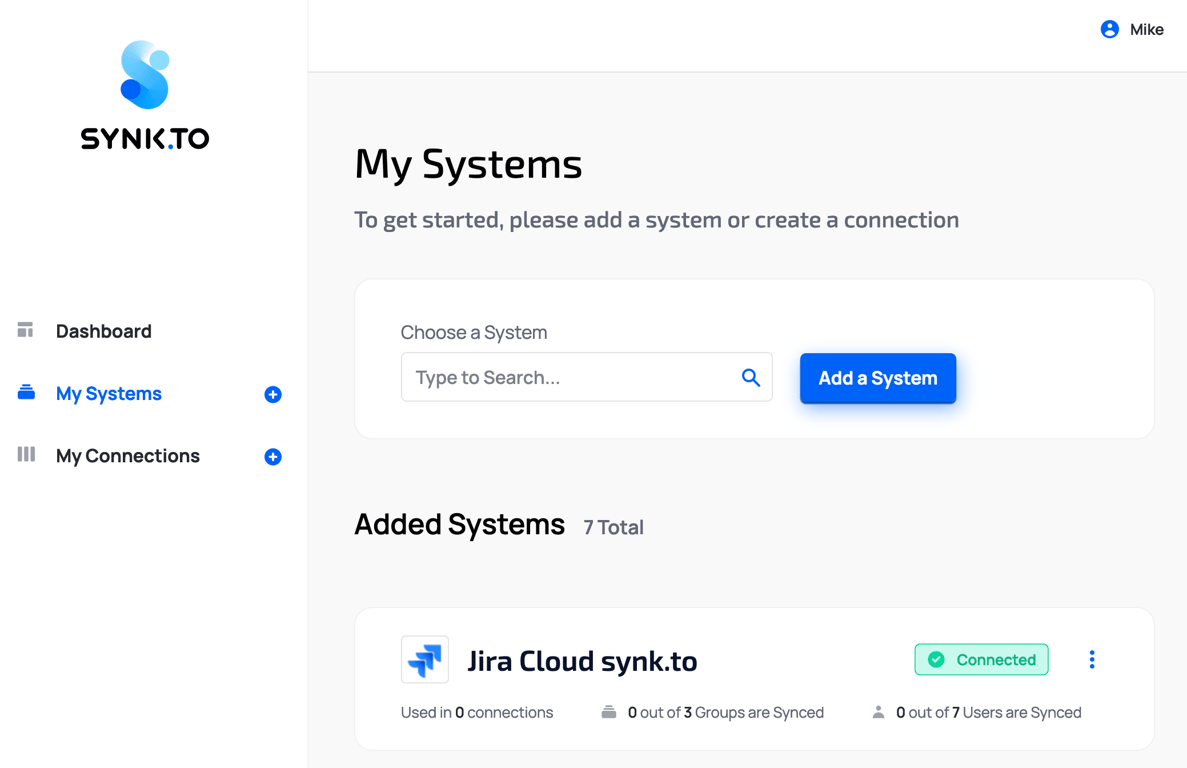
![]() 6. Click “**Save**” and you will see the system in My Systems list. Congrats!!! Now you can use it in “My Connections” section of Synk.to.
# Connect Slack to Synk.to
Source: https://docs.synk.to/connect/slack
Guide on connecting Slack to Synk.to
Prerequisites:
1. Slack Workspace Owner or Admin user account
2. Slack Business+ or Enterprise+ plan
## **Step 1**: Create Slack application for [Synk.to](https://synk.to)
1. Go to [https://api.slack.com/apps](https://api.slack.com/apps) using Slack Workspace Owner or Admin user account.
2. Click “**Create New App**” green button.
6. Click “**Save**” and you will see the system in My Systems list. Congrats!!! Now you can use it in “My Connections” section of Synk.to.

# Connect Slack to Synk.to
Source: https://docs.synk.to/connect/slack
Guide on connecting Slack to Synk.to
Prerequisites:
1. Slack Workspace Owner or Admin user account
2. Slack Business+ or Enterprise+ plan
## **Step 1**: Create Slack application for [Synk.to](https://synk.to)
1. Go to [https://api.slack.com/apps](https://api.slack.com/apps) using Slack Workspace Owner or Admin user account.
2. Click “**Create New App**” green button.
![Untitled]() 3. Choose “**From an app manifest**”.
3. Choose “**From an app manifest**”.
![]() 4. (optional - if you have access to multiple Slack Workspaces) Pick a target workspace you want to provide access to and click “**Next**”.
4. (optional - if you have access to multiple Slack Workspaces) Pick a target workspace you want to provide access to and click “**Next**”.
![]() 5. Copy the following JSON Slack application manifest, paste it into the JSON window, and click “**Next**” (please check “List of User Scopes” section for additional details below).
**Option 1 (RECOMMENDED)**. Provide **read\&write** **access** to users and groups.
```jsx theme={null}
{
"display_information": {
"name": "Synk.to APP RW"
},
"oauth_config": {
"redirect_urls": [
"https://app.synk.to/systems/auth/slack/callback"
],
"scopes": {
"user": [
"admin",
"groups:read",
"groups:write",
"users.profile:read",
"users.profile:write",
"users:read",
"users:read.email"
]
}
},
"settings": {
"org_deploy_enabled": false,
"socket_mode_enabled": false,
"token_rotation_enabled": true
}
}
```
**What will Synk.to app be able to view and do with Option 1 app?**
* View profile details about people in your workspace
* View information about your identity
* View user groups in your workspace
* View email addresses of people in your workspace
* View people in your workspace
* Edit your profile information and status
* Create and manage user groups
* Administer your workspace\
\
**Option 2**. Provide **read\&write** **access** to manage groups, and only **read access** to user management.
```jsx theme={null}
{
"display_information": {
"name": "Synk.to APP RO"
},
"oauth_config": {
"redirect_urls": [
"https://app.synk.to/systems/auth/slack/callback"
],
"scopes": {
"user": [
"groups:read",
"groups:write",
"users.profile:read",
"users:read",
"users:read.email"
]
}
},
"settings": {
"org_deploy_enabled": false,
"socket_mode_enabled": false,
"token_rotation_enabled": true
}
}
```
**What will Synk.to app be able to view and do with Option 2 app?**
* View profile details about people in your workspace
* View information about your identity
* View user groups in your workspace
* View email addresses of people in your workspace
* View people in your workspace
* View your profile information and status
* Create and manage user groups
5. Copy the following JSON Slack application manifest, paste it into the JSON window, and click “**Next**” (please check “List of User Scopes” section for additional details below).
**Option 1 (RECOMMENDED)**. Provide **read\&write** **access** to users and groups.
```jsx theme={null}
{
"display_information": {
"name": "Synk.to APP RW"
},
"oauth_config": {
"redirect_urls": [
"https://app.synk.to/systems/auth/slack/callback"
],
"scopes": {
"user": [
"admin",
"groups:read",
"groups:write",
"users.profile:read",
"users.profile:write",
"users:read",
"users:read.email"
]
}
},
"settings": {
"org_deploy_enabled": false,
"socket_mode_enabled": false,
"token_rotation_enabled": true
}
}
```
**What will Synk.to app be able to view and do with Option 1 app?**
* View profile details about people in your workspace
* View information about your identity
* View user groups in your workspace
* View email addresses of people in your workspace
* View people in your workspace
* Edit your profile information and status
* Create and manage user groups
* Administer your workspace\
\
**Option 2**. Provide **read\&write** **access** to manage groups, and only **read access** to user management.
```jsx theme={null}
{
"display_information": {
"name": "Synk.to APP RO"
},
"oauth_config": {
"redirect_urls": [
"https://app.synk.to/systems/auth/slack/callback"
],
"scopes": {
"user": [
"groups:read",
"groups:write",
"users.profile:read",
"users:read",
"users:read.email"
]
}
},
"settings": {
"org_deploy_enabled": false,
"socket_mode_enabled": false,
"token_rotation_enabled": true
}
}
```
**What will Synk.to app be able to view and do with Option 2 app?**
* View profile details about people in your workspace
* View information about your identity
* View user groups in your workspace
* View email addresses of people in your workspace
* View people in your workspace
* View your profile information and status
* Create and manage user groups
![]() 6. Click “**Create**”.
6. Click “**Create**”.
![]() 7. In the application window copy your “**Client ID**” and “**Client Secret**” in “**Basic Information**” → “**App Credentials**” section. You will need them for Synk.to connection.
7. In the application window copy your “**Client ID**” and “**Client Secret**” in “**Basic Information**” → “**App Credentials**” section. You will need them for Synk.to connection.
![Untitled]() ## **Step 2**: Connect Slack to Synk.to
1. Go to the [SynkTo Systems](https://app.synk.to/systems) page, click “Connect New System” button, and next click on Slack.
## **Step 2**: Connect Slack to Synk.to
1. Go to the [SynkTo Systems](https://app.synk.to/systems) page, click “Connect New System” button, and next click on Slack.
![Screenshot 2026 10 07 At 23 02 21]() 2. Provide “**Custom Name**” and “**Description**” to the system in order to remember it. It will be used in “Connections” section.
2. Provide “**Custom Name**” and “**Description**” to the system in order to remember it. It will be used in “Connections” section.
![Screenshot 2026 10 07 At 23 03 37]() 3. In “**Authentication settings**” provide your “**Client ID**” and “**Client Secret**” from Step 1 of the guide.
3. In “**Authentication settings**” provide your “**Client ID**” and “**Client Secret**” from Step 1 of the guide.
 4. Click “**Authenticate**”.
5. In a pop-up Slack window, click “**Allow**”.
4. Click “**Authenticate**”.
5. In a pop-up Slack window, click “**Allow**”.
![]() If everything is fine, you will see “**Authenticated**. **Your system is authenticated and ready to use**” green message.
6. Click “**Save Changes**” and click on "Systems" menu to the left. Congrats!!! Now you can use it in “Connections” section of [Synk.to](http://Synk.to).
### List of User Scopes required by Synk.to Slack app
1. [**admin**](https://api.slack.com/scopes/admin) (only for Option 1 extended access)
1. **Why do we need it?** New user account activation and deactivation.
2. [**groups: read**](https://api.slack.com/scopes/groups:read)
* **Why do we need it?** View basic information about user groups in your Slack Workspace.
* **Methods we use:**
* conversations.list
* users.conversations
3. [**groups: write**](https://api.slack.com/scopes/groups:write)
* **Why do we need it?** Manage user groups in your Slack Workspace.
* **Methods we use:**
* conversations.list
* users.conversations
4. [**users.profile: read**](https://api.slack.com/scopes/users.profile:read)
* **Why do we need it?** Read a user’s profile information and status.
* **Methods we use:**
* conversations.list
* users.conversations
5. [**users.profile: write**](https://api.slack.com/scopes/users.profile:write) (only for Option 1 extended access)
* **Why do we need it?** Edit a user’s profile information (eg. first and last names) and status.
* **Methods we use:**
* conversations.list
* users.conversations
6. [**users: read**](https://api.slack.com/scopes/users:read)
* **Why do we need it?** Get a user list to add them to the database.
* **Methods we use:**
* users.list
* **Events we use:**
* user.profile.changed
* team.join
7. [**users: read.email**](https://api.slack.com/scopes/users:read.email)
* **Why do we need it?** View user’s email.
* **Methods we use:**
* users.lookupByEmail
# Connect Zoom to Synk.to
Source: https://docs.synk.to/connect/zoom
Guide on connecting Zoom to Synk.to
Prerequisites:
1. Zoom Workspace Owner or Admin user account
## **Step 1**: Create Zoom application for Synk.to
1. Login to [https://zoom.us/signin](https://zoom.us/signin#/login) using Zoom Workspace Owner or Admin user account.
2. Go to [https://marketplace.zoom.us/develop/create](https://marketplace.zoom.us/develop/create) and click “**Create**” for **Server-to-Server OAuth** app.
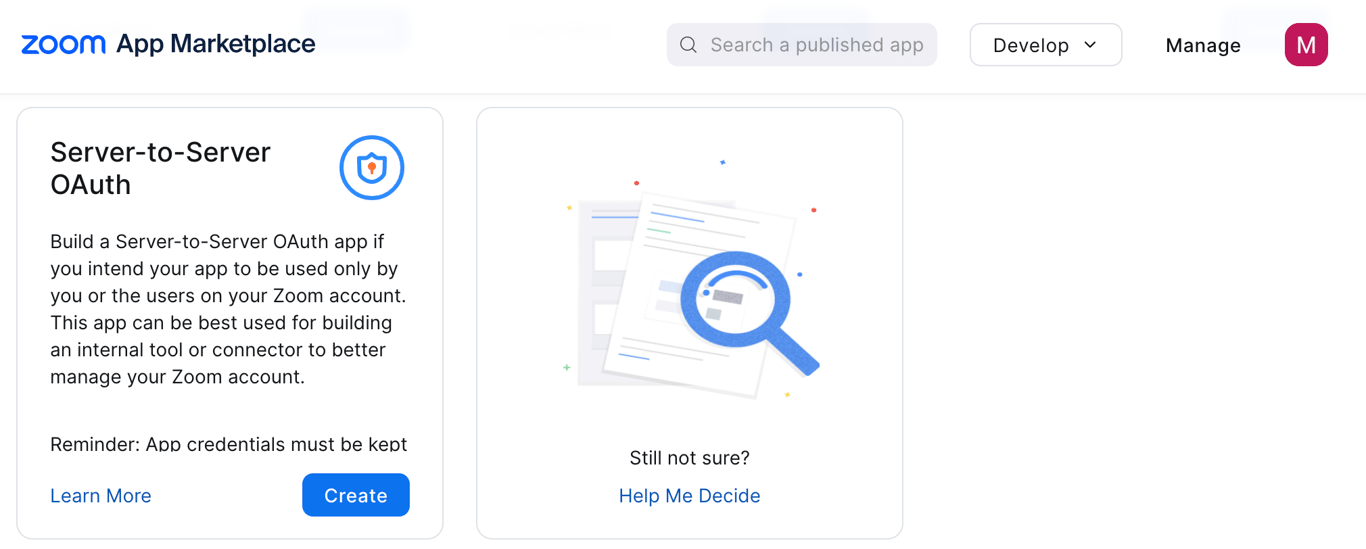
3. In “**Create a Server-to-Server OAuth app**” pop-up window type “Synk.to” as App Name.
If everything is fine, you will see “**Authenticated**. **Your system is authenticated and ready to use**” green message.
6. Click “**Save Changes**” and click on "Systems" menu to the left. Congrats!!! Now you can use it in “Connections” section of [Synk.to](http://Synk.to).
### List of User Scopes required by Synk.to Slack app
1. [**admin**](https://api.slack.com/scopes/admin) (only for Option 1 extended access)
1. **Why do we need it?** New user account activation and deactivation.
2. [**groups: read**](https://api.slack.com/scopes/groups:read)
* **Why do we need it?** View basic information about user groups in your Slack Workspace.
* **Methods we use:**
* conversations.list
* users.conversations
3. [**groups: write**](https://api.slack.com/scopes/groups:write)
* **Why do we need it?** Manage user groups in your Slack Workspace.
* **Methods we use:**
* conversations.list
* users.conversations
4. [**users.profile: read**](https://api.slack.com/scopes/users.profile:read)
* **Why do we need it?** Read a user’s profile information and status.
* **Methods we use:**
* conversations.list
* users.conversations
5. [**users.profile: write**](https://api.slack.com/scopes/users.profile:write) (only for Option 1 extended access)
* **Why do we need it?** Edit a user’s profile information (eg. first and last names) and status.
* **Methods we use:**
* conversations.list
* users.conversations
6. [**users: read**](https://api.slack.com/scopes/users:read)
* **Why do we need it?** Get a user list to add them to the database.
* **Methods we use:**
* users.list
* **Events we use:**
* user.profile.changed
* team.join
7. [**users: read.email**](https://api.slack.com/scopes/users:read.email)
* **Why do we need it?** View user’s email.
* **Methods we use:**
* users.lookupByEmail
# Connect Zoom to Synk.to
Source: https://docs.synk.to/connect/zoom
Guide on connecting Zoom to Synk.to
Prerequisites:
1. Zoom Workspace Owner or Admin user account
## **Step 1**: Create Zoom application for Synk.to
1. Login to [https://zoom.us/signin](https://zoom.us/signin#/login) using Zoom Workspace Owner or Admin user account.
2. Go to [https://marketplace.zoom.us/develop/create](https://marketplace.zoom.us/develop/create) and click “**Create**” for **Server-to-Server OAuth** app.

3. In “**Create a Server-to-Server OAuth app**” pop-up window type “Synk.to” as App Name.
![]() 4. In the “**App Credentials**” section copy your “**Account ID**”, “**Client ID**”, and “**Client Secret**”. You will need them for Synk.to connection.
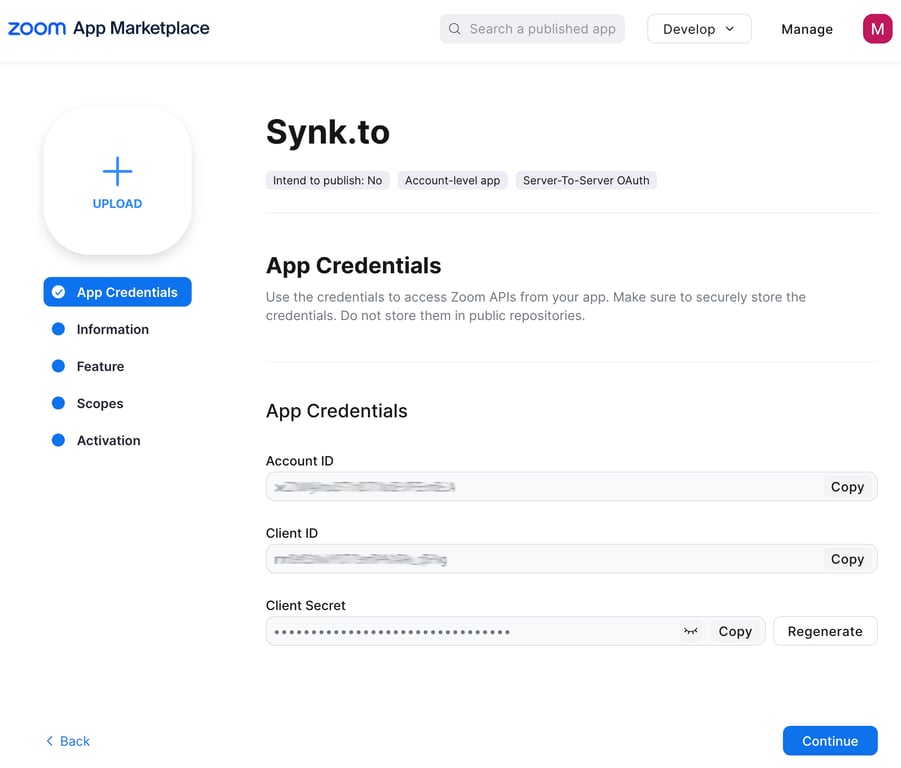
5. Click “**Continue**”.
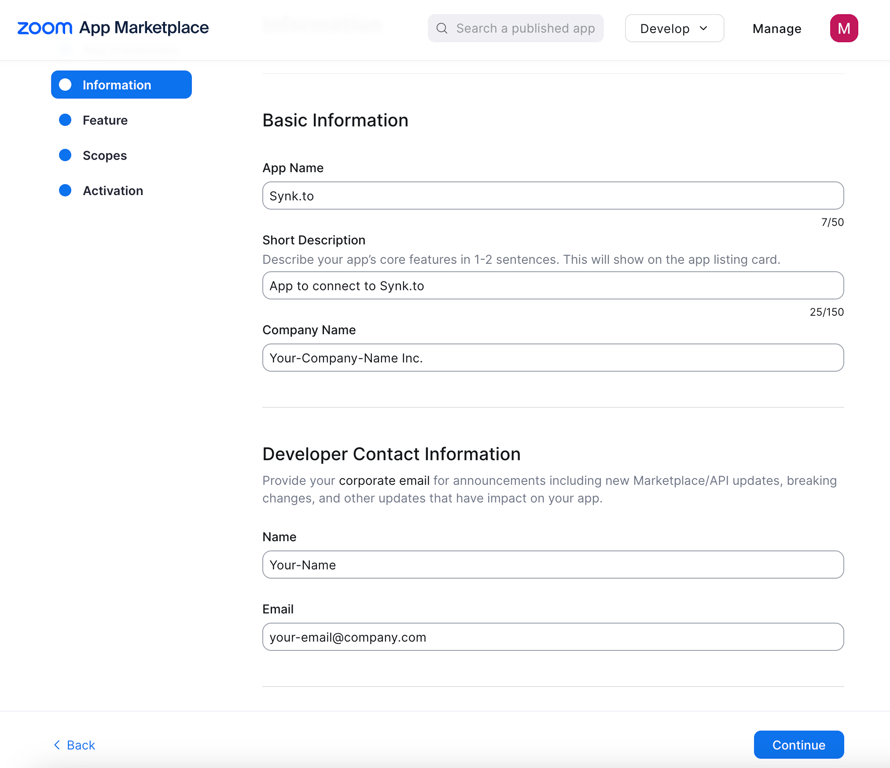
6. In the “**Information**” section fill in “Short Description”, “Company Name”, developer “Name” and developer “Email”.
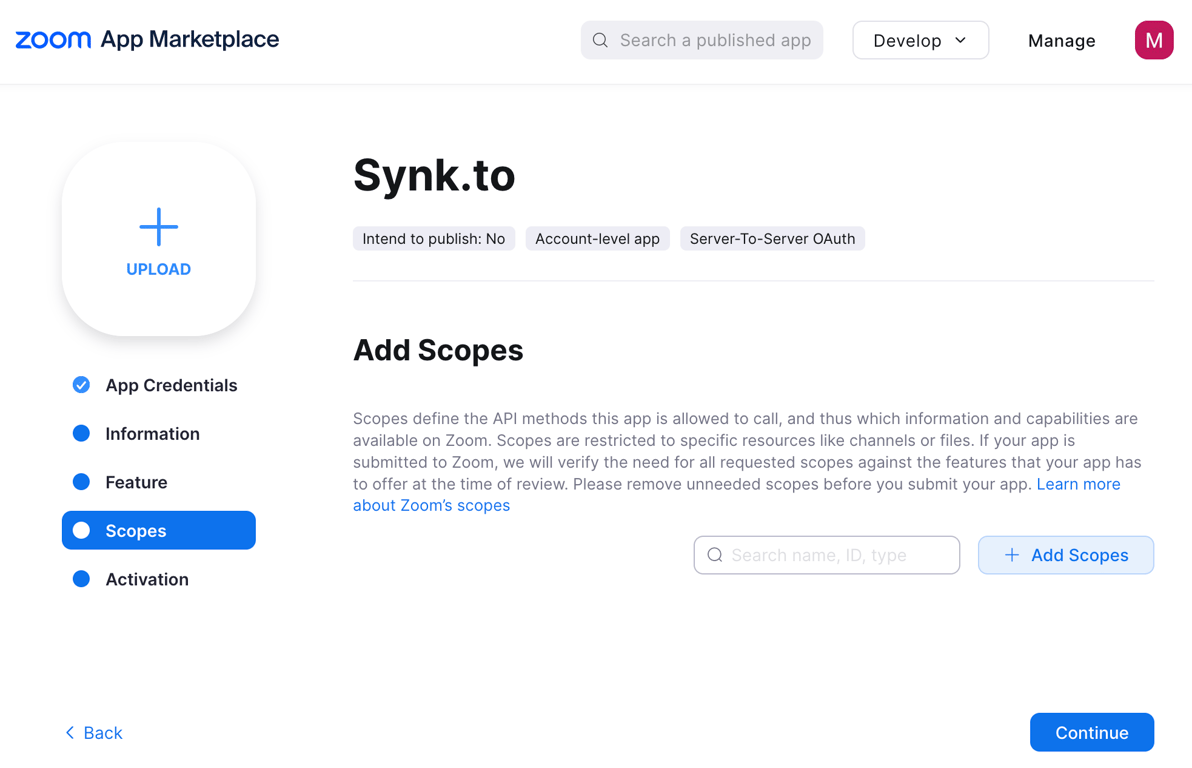
7. In the “**Scopes**” section click “**+Add Scopes**” button.
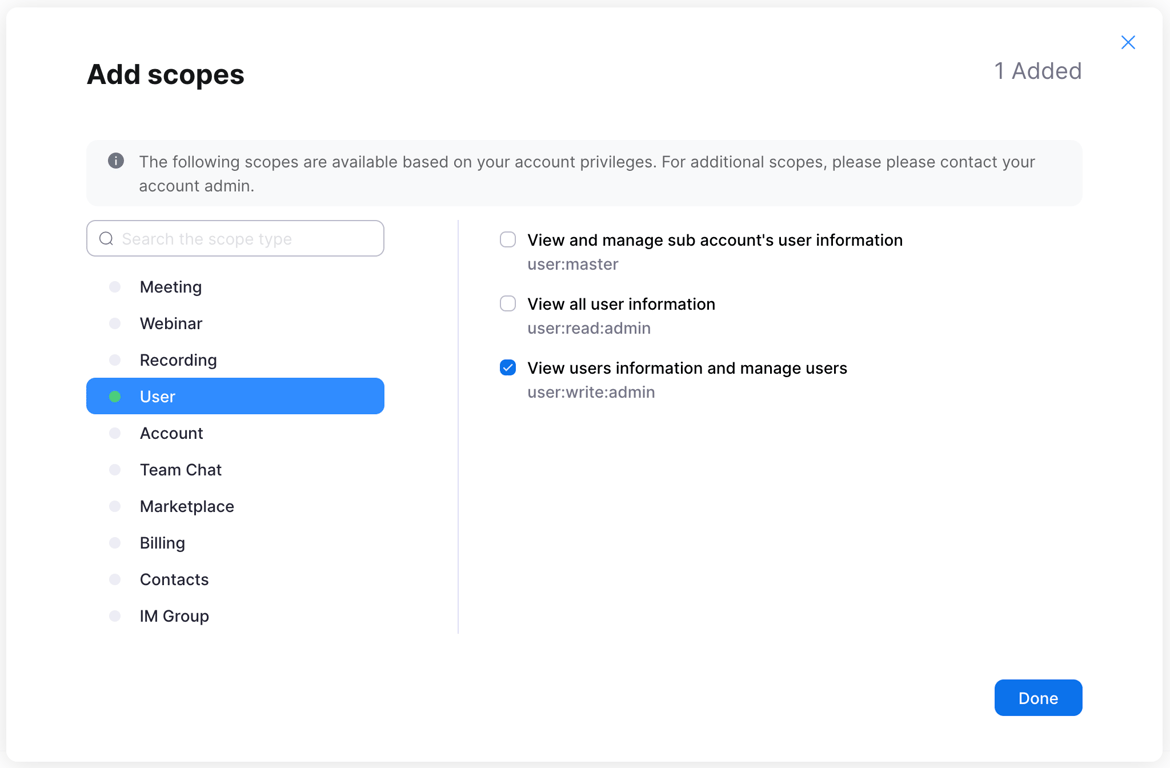
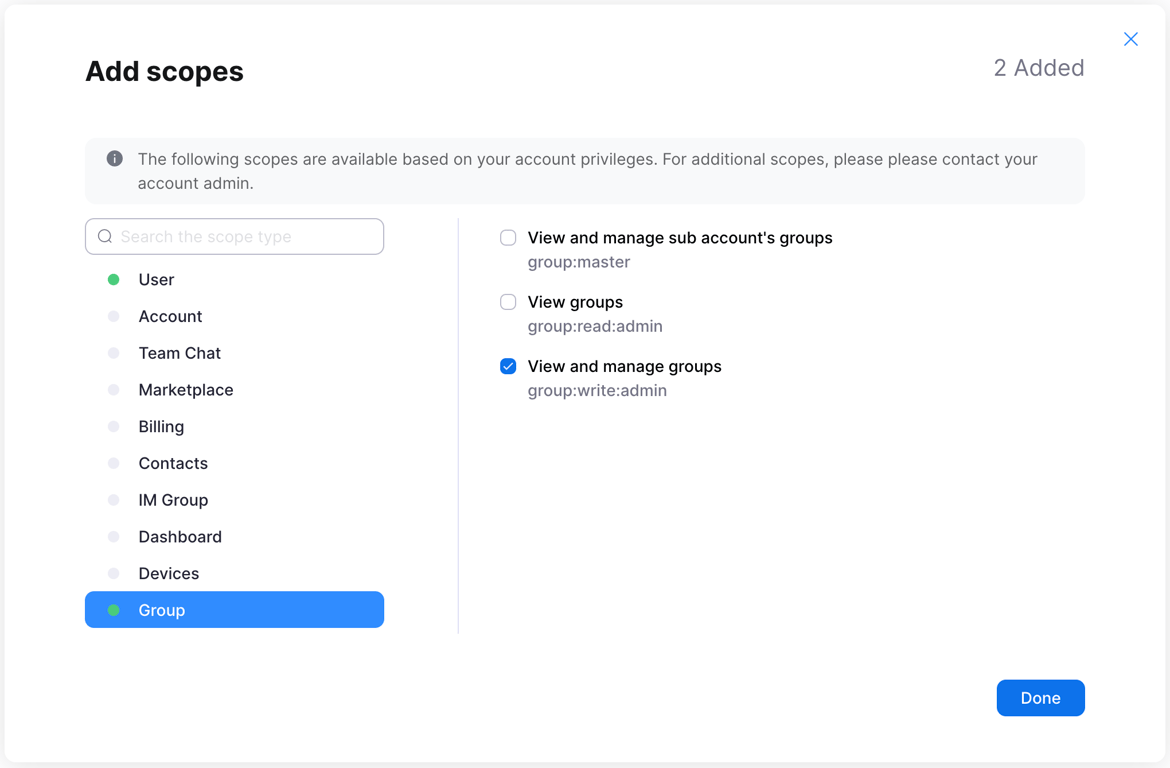
8. In “**Add scopes**” window click on “**User**” section and choose “**View users information and manage users**” first. After that click on “**Group**” section, choose “**View and manage groups**”, and click “**Done**”. Synk.to needs this permission to sync users and groups.
9. Click “**Continue**”.
10. In the last “**Activation**” section click “**Activate your app**” button.
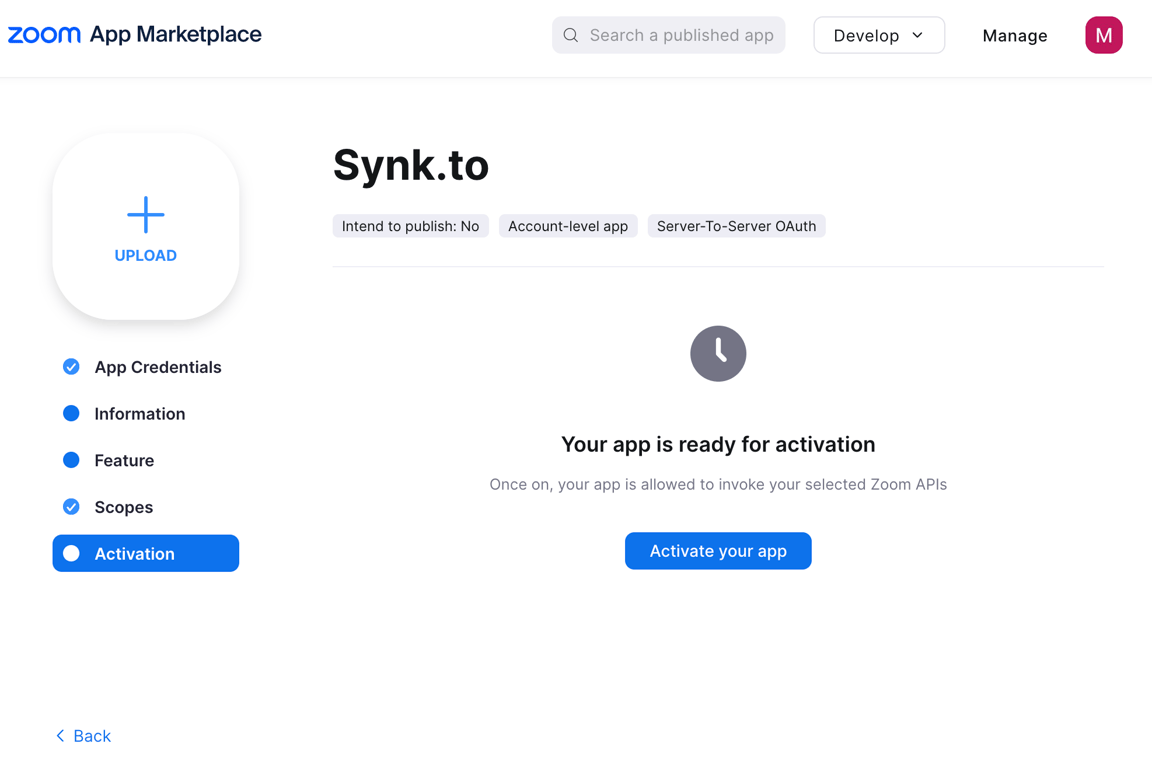
11. You should see “**Your app is activated on the account**” message after successful activation.
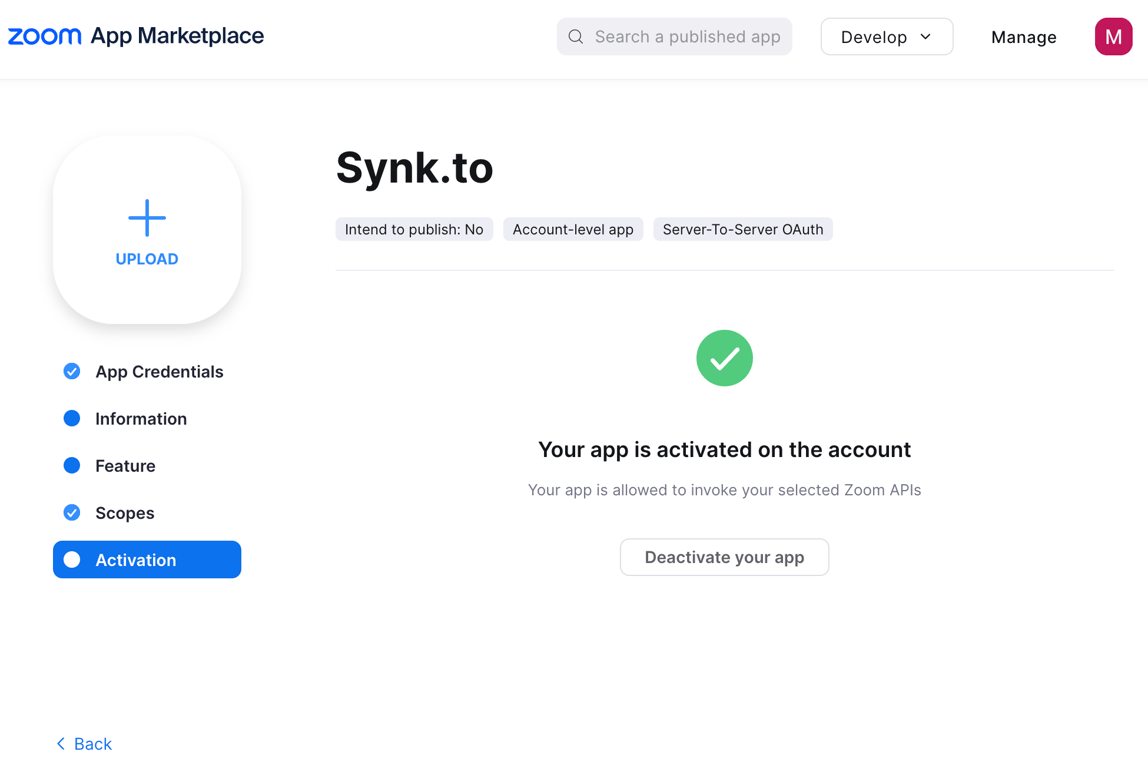
## **Step 2**: Connect Zoom to Synk.to
1. Go to the [SynkTo Systems](https://app.synk.to/systems) page, find Zoom in “Choose a System” field, and click “**Add a System**”.
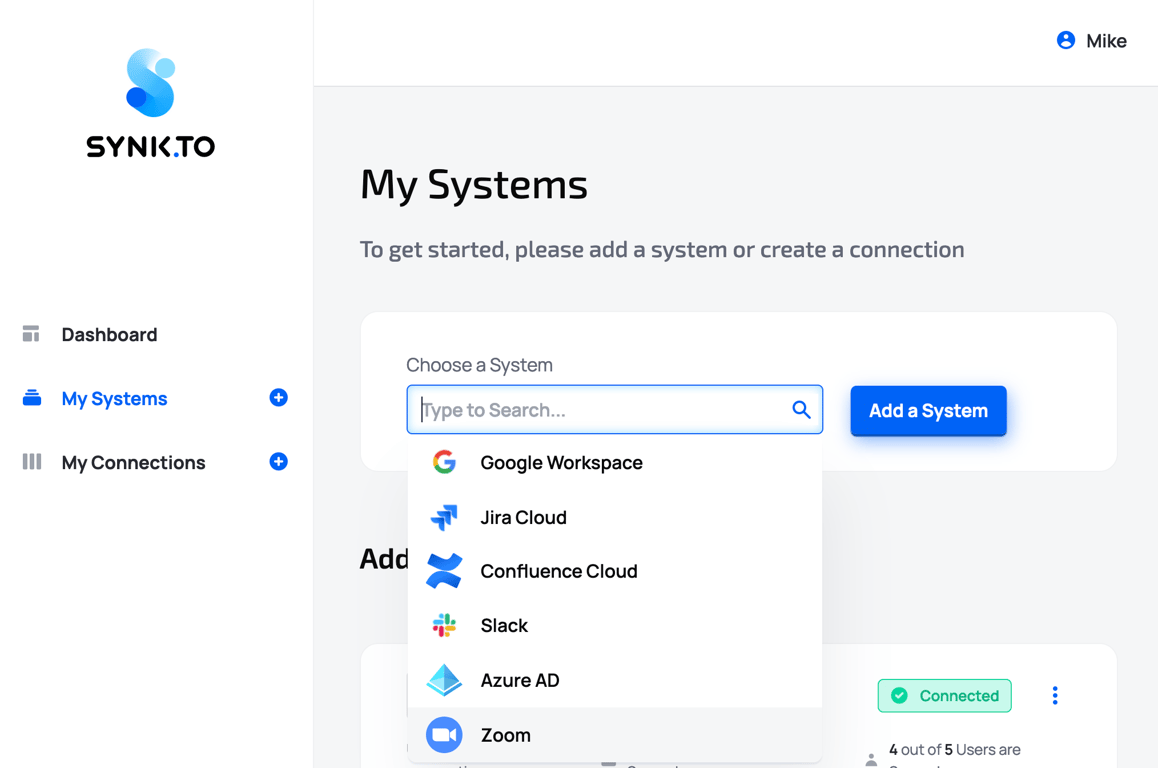
2. Provide “**Custom Name**” and “**Description**” to the system in order to remember it. It will be used in “My Connections” section.
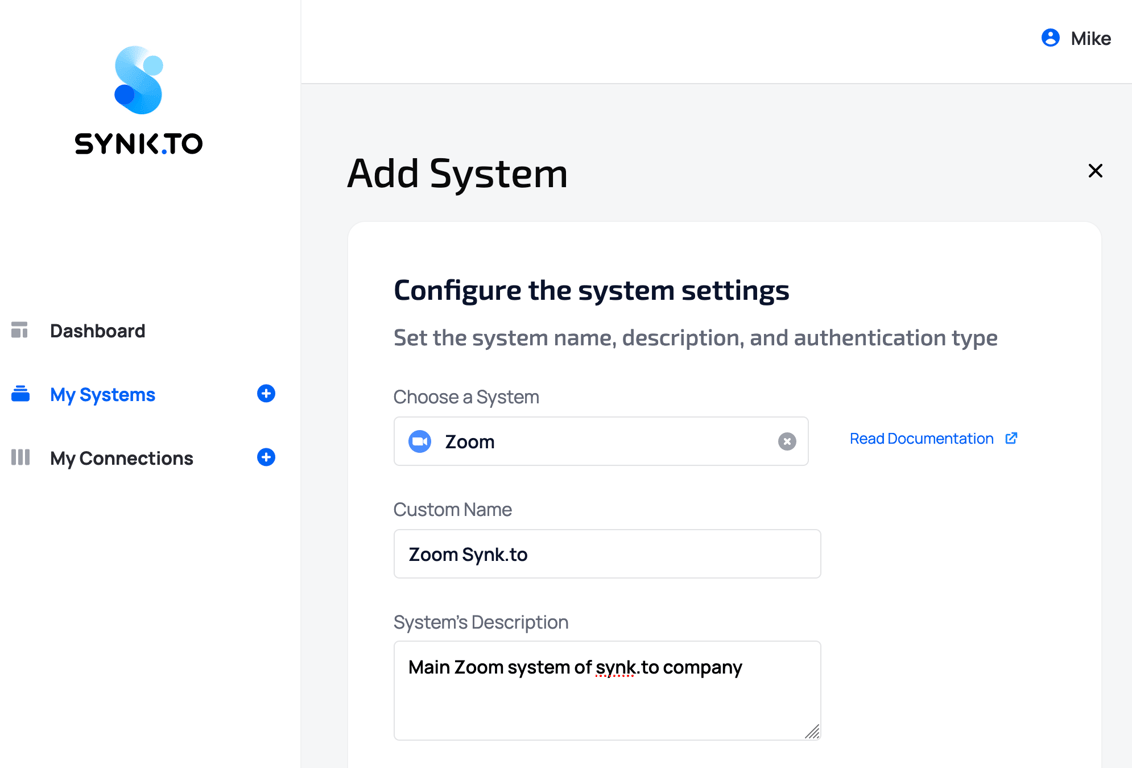
3. In “**Authentication settings**” provide your “**Account ID**”, “**Client ID**”, and “**Client Secret**” from the Step 1 of this instruction.
4. In the “**App Credentials**” section copy your “**Account ID**”, “**Client ID**”, and “**Client Secret**”. You will need them for Synk.to connection.

5. Click “**Continue**”.
6. In the “**Information**” section fill in “Short Description”, “Company Name”, developer “Name” and developer “Email”.

7. In the “**Scopes**” section click “**+Add Scopes**” button.

8. In “**Add scopes**” window click on “**User**” section and choose “**View users information and manage users**” first. After that click on “**Group**” section, choose “**View and manage groups**”, and click “**Done**”. Synk.to needs this permission to sync users and groups.


9. Click “**Continue**”.
10. In the last “**Activation**” section click “**Activate your app**” button.

11. You should see “**Your app is activated on the account**” message after successful activation.

## **Step 2**: Connect Zoom to Synk.to
1. Go to the [SynkTo Systems](https://app.synk.to/systems) page, find Zoom in “Choose a System” field, and click “**Add a System**”.

2. Provide “**Custom Name**” and “**Description**” to the system in order to remember it. It will be used in “My Connections” section.

3. In “**Authentication settings**” provide your “**Account ID**”, “**Client ID**”, and “**Client Secret**” from the Step 1 of this instruction.
![]() 4. Click “**Check connection**”.
5. If everything is fine, you will see “**Account Connected**” green mark and the number of system users and groups in the bottom.
4. Click “**Check connection**”.
5. If everything is fine, you will see “**Account Connected**” green mark and the number of system users and groups in the bottom.
![]() 6. Click “**Save**” and you will see the system in My Systems list. Congrats!!! Now you can use it in “**My Connections**” section of Synk.to.
# How to delegate Google Groups management
Source: https://docs.synk.to/getting-started/google-groups
Guide on delegating Google Groups management to internal teams
[Google Groups](https://groups.google.com/my-groups) is a powerful tool that allows organizations to manage communication, collaboration, and information sharing among team members, departments, or project groups. To effectively administer these groups, Google Workspace administrators can delegate Google Groups management to trusted Group Owners (eg. project managers, product team leaders). Delegating these responsibilities can streamline group management and empower group leaders to take ownership of their groups' settings and membership.
Simultaneously, using [Synk.to](https://synk.to/) platform you can connect these Google Groups to synchronize with dozens of your favorite SaaS systems (eg. Slack, Jira, Confluence, Zoom, etc.). So by delegation Google Workspace administrators will take off much of operational work of not only managing groups, but also managing access to internal business systems.
In this article, we'll explore the step-by-step process of delegating Google Groups management to Group Owners inside your organization.
## Why Delegate Google Groups Management?
Delegating Google Groups management has several advantages:
1. **Efficiency**: Delegating administrative tasks to Group Owners reduces the burden on IT or administrative teams, freeing up their time for more critical tasks.
2. **Empowerment**: Group Owners can make timely decisions related to group membership, permissions, and settings, aligning group management with specific group needs.
3. **Responsiveness**: Group Owners can quickly respond to membership requests, approve or deny requests, and manage group content without requiring central IT intervention.
4. **Streamlined Communication**: Empowering Group Owners fosters better communication within groups, as they can adjust settings and permissions to match their group's unique requirements.
5. **Accountability**: Group Owners will be accountable of their groups, ensuring that they remain active and relevant.
Now, let's dive into the steps to delegate Google Groups management to Group Owners.
## Step 1: Identify Trusted Group Owners
Before you can delegate management responsibilities, identify individuals within your organization who are responsible and trustworthy. Group Owners should be familiar with the group's purpose and willing to take on these additional responsibilities.
## Step 2: Assign Group Owners
1. Log in to your [Google Workspace admin console](https://admin.google.com).
2. Navigate to “**Directory**” → “**Groups**”.
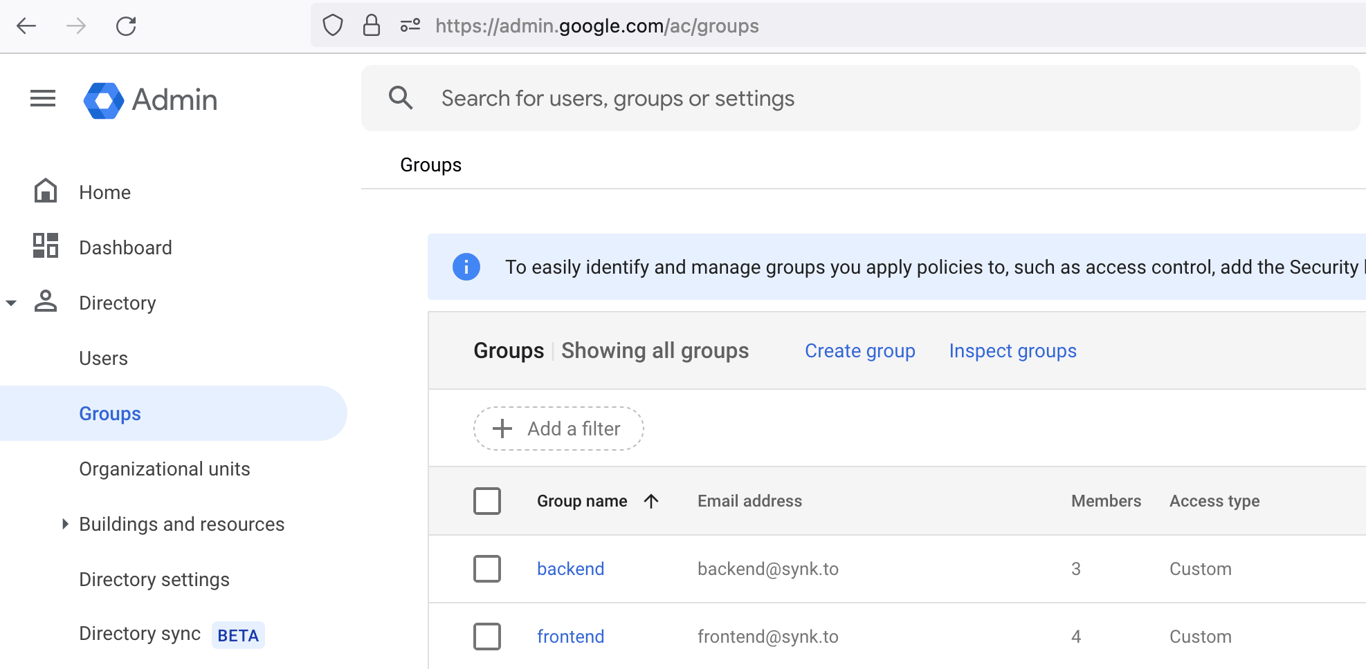
3. Click on the group for which you want to delegate management.
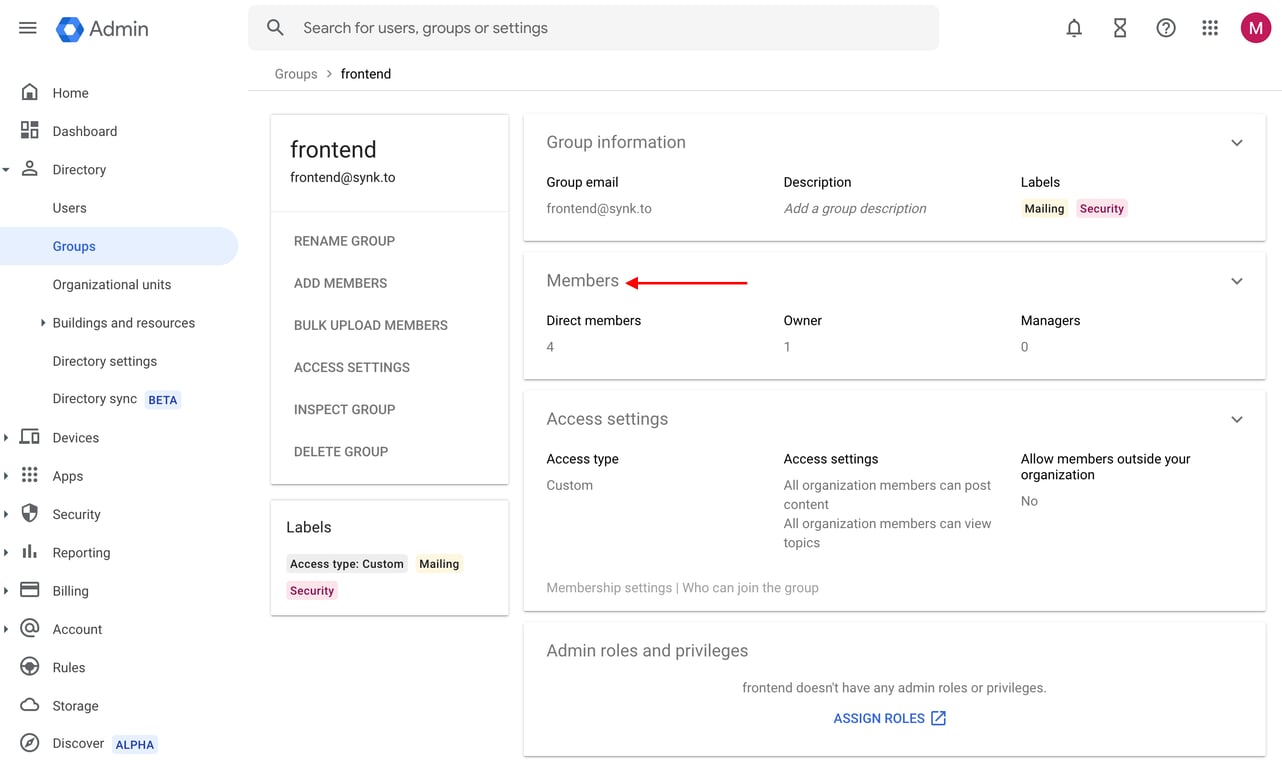
4. In the group, go to “**Members**” section.
5. In the “**Role**” column, choose account of the individuals you want to designate as Group Owners and set “**Owner**” role for them.
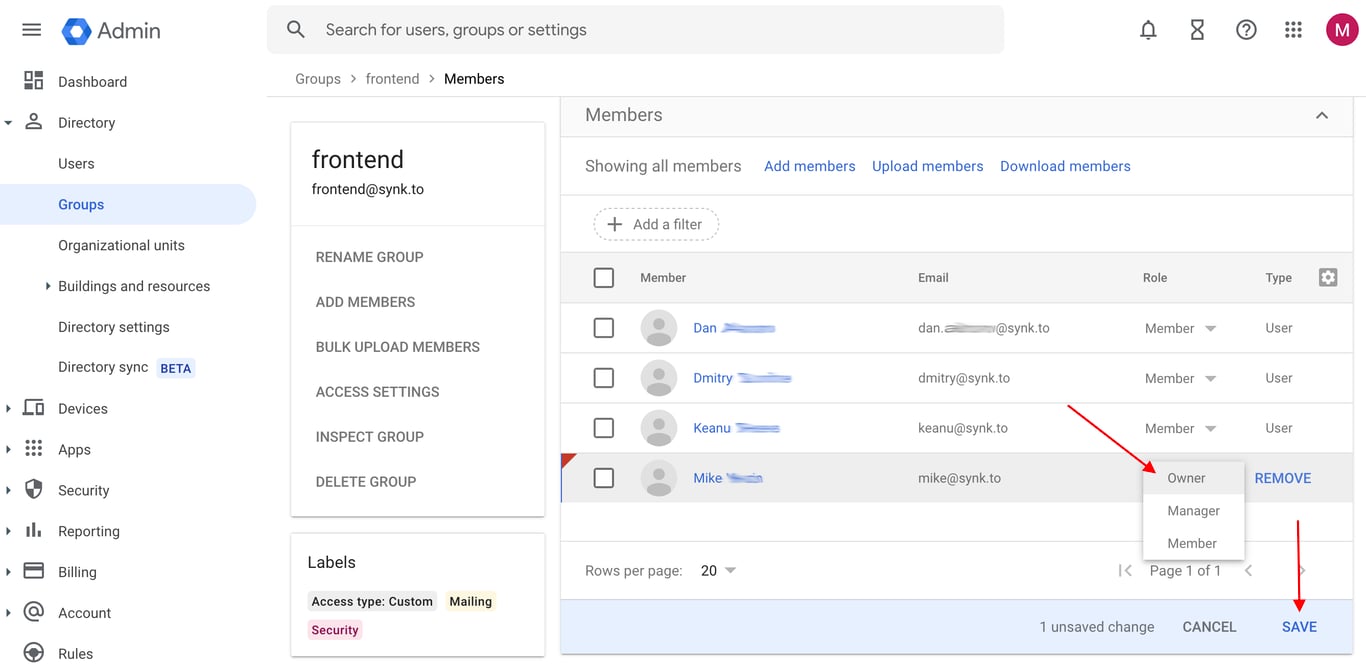
6. Click “**Save**”.
## Step 3: Communicate with Group Owners
Inform the newly assigned Group Owners about their responsibilities. Encourage open communication to address any questions they may have.
Now they can manage their Google Groups using [https://groups.google.com/my-groups](https://groups.google.com/my-groups) link.
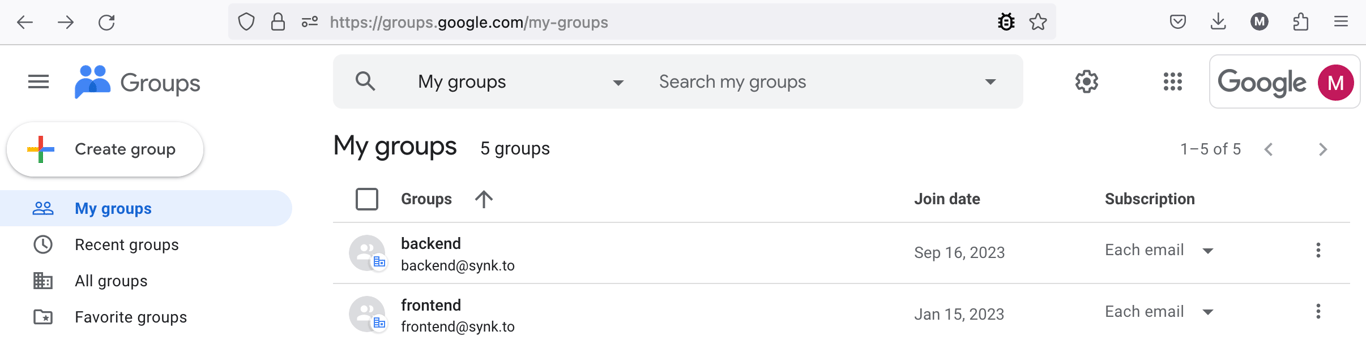
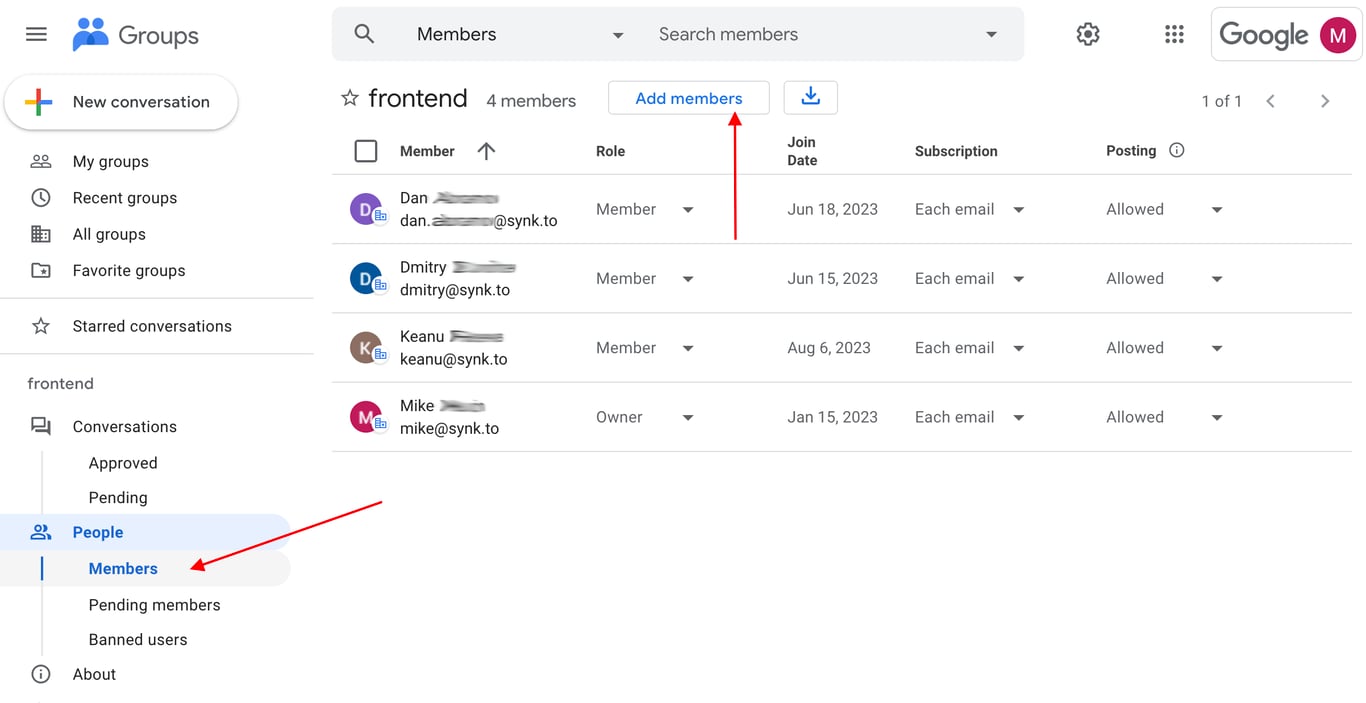
In order to add member of the group they need to click on the group, go to “**Members**” section in the left menu, click “**Add members**”, and type new member(s) emails in “**Group members**” field.
6. Click “**Save**” and you will see the system in My Systems list. Congrats!!! Now you can use it in “**My Connections**” section of Synk.to.

# How to delegate Google Groups management
Source: https://docs.synk.to/getting-started/google-groups
Guide on delegating Google Groups management to internal teams
[Google Groups](https://groups.google.com/my-groups) is a powerful tool that allows organizations to manage communication, collaboration, and information sharing among team members, departments, or project groups. To effectively administer these groups, Google Workspace administrators can delegate Google Groups management to trusted Group Owners (eg. project managers, product team leaders). Delegating these responsibilities can streamline group management and empower group leaders to take ownership of their groups' settings and membership.
Simultaneously, using [Synk.to](https://synk.to/) platform you can connect these Google Groups to synchronize with dozens of your favorite SaaS systems (eg. Slack, Jira, Confluence, Zoom, etc.). So by delegation Google Workspace administrators will take off much of operational work of not only managing groups, but also managing access to internal business systems.
In this article, we'll explore the step-by-step process of delegating Google Groups management to Group Owners inside your organization.
## Why Delegate Google Groups Management?
Delegating Google Groups management has several advantages:
1. **Efficiency**: Delegating administrative tasks to Group Owners reduces the burden on IT or administrative teams, freeing up their time for more critical tasks.
2. **Empowerment**: Group Owners can make timely decisions related to group membership, permissions, and settings, aligning group management with specific group needs.
3. **Responsiveness**: Group Owners can quickly respond to membership requests, approve or deny requests, and manage group content without requiring central IT intervention.
4. **Streamlined Communication**: Empowering Group Owners fosters better communication within groups, as they can adjust settings and permissions to match their group's unique requirements.
5. **Accountability**: Group Owners will be accountable of their groups, ensuring that they remain active and relevant.
Now, let's dive into the steps to delegate Google Groups management to Group Owners.
## Step 1: Identify Trusted Group Owners
Before you can delegate management responsibilities, identify individuals within your organization who are responsible and trustworthy. Group Owners should be familiar with the group's purpose and willing to take on these additional responsibilities.
## Step 2: Assign Group Owners
1. Log in to your [Google Workspace admin console](https://admin.google.com).
2. Navigate to “**Directory**” → “**Groups**”.

3. Click on the group for which you want to delegate management.
4. In the group, go to “**Members**” section.

5. In the “**Role**” column, choose account of the individuals you want to designate as Group Owners and set “**Owner**” role for them.

6. Click “**Save**”.
## Step 3: Communicate with Group Owners
Inform the newly assigned Group Owners about their responsibilities. Encourage open communication to address any questions they may have.
Now they can manage their Google Groups using [https://groups.google.com/my-groups](https://groups.google.com/my-groups) link.

In order to add member of the group they need to click on the group, go to “**Members**” section in the left menu, click “**Add members**”, and type new member(s) emails in “**Group members**” field.

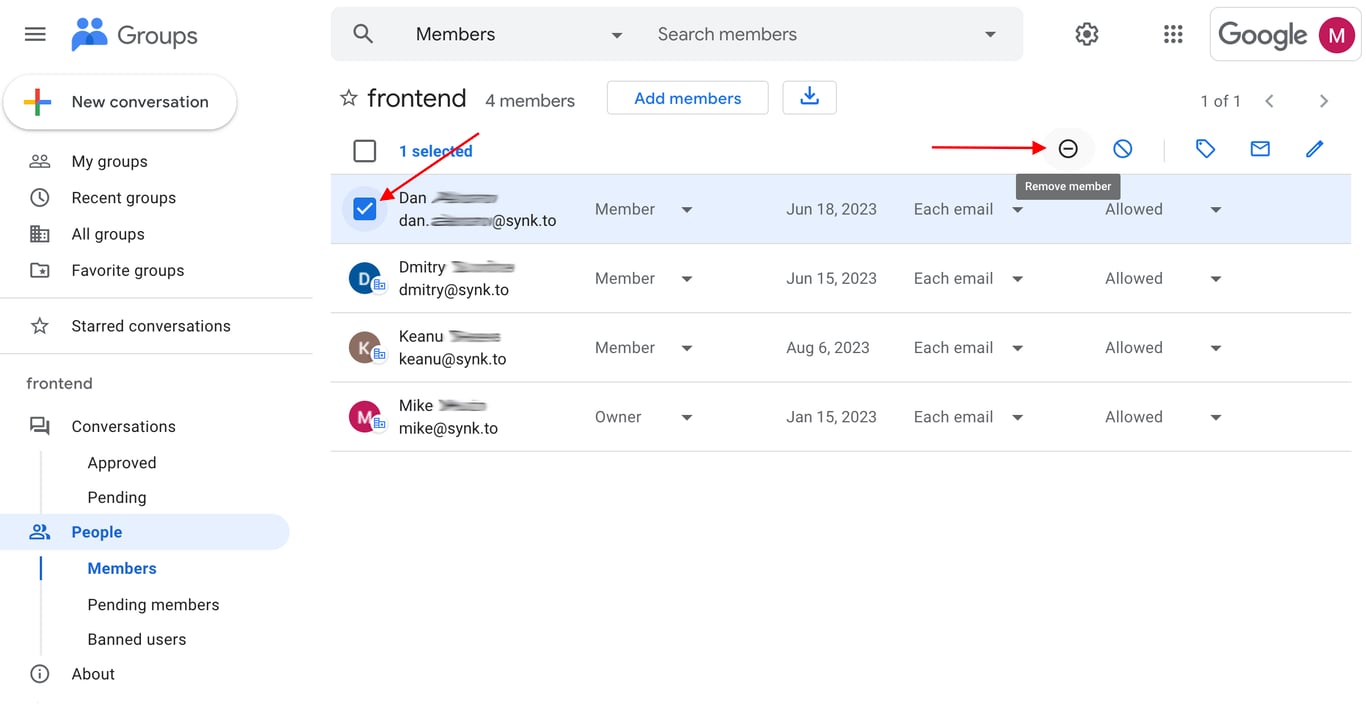
![]() In order to delete member from the group they need to choose the member and click on “**Remove member**” icon.
## Step 4: Setup Google Groups synchronization with other SaaS systems
With [Synk.to](https://synk.to/) platform you can connect Google Groups to other groups from dozens of your favourite SaaS systems (eg. Slack, EntraID, Microsoft 365, Jira, Confluence, Zoom, BambooHR, etc.).
1. Connect your Google Workspace to Synk.to using [this instruction](https://synk.to/docs/googlews/).
2. Connect your other SaaS tools to Synk.to and setup Groups mapping between Google Workspace and other SaaS tools:
1. [Sync Google Workspace and Slack](https://docs.synk.to/use-cases/gws-slack)
2. [Sync Google Workspace and Microsoft 365](https://docs.synk.to/use-cases/gws-ms-365)
3. [Sync Google Workspace and Entra ID](https://docs.synk.to/use-cases/gws-entra-id)
3. Enjoy the power of Synk.to automation during employee group change, on-boarding or termination.
## Conclusion
Delegating Google Groups management to Group Owners can streamline communication, enhance group ownership, and reduce the administrative burden on IT and cybersecurity teams. By following the steps outlined in this article, organizations can empower their Group Owners to take control of their groups, fostering better collaboration and communication within the organization.
# GWS OAuth Scope Risk
Source: https://docs.synk.to/getting-started/gws-oauth-scope-risk
How Synk.to discovers Google Workspace OAuth grants and classifies every OAuth scope into Critical, High, Medium, and Low risk tiers.
Every time an employee clicks **"Sign in with Google"** or **"Allow"** on a third-party app, they grant that app a set of **OAuth scopes** — permissions to act on their Google Workspace data. Some scopes only reveal an email address; others let an app read every email, send mail as the user, or manage every account in your domain.
Synk.to classifies each Google Workspace OAuth scope by how much damage it could do in the wrong hands, and uses that classification to rate every discovered app and grant.
## How Synk.to discovers OAuth grants
Synk.to reads OAuth activity from the **Google Workspace Admin SDK Reports API** — the same audit log you see under *Reporting → Audit and investigation → OAuth log events* in the Google Admin console. For this, Synk.to requests the read-only `admin.reports.audit.readonly` scope when you [connect Google Workspace](/connect/google-workspace).
* **History** — on first connection, Synk.to looks back **6 months**, then keeps discovery up to date continuously.
* **Events** — app authorizations and OAuth token requests are recorded as grants; revocations are shown in each app's OAuth activity.
* **Per grant** Synk.to records the app name, OAuth client ID, the user who granted access, the scopes granted, the Google products and APIs the app used, and the IP address.
Events are grouped into **discovered systems** (one per app) with the full set of scopes, the list of users who granted access, and first/last seen dates. Operating system and browser clients (Chrome, Safari, Firefox, Edge, iOS, Android, macOS, Windows) are excluded, since they are not third-party apps.
## Scope risk tiers
Each scope is assigned to one of the following tiers:
| Tier | What it means |
| - | - |
| Critical | Full control over a mailbox, all files, admin functions, or cloud infrastructure. A compromised app can exfiltrate or destroy data, impersonate users, or take over accounts. |
| High | Broad read access to sensitive data (all email, all files, the employee directory, audit logs), or write access that can be abused for phishing or persistence. |
| Medium | Metadata, read-only access to a narrower data set, or limited write access. Useful for reconnaissance, but not full data access. |
| Low | Sign-in and basic profile only, or UI integration with no data access. |
| Unknown | A scope Synk.to hasn't classified yet. |
### Example scopes by tier
| Scope | Label | Why it's risky |
| - | - | - |
| `https://mail.google.com/` | Full Gmail access | Complete IMAP/SMTP control — read, write, send, delete every email |
| `.../auth/gmail.send` | Send email as user | Can send any email appearing to come from the user; invisible to the user |
| `.../auth/drive` | Full Drive access | Read, write, and delete every file and folder the user can access |
| `.../auth/admin.directory.user` | Manage all domain users | Create, suspend, delete, and modify any user account in the organization |
| `.../auth/admin.directory.rolemanagement` | Assign admin roles | Grant Super Admin or any delegated admin role to any user |
| `.../auth/cloud-platform` | Full GCP access | Unrestricted access to all Google Cloud infrastructure, secrets, and IAM |
| Scope | Label | Why it's risky |
| - | - | - |
| `.../auth/gmail.readonly` | Read all email | Full mailbox content including body, attachments, and history |
| `.../auth/gmail.settings.sharing` | Set up email forwarding | Configure silent forwarding of all future email to an external address |
| `.../auth/drive.readonly` | Read all Drive files | Full read access to every file the user can see in Drive |
| `.../auth/calendar` | Full Calendar access | Read, create, edit, and delete all events including private ones |
| `.../auth/admin.directory.group` | Manage all groups | Add/remove members from any group, controlling access to shared resources |
| Scope | Label | Why it's risky |
| - | - | - |
| `.../auth/gmail.metadata` | Read email metadata | From/To/Subject/Date for every email without body content |
| `.../auth/calendar.readonly` | Read all calendar events | All event details including private events, attendees, and locations |
| `.../auth/contacts.readonly` | Read all contacts | Full address book read: names, emails, phones across all contacts |
| `.../auth/drive.metadata.readonly` | Read Drive file metadata | File names, folder structure, sharing settings — no file content |
| Scope | Label | Why it's risky |
| - | - | - |
| `openid` | Authentication only | Confirms identity via JWT; no profile information beyond a unique ID |
| `email` | Email address | Returns the user's primary email address only |
| `profile` | Basic profile | Display name and profile photo only |
| `.../auth/calendar.freebusy` | Free/busy status only | Whether a user is busy at a given time; no event details |
`.../auth/` stands for `https://www.googleapis.com/auth/`. Synk.to classifies close to 60 Google Workspace scopes across Gmail, Drive, Calendar, Contacts, Docs, Sheets, Slides, Forms, Chat, Tasks, Admin SDK, Google Analytics, Tag Manager, and Google Cloud. In the app, each scope is shown as a colored chip with its label — hover over it to see the full scope.
The scope classification is maintained by Synk.to and applies to all customers. If you think a scope is misclassified, or you see an important scope marked as Unknown, let us know at [support@synk.to](mailto:support@synk.to).
## How an app's risk is calculated
Risk is driven by the **most dangerous permission**, not by the number of permissions:
1. **Grant risk** — each user's grant takes the **highest** tier among its scopes. A grant with `openid`, `email`, and `gmail.send` is Critical, because a single Critical scope is enough to cause a Critical incident. Unknown scopes never raise a grant above its known scopes.
2. **App scope risk** — a discovered app takes the highest tier across all of its users' grants. If one user granted an app full Drive access, the app is rated for full Drive access.
3. **Final risk** — the app's scope risk is combined with the [vendor risk](/getting-started/vendor-risk-assessment) of the company behind it, and the **higher of the two wins**. A Low-scope app built by a Critical-risk vendor is Critical; a Critical-scope app from a Very Low-risk vendor is still Critical.
Hover over any **Risk** badge on the Systems or Discovered systems page to see the breakdown: **Vendor**, **OAuth scopes**, and **Final**. Use the **OAuth risk** and **Vendor risk** filters to narrow the list by either dimension.
## Alerts and weekly digest
Scope risk also drives Synk.to's notifications:
* **Alerts** — two alert rules are enabled by default with a **High or above** threshold, which you can change on the Alerts page:
* **New risky system discovered** — a new app appears whose scopes meet the threshold.
* **New user provided risky scope** — a user grants an existing app scopes they didn't hold before, and those scopes meet the threshold.
* **Weekly digest** — the *Risky authorization activity* sections list every new authorization in the past week that includes at least one High or Critical scope, split into:
* apps that have an owner or come from a lower-risk vendor, and
* apps from **unknown or high-risk vendors** — the ones to review first.
Synk.to surfaces risky grants but doesn't revoke them. To remove an app's access, go to *Security → Access and data control → API controls → Manage third-party app access* in the Google Admin console, where you can block the app or revoke its tokens.
# How it works
Source: https://docs.synk.to/getting-started/how-it-works
Synk.to is a SaaS-first identity governance (IGA) platform: detect Shadow IT and Shadow AI, run continuous SaaS access reviews, and keep users and groups in sync — without Enterprise SCIM plans.
**Synk.to** is a cloud-first **identity governance and administration (IGA)** platform built for how companies actually run today: dozens of SaaS apps, most without SSO or SCIM, many connected to each other through OAuth grants nobody signed off on.
Synk.to gives you three things traditional, on-prem-first IGA tools were never designed for:
* **Shadow IT & Shadow AI detection** — surface every third-party app, OAuth grant, and AI tool connected to your core systems, sanctioned or not.
* **OAuth risky vendors detection** — match every discovered OAuth grant against a database of 3,000+ vendors and score the vendor itself, not just the app.
* **SaaS access reviews** — a continuous, always-current view of who has access to what, so certifications stop being a spreadsheet fire drill.
* **Cross-system sync** — automatically enforce the access decisions you make, replicating users and groups across your SaaS stack in real time.

## Why SaaS needs a different kind of IGA
Modern organizations run an average of 110 SaaS applications, and companies estimate that roughly 70% of the business apps they use today are SaaS (per [Statista](https://www.statista.com/statistics/1233538/average-number-saas-apps-yearly/)). Most of those apps were never chosen by IT — they were signed up for with a company email and an OAuth click.
Legacy IGA platforms (SailPoint, Saviynt, and similar) were built for on-prem directories and enterprise SSO/SCIM integrations. That model breaks down for SaaS sprawl for two reasons:
1. **Visibility gaps.** If an app isn't connected to your IdP, it's invisible to traditional IGA — that's exactly where Shadow IT and Shadow AI live.
2. **Cost.** Native user/group sync (SCIM) is usually locked behind Enterprise-tier SaaS plans that [cost 2.5x more](https://sso.tax/) on average than Pro/Team plans.
Synk.to closes both gaps: it discovers what's actually connected using the Admin APIs every SaaS plan already exposes, and it governs and enforces access without requiring you to upgrade every tool in your stack to Enterprise.
## Shadow IT & Shadow AI detection
You can't govern access to an app you don't know exists. Synk.to uses the Admin API access you already grant it on systems like Google Workspace, Microsoft Entra ID, and Microsoft 365 to enumerate:
* **Every third-party OAuth grant** connected to your core identity providers — not just the apps IT provisioned.
* **AI tools and agents** employees have authorized with company credentials, including copilots, browser extensions, and autonomous agents with standing OAuth access to email, drive, or chat data.
* **Self-issued integrations** such as Google Apps Script projects, which function as OAuth apps employees create for themselves and that rarely show up in a standard app inventory.
Because this detection runs on your identity providers rather than endpoint agents, there's nothing to install on employee devices — Synk.to sees what's connected the moment it has read access to Google Workspace, Entra ID, or Microsoft 365.
Every discovered app and OAuth grant is scored for risk based on the most sensitive [OAuth scope](/getting-started/gws-oauth-scope-risk) it holds, so security and IT teams can triage what actually matters instead of chasing every connected integration.
## OAuth risky vendors detection
Knowing an app is connected isn't the same as knowing whether the company behind it can be trusted with your data. Synk.to matches every discovered OAuth grant against a database of **3,000+ vendors**, using stable OAuth client/app IDs — and vendor or product name matching as a fallback — to resolve a discovered app to the company that built it.
Each vendor record carries:
* **Company details** — site, employee size, country, founding year, public/private status, and funding stage.
* **Compliance & trust posture** — certifications (SOC 2, ISO 27001/27701/42001, FedRAMP, HIPAA, PCI DSS, CSA STAR, HITRUST), privacy policy, DPA, trust center, bug bounty, status page, SLA uptime, data residency, and SSO/SAML or SCIM support.
* **Products & OAuth apps** — every product a vendor ships, each with its own catalog of OAuth client/app IDs, so a discovered grant resolves to the exact product, not just the parent company.
Synk.to computes a **vendor risk score** from a weighted formula covering compliance posture, operational stability, and the vendor's jurisdiction (mapped to a low/medium/high-risk geography tier). Hard gates apply on top for edge cases — a public company with SOC 2 and ISO 27001 at hyperscaler size caps out as low risk, while a small vendor with no compliance certifications in a high-risk jurisdiction is forced to Critical. The result is a five-tier rating from **Very Low to Critical**, so every OAuth-connected vendor — not just the sanctioned ones — gets a risk rating you can act on.
How vendors are categorized and what data we gather on each.
How Google Workspace OAuth scopes are classified by criticality.
How vendors are rated from Very Low to Critical.
## SaaS access reviews
Discovery tells you what's connected. Access reviews tell you whether the access it holds is still appropriate — the core question of identity governance: *should this access exist at all?*
Synk.to turns access reviews from a periodic, manual export-and-compare exercise into a continuous process:
* **Centralized visibility** into user and group entitlements across every connected SaaS system, in one table.
* **Drift and risk detection** — over-privileged users, orphaned accounts, and admin rights left behind by former contractors or employees.
* **Audit-ready reporting** for SOC 2, ISO 27001, HIPAA, and similar frameworks, without stitching together spreadsheets from each app.
* **License rationalization** by surfacing accounts and seats nobody is using anymore.
Read the full breakdown of how Synk.to elevates access reviews for SaaS-heavy organizations.
## Getting started
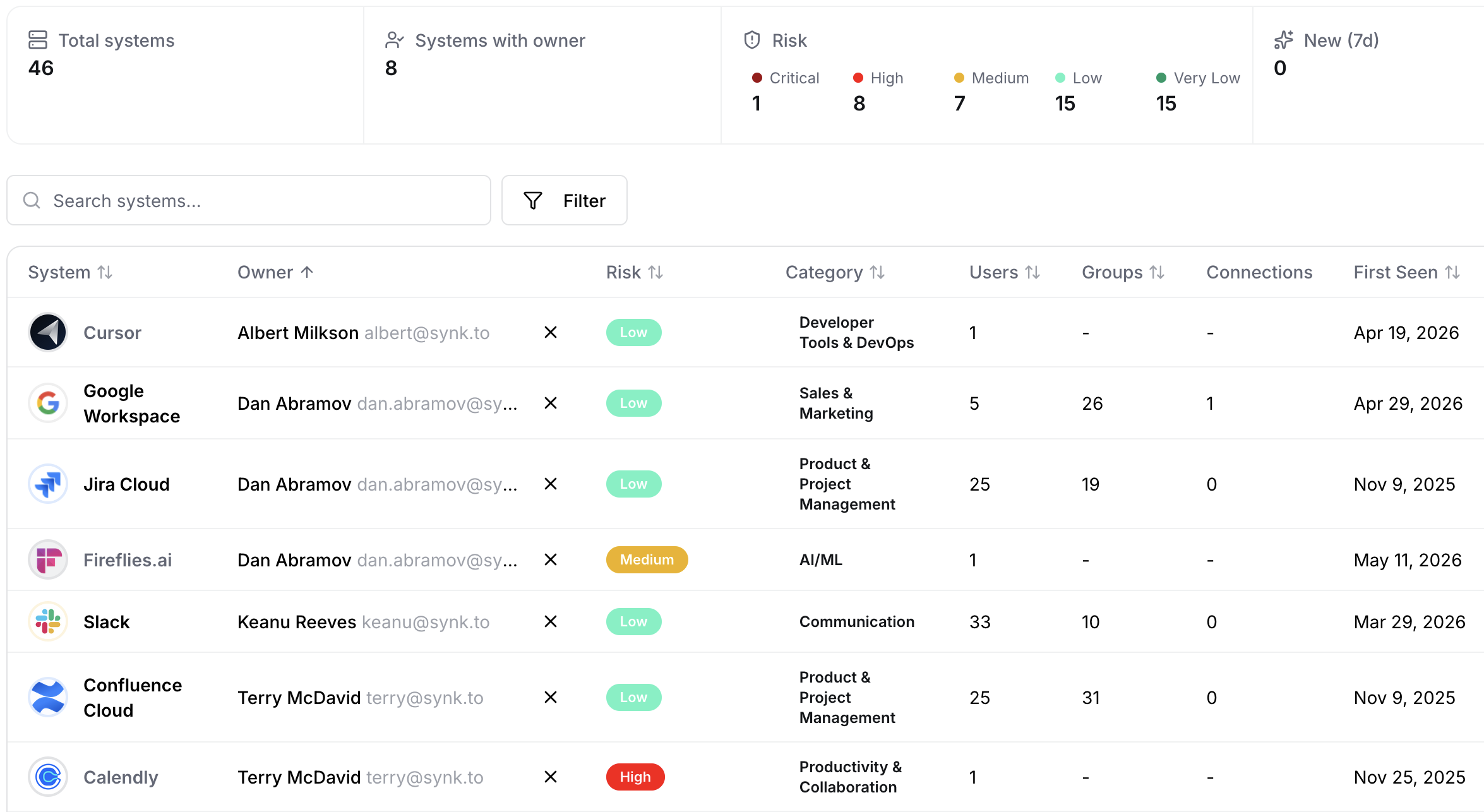
To start using Synk.to, you need to connect Google Workspace or Entra ID — your core identity provider is what powers Shadow IT/Shadow AI detection, access reviews, and sync:
* [Connect Google Workspace](/connect/google-workspace)
* [Connect Entra ID](/connect/entraid)
To get started, Synk.to only needs **read-only** permissions on your identity provider — enough to power Shadow IT/Shadow AI detection and access reviews while keeping exposure and risk to a minimum. Read-write access is only needed later, if you want Synk.to to enforce access changes automatically.
## From findings to enforcement: how Synk.to connects to your systems
Detection and reviews surface what needs to change. Synk.to's sync engine is what actually closes the loop — enforcing access decisions across your stack instead of leaving them as a report.
**Synk.to** connects to each SaaS system using its regular Admin API — the same API used for detection — which typically manages users and groups without requiring an Enterprise plan.
To connect a system, you provide a limited API key or OAuth access, at one of two levels:
* **Read-write access to groups, read-only access to users.** Synk.to can keep group membership in sync across systems, but won't create, suspend, or delete user accounts.
* **Read-write access to both groups and users** *(recommended)*. This unlocks the full platform — Synk.to can automatically provision new users across your SaaS stack, deprovision or suspend users who leave, and keep user info updated as it changes.
If you have any questions left, please check our [FAQ](https://docs.synk.to/other/faq) or send them to [support@synk.to](mailto:support@synk.to).
# SaaS Vendor Categories
Source: https://docs.synk.to/getting-started/saas-vendor-categories
How Synk.to categorizes SaaS vendors into sectors and tags, and which company, compliance, and security data it gathers on every vendor in its catalog.
Every OAuth app Synk.to discovers in your environment is resolved to the **vendor** behind it — the company that built the app and will hold your data. Synk.to maintains a catalog of **3,000+ SaaS vendors**, each with a normalized category and a profile covering company details, compliance posture, and security controls.
This page explains how vendors are categorized and what information Synk.to gathers on each of them. For how that information turns into a risk rating, see [Vendor Risk Assessment Methodology](/getting-started/vendor-risk-assessment).
## How a discovered app is matched to a vendor
When Synk.to discovers an OAuth app, it resolves it to a catalog vendor in the following order:
1. **Known system** — if the app is a system already in the Synk.to catalog, the vendor of that system is used.
2. **OAuth client ID** — the app's OAuth client ID is matched against the OAuth app IDs recorded for each vendor's products. This is the most reliable match, since client IDs are stable even when an app is renamed.
3. **Name** — as a fallback, the app name is matched against vendor and product names.
If no vendor can be matched, the app is still listed and scored on its OAuth scopes — see [GWS OAuth Scope Risk](/getting-started/gws-oauth-scope-risk).
## Vendor categories
Vendors describe themselves in thousands of different ways ("AI", "Artificial Intelligence", "Generative AI", "Enterprise AI"…). To make the catalog filterable, Synk.to normalizes these free-form descriptions into a two-level controlled taxonomy:
* **Primary category** — exactly one broad **sector** per vendor (for example, *Security & Compliance*). This is what you see in the **Category** column and filter.
* **Categories (tags)** — one or more specific **tags** from a controlled vocabulary of about 100 tags (for example, *IAM*, *Security*). Each tag belongs to exactly one sector.
When a vendor spans several sectors, its primary category is picked by sector priority — more specific sectors (such as *AI/ML*, *Security & Compliance*, *Finance & Accounting*) win over horizontal ones (such as *Productivity & Collaboration*). For example, Stripe carries the tags *Payments*, *FinTech*, and *Dev Tools*, and its primary category is *Finance & Accounting*.
### Sectors and example tags
| Sector | Example tags |
| - | - |
| AI/ML | GenAI, Chatbots, AI Agents, Voice AI, Computer Vision, MLOps, AI Search |
| Security & Compliance | Security, IAM, GRC, Privacy, Threat Intel, Cloud Security, Fraud |
| Healthcare | Healthcare, Digital Health |
| Legal | Legal, Contracts |
| Finance & Accounting | Accounting, Payments, FinTech, Billing, Expenses, ERP |
| HR & Recruiting | HR, Recruiting, Payroll, Engagement, Performance |
| E-commerce & Retail | E-commerce, Retail, Marketplace |
| Logistics & Supply Chain | Logistics, Fleet, Procurement |
| Education | EdTech, L\&D |
| Sales & Marketing | CRM, Marketing, Sales, SEO, AdTech, Email, RevOps, Lead Gen, Loyalty |
| Customer Support & Success | Support, Customer Success, Contact Center, CX |
| Design & Creative | Design, Creative, Video |
| Vertical/Industry-Specific | PropTech, InsurTech, Manufacturing, Construction, Travel, GovTech, Nonprofit |
| Consumer & Media | Consumer, Media, Gaming, Music, Social Media, Creator |
| Data & Analytics | Analytics, BI, ETL, Data Platform, Product Analytics, Geospatial |
| Developer Tools & DevOps | Dev Tools, DevOps, Observability, APIs, Low-Code, QA |
| Product & Project Management | Project Mgmt, Product, Automation |
| IT & Cloud Infrastructure | Cloud, IT, Networking, Database, IoT |
| Communication | Communication, Conferencing |
| Productivity & Collaboration | Productivity, Collaboration, Documents, Knowledge, Scheduling, Localization |
| Business Software/Other | SaaS |
Use the **Category** filter on the Systems and Discovered systems pages to answer questions like "which AI tools are connected to our Google Workspace?" or "which HR vendors hold employee data?".
## Information gathered on each vendor
Each vendor record is built from public sources — the vendor's website, trust center, security and legal pages, and company databases. It is grouped into four areas.
* **Description** — what the company and its products do
* **Primary category** and **other categories**
* **Website**
* **Founded** — founding year
* **Country** — headquarters country, used for the jurisdiction tier
* **Employees** — employee size range
* **Ownership** — public, private, or acquired
* **Products** — the products the vendor ships, each with its own OAuth app IDs
* **Investment stage** and **total funding**
* **Certifications** — SOC 2 (with report type), ISO 27001, ISO 27701, ISO 42001, FedRAMP (with impact level), HIPAA, PCI DSS, CSA STAR, HITRUST, and other listed frameworks
* **Privacy policy**
* **Data Processing Agreement (DPA)**
* **Trust center**
* **Subprocessor list**
* **Status page**
* **Bug bounty** page
* **Data residency** options
* **SSO / SAML** support
* **SCIM** provisioning support
* **SSO tier** — which plan SSO is available on
* **Pentest cadence** — how often independent penetration tests are performed
* **Bug bounty program**
* **SLA uptime** commitment
* **Compliance score** and **Stability score** — the sub-scores feeding the vendor risk rating
* **Rationale** — the key drivers behind the vendor's rating
* **Vendor risk** — the final Very Low to Critical rating, see [Vendor Risk Assessment Methodology](/getting-started/vendor-risk-assessment)
## Where to find vendor information
Open any system on the **Discovered systems** page:
* The **vendor summary** at the top shows the website, employee count, country, founding year, category pills (primary category first), and certifications.
* The **Details** button opens the full vendor profile with the Company, Compliance, Security, and Scores & rationale sections described above.
Fields Synk.to couldn't find are hidden rather than shown as empty.
Vendor data is collected from public sources and refreshed periodically, so treat it as a triage signal rather than an audit conclusion. A vendor whose trust center we couldn't find may look weaker than its true posture. If you spot outdated or incorrect vendor information, let us know at [support@synk.to](mailto:support@synk.to).
# User Access Reviews
Source: https://docs.synk.to/getting-started/user-audit
Access Reviews in the SaaS Era: Why They Matter & How Synk.to Elevates Them
In today’s interconnected SaaS ecosystem, data security and access control aren't just IT responsibilities — they’re critical business enablers. As SaaS tools proliferate across departments, organizations face a new challenge: **ensuring the right users have the right access across multiple platforms**, consistently and securely.
This is where **Access Reviews** become indispensable. They help teams verify user permissions across platforms and ensure compliance with policies, contracts, and regulatory frameworks.
But here’s the catch — traditional access reviews struggle to keep up with decentralized, multi-SaaS environments.
That’s why [**Synk.to**](https://synk.to/saas-user-audit) steps in — offering **automated synchronization of users and groups across your entire SaaS stack**, turning access reviews from a painful chore into a continuous, streamlined, and system-enforced reality.
***
## What Are Access Reviews?
Access Reviews are the systematic audits of who has access to what, why, and whether they still need it. It involves reviewing user privileges across applications and removing outdated or unauthorized permissions.
In SaaS-heavy organizations, this means checking entitlements in tools like Slack, Google Workspace, Notion, Jira, Microsoft Entra ID, and more — all of which may hold sensitive data.
Key goals of access reviews include:
* Ensuring only the right people access sensitive systems.
* Detecting over-privilege, orphaned accounts, and role drift.
* Maintaining regulatory compliance (e.g., SOC 2, ISO 27001, HIPAA, etc.).
* Aligning access rights with current roles and organizational structure.
***
## Why Are Access Reviews Critical in SaaS environment?
### 1. Preventing Security Gaps Across Disconnected SaaS Tools
When employees onboard, switch teams, or leave, their access to apps often lags behind — especially in organizations managing dozens of SaaS products. This leads to **zombie accounts**, **unaudited admin rights**, and **compliance risks**.
Access Reviews shine light on these blind spots. With [**Synk.to**](https://synk.to/saas-user-audit), you go a step further — enforcing access alignment by **syncing user and group changes across apps in real-time**.
### 2. Staying Compliant Without the Headache
Regulatory frameworks demand auditability of user access. SOC 2, ISO 27001, SOX, and HIPAA all require periodic access reviews. Yet for most IT teams, gathering access data across disparate systems is a logistical nightmare.
[Synk.to](https://synk.to/saas-user-audit) centralizes this with a unified layer — enabling organizations to **track, synchronize, and prove access alignment** across multiple platforms from a single control point.
### 3. Managing Role Changes Dynamically
People move, teams reorganize, contractors rotate in and out — and with every change, permissions must adapt. Without automation, access often lags behind these shifts.
[Synk.to](https://synk.to/saas-user-audit) continuously updates access across systems as users move between synced groups — ensuring roles, departments, and access stay aligned.
***
## 4 Key Benefits of Access Reviews — Supercharged by [Synk.to](https://synk.to/saas-user-audit)
### 1. **Streamlined Audits & Reporting**
When you synchronize user/group access across your SaaS stack using [Synk.to](https://synk.to/saas-user-audit), access review reports become faster and more accurate. Instead of manually consolidating spreadsheets from different systems, teams get:
* Centralized visibility.
* Real-time access maps.
* Proof of least privilege enforcement.
You will see all your SaaS users in one simple table. This reduces audit prep time and builds instant trust with auditors and stakeholders.
In order to delete member from the group they need to choose the member and click on “**Remove member**” icon.

## Step 4: Setup Google Groups synchronization with other SaaS systems
With [Synk.to](https://synk.to/) platform you can connect Google Groups to other groups from dozens of your favourite SaaS systems (eg. Slack, EntraID, Microsoft 365, Jira, Confluence, Zoom, BambooHR, etc.).
1. Connect your Google Workspace to Synk.to using [this instruction](https://synk.to/docs/googlews/).
2. Connect your other SaaS tools to Synk.to and setup Groups mapping between Google Workspace and other SaaS tools:
1. [Sync Google Workspace and Slack](https://docs.synk.to/use-cases/gws-slack)
2. [Sync Google Workspace and Microsoft 365](https://docs.synk.to/use-cases/gws-ms-365)
3. [Sync Google Workspace and Entra ID](https://docs.synk.to/use-cases/gws-entra-id)
3. Enjoy the power of Synk.to automation during employee group change, on-boarding or termination.
## Conclusion
Delegating Google Groups management to Group Owners can streamline communication, enhance group ownership, and reduce the administrative burden on IT and cybersecurity teams. By following the steps outlined in this article, organizations can empower their Group Owners to take control of their groups, fostering better collaboration and communication within the organization.
# GWS OAuth Scope Risk
Source: https://docs.synk.to/getting-started/gws-oauth-scope-risk
How Synk.to discovers Google Workspace OAuth grants and classifies every OAuth scope into Critical, High, Medium, and Low risk tiers.
Every time an employee clicks **"Sign in with Google"** or **"Allow"** on a third-party app, they grant that app a set of **OAuth scopes** — permissions to act on their Google Workspace data. Some scopes only reveal an email address; others let an app read every email, send mail as the user, or manage every account in your domain.
Synk.to classifies each Google Workspace OAuth scope by how much damage it could do in the wrong hands, and uses that classification to rate every discovered app and grant.
## How Synk.to discovers OAuth grants
Synk.to reads OAuth activity from the **Google Workspace Admin SDK Reports API** — the same audit log you see under *Reporting → Audit and investigation → OAuth log events* in the Google Admin console. For this, Synk.to requests the read-only `admin.reports.audit.readonly` scope when you [connect Google Workspace](/connect/google-workspace).
* **History** — on first connection, Synk.to looks back **6 months**, then keeps discovery up to date continuously.
* **Events** — app authorizations and OAuth token requests are recorded as grants; revocations are shown in each app's OAuth activity.
* **Per grant** Synk.to records the app name, OAuth client ID, the user who granted access, the scopes granted, the Google products and APIs the app used, and the IP address.
Events are grouped into **discovered systems** (one per app) with the full set of scopes, the list of users who granted access, and first/last seen dates. Operating system and browser clients (Chrome, Safari, Firefox, Edge, iOS, Android, macOS, Windows) are excluded, since they are not third-party apps.
## Scope risk tiers
Each scope is assigned to one of the following tiers:
| Tier | What it means |
| - | - |
| Critical | Full control over a mailbox, all files, admin functions, or cloud infrastructure. A compromised app can exfiltrate or destroy data, impersonate users, or take over accounts. |
| High | Broad read access to sensitive data (all email, all files, the employee directory, audit logs), or write access that can be abused for phishing or persistence. |
| Medium | Metadata, read-only access to a narrower data set, or limited write access. Useful for reconnaissance, but not full data access. |
| Low | Sign-in and basic profile only, or UI integration with no data access. |
| Unknown | A scope Synk.to hasn't classified yet. |
### Example scopes by tier
| Scope | Label | Why it's risky |
| - | - | - |
| `https://mail.google.com/` | Full Gmail access | Complete IMAP/SMTP control — read, write, send, delete every email |
| `.../auth/gmail.send` | Send email as user | Can send any email appearing to come from the user; invisible to the user |
| `.../auth/drive` | Full Drive access | Read, write, and delete every file and folder the user can access |
| `.../auth/admin.directory.user` | Manage all domain users | Create, suspend, delete, and modify any user account in the organization |
| `.../auth/admin.directory.rolemanagement` | Assign admin roles | Grant Super Admin or any delegated admin role to any user |
| `.../auth/cloud-platform` | Full GCP access | Unrestricted access to all Google Cloud infrastructure, secrets, and IAM |
| Scope | Label | Why it's risky |
| - | - | - |
| `.../auth/gmail.readonly` | Read all email | Full mailbox content including body, attachments, and history |
| `.../auth/gmail.settings.sharing` | Set up email forwarding | Configure silent forwarding of all future email to an external address |
| `.../auth/drive.readonly` | Read all Drive files | Full read access to every file the user can see in Drive |
| `.../auth/calendar` | Full Calendar access | Read, create, edit, and delete all events including private ones |
| `.../auth/admin.directory.group` | Manage all groups | Add/remove members from any group, controlling access to shared resources |
| Scope | Label | Why it's risky |
| - | - | - |
| `.../auth/gmail.metadata` | Read email metadata | From/To/Subject/Date for every email without body content |
| `.../auth/calendar.readonly` | Read all calendar events | All event details including private events, attendees, and locations |
| `.../auth/contacts.readonly` | Read all contacts | Full address book read: names, emails, phones across all contacts |
| `.../auth/drive.metadata.readonly` | Read Drive file metadata | File names, folder structure, sharing settings — no file content |
| Scope | Label | Why it's risky |
| - | - | - |
| `openid` | Authentication only | Confirms identity via JWT; no profile information beyond a unique ID |
| `email` | Email address | Returns the user's primary email address only |
| `profile` | Basic profile | Display name and profile photo only |
| `.../auth/calendar.freebusy` | Free/busy status only | Whether a user is busy at a given time; no event details |
`.../auth/` stands for `https://www.googleapis.com/auth/`. Synk.to classifies close to 60 Google Workspace scopes across Gmail, Drive, Calendar, Contacts, Docs, Sheets, Slides, Forms, Chat, Tasks, Admin SDK, Google Analytics, Tag Manager, and Google Cloud. In the app, each scope is shown as a colored chip with its label — hover over it to see the full scope.
The scope classification is maintained by Synk.to and applies to all customers. If you think a scope is misclassified, or you see an important scope marked as Unknown, let us know at [support@synk.to](mailto:support@synk.to).
## How an app's risk is calculated
Risk is driven by the **most dangerous permission**, not by the number of permissions:
1. **Grant risk** — each user's grant takes the **highest** tier among its scopes. A grant with `openid`, `email`, and `gmail.send` is Critical, because a single Critical scope is enough to cause a Critical incident. Unknown scopes never raise a grant above its known scopes.
2. **App scope risk** — a discovered app takes the highest tier across all of its users' grants. If one user granted an app full Drive access, the app is rated for full Drive access.
3. **Final risk** — the app's scope risk is combined with the [vendor risk](/getting-started/vendor-risk-assessment) of the company behind it, and the **higher of the two wins**. A Low-scope app built by a Critical-risk vendor is Critical; a Critical-scope app from a Very Low-risk vendor is still Critical.
Hover over any **Risk** badge on the Systems or Discovered systems page to see the breakdown: **Vendor**, **OAuth scopes**, and **Final**. Use the **OAuth risk** and **Vendor risk** filters to narrow the list by either dimension.
## Alerts and weekly digest
Scope risk also drives Synk.to's notifications:
* **Alerts** — two alert rules are enabled by default with a **High or above** threshold, which you can change on the Alerts page:
* **New risky system discovered** — a new app appears whose scopes meet the threshold.
* **New user provided risky scope** — a user grants an existing app scopes they didn't hold before, and those scopes meet the threshold.
* **Weekly digest** — the *Risky authorization activity* sections list every new authorization in the past week that includes at least one High or Critical scope, split into:
* apps that have an owner or come from a lower-risk vendor, and
* apps from **unknown or high-risk vendors** — the ones to review first.
Synk.to surfaces risky grants but doesn't revoke them. To remove an app's access, go to *Security → Access and data control → API controls → Manage third-party app access* in the Google Admin console, where you can block the app or revoke its tokens.
# How it works
Source: https://docs.synk.to/getting-started/how-it-works
Synk.to is a SaaS-first identity governance (IGA) platform: detect Shadow IT and Shadow AI, run continuous SaaS access reviews, and keep users and groups in sync — without Enterprise SCIM plans.
**Synk.to** is a cloud-first **identity governance and administration (IGA)** platform built for how companies actually run today: dozens of SaaS apps, most without SSO or SCIM, many connected to each other through OAuth grants nobody signed off on.
Synk.to gives you three things traditional, on-prem-first IGA tools were never designed for:
* **Shadow IT & Shadow AI detection** — surface every third-party app, OAuth grant, and AI tool connected to your core systems, sanctioned or not.
* **OAuth risky vendors detection** — match every discovered OAuth grant against a database of 3,000+ vendors and score the vendor itself, not just the app.
* **SaaS access reviews** — a continuous, always-current view of who has access to what, so certifications stop being a spreadsheet fire drill.
* **Cross-system sync** — automatically enforce the access decisions you make, replicating users and groups across your SaaS stack in real time.

## Why SaaS needs a different kind of IGA
Modern organizations run an average of 110 SaaS applications, and companies estimate that roughly 70% of the business apps they use today are SaaS (per [Statista](https://www.statista.com/statistics/1233538/average-number-saas-apps-yearly/)). Most of those apps were never chosen by IT — they were signed up for with a company email and an OAuth click.
Legacy IGA platforms (SailPoint, Saviynt, and similar) were built for on-prem directories and enterprise SSO/SCIM integrations. That model breaks down for SaaS sprawl for two reasons:
1. **Visibility gaps.** If an app isn't connected to your IdP, it's invisible to traditional IGA — that's exactly where Shadow IT and Shadow AI live.
2. **Cost.** Native user/group sync (SCIM) is usually locked behind Enterprise-tier SaaS plans that [cost 2.5x more](https://sso.tax/) on average than Pro/Team plans.
Synk.to closes both gaps: it discovers what's actually connected using the Admin APIs every SaaS plan already exposes, and it governs and enforces access without requiring you to upgrade every tool in your stack to Enterprise.
## Shadow IT & Shadow AI detection
You can't govern access to an app you don't know exists. Synk.to uses the Admin API access you already grant it on systems like Google Workspace, Microsoft Entra ID, and Microsoft 365 to enumerate:
* **Every third-party OAuth grant** connected to your core identity providers — not just the apps IT provisioned.
* **AI tools and agents** employees have authorized with company credentials, including copilots, browser extensions, and autonomous agents with standing OAuth access to email, drive, or chat data.
* **Self-issued integrations** such as Google Apps Script projects, which function as OAuth apps employees create for themselves and that rarely show up in a standard app inventory.
Because this detection runs on your identity providers rather than endpoint agents, there's nothing to install on employee devices — Synk.to sees what's connected the moment it has read access to Google Workspace, Entra ID, or Microsoft 365.
Every discovered app and OAuth grant is scored for risk based on the most sensitive [OAuth scope](/getting-started/gws-oauth-scope-risk) it holds, so security and IT teams can triage what actually matters instead of chasing every connected integration.
## OAuth risky vendors detection
Knowing an app is connected isn't the same as knowing whether the company behind it can be trusted with your data. Synk.to matches every discovered OAuth grant against a database of **3,000+ vendors**, using stable OAuth client/app IDs — and vendor or product name matching as a fallback — to resolve a discovered app to the company that built it.
Each vendor record carries:
* **Company details** — site, employee size, country, founding year, public/private status, and funding stage.
* **Compliance & trust posture** — certifications (SOC 2, ISO 27001/27701/42001, FedRAMP, HIPAA, PCI DSS, CSA STAR, HITRUST), privacy policy, DPA, trust center, bug bounty, status page, SLA uptime, data residency, and SSO/SAML or SCIM support.
* **Products & OAuth apps** — every product a vendor ships, each with its own catalog of OAuth client/app IDs, so a discovered grant resolves to the exact product, not just the parent company.
Synk.to computes a **vendor risk score** from a weighted formula covering compliance posture, operational stability, and the vendor's jurisdiction (mapped to a low/medium/high-risk geography tier). Hard gates apply on top for edge cases — a public company with SOC 2 and ISO 27001 at hyperscaler size caps out as low risk, while a small vendor with no compliance certifications in a high-risk jurisdiction is forced to Critical. The result is a five-tier rating from **Very Low to Critical**, so every OAuth-connected vendor — not just the sanctioned ones — gets a risk rating you can act on.
How vendors are categorized and what data we gather on each.
How Google Workspace OAuth scopes are classified by criticality.
How vendors are rated from Very Low to Critical.
## SaaS access reviews
Discovery tells you what's connected. Access reviews tell you whether the access it holds is still appropriate — the core question of identity governance: *should this access exist at all?*
Synk.to turns access reviews from a periodic, manual export-and-compare exercise into a continuous process:
* **Centralized visibility** into user and group entitlements across every connected SaaS system, in one table.
* **Drift and risk detection** — over-privileged users, orphaned accounts, and admin rights left behind by former contractors or employees.
* **Audit-ready reporting** for SOC 2, ISO 27001, HIPAA, and similar frameworks, without stitching together spreadsheets from each app.
* **License rationalization** by surfacing accounts and seats nobody is using anymore.
Read the full breakdown of how Synk.to elevates access reviews for SaaS-heavy organizations.
## Getting started

To start using Synk.to, you need to connect Google Workspace or Entra ID — your core identity provider is what powers Shadow IT/Shadow AI detection, access reviews, and sync:
* [Connect Google Workspace](/connect/google-workspace)
* [Connect Entra ID](/connect/entraid)
To get started, Synk.to only needs **read-only** permissions on your identity provider — enough to power Shadow IT/Shadow AI detection and access reviews while keeping exposure and risk to a minimum. Read-write access is only needed later, if you want Synk.to to enforce access changes automatically.
## From findings to enforcement: how Synk.to connects to your systems
Detection and reviews surface what needs to change. Synk.to's sync engine is what actually closes the loop — enforcing access decisions across your stack instead of leaving them as a report.
**Synk.to** connects to each SaaS system using its regular Admin API — the same API used for detection — which typically manages users and groups without requiring an Enterprise plan.
To connect a system, you provide a limited API key or OAuth access, at one of two levels:
* **Read-write access to groups, read-only access to users.** Synk.to can keep group membership in sync across systems, but won't create, suspend, or delete user accounts.
* **Read-write access to both groups and users** *(recommended)*. This unlocks the full platform — Synk.to can automatically provision new users across your SaaS stack, deprovision or suspend users who leave, and keep user info updated as it changes.
If you have any questions left, please check our [FAQ](https://docs.synk.to/other/faq) or send them to [support@synk.to](mailto:support@synk.to).
# SaaS Vendor Categories
Source: https://docs.synk.to/getting-started/saas-vendor-categories
How Synk.to categorizes SaaS vendors into sectors and tags, and which company, compliance, and security data it gathers on every vendor in its catalog.
Every OAuth app Synk.to discovers in your environment is resolved to the **vendor** behind it — the company that built the app and will hold your data. Synk.to maintains a catalog of **3,000+ SaaS vendors**, each with a normalized category and a profile covering company details, compliance posture, and security controls.
This page explains how vendors are categorized and what information Synk.to gathers on each of them. For how that information turns into a risk rating, see [Vendor Risk Assessment Methodology](/getting-started/vendor-risk-assessment).
## How a discovered app is matched to a vendor
When Synk.to discovers an OAuth app, it resolves it to a catalog vendor in the following order:
1. **Known system** — if the app is a system already in the Synk.to catalog, the vendor of that system is used.
2. **OAuth client ID** — the app's OAuth client ID is matched against the OAuth app IDs recorded for each vendor's products. This is the most reliable match, since client IDs are stable even when an app is renamed.
3. **Name** — as a fallback, the app name is matched against vendor and product names.
If no vendor can be matched, the app is still listed and scored on its OAuth scopes — see [GWS OAuth Scope Risk](/getting-started/gws-oauth-scope-risk).
## Vendor categories
Vendors describe themselves in thousands of different ways ("AI", "Artificial Intelligence", "Generative AI", "Enterprise AI"…). To make the catalog filterable, Synk.to normalizes these free-form descriptions into a two-level controlled taxonomy:
* **Primary category** — exactly one broad **sector** per vendor (for example, *Security & Compliance*). This is what you see in the **Category** column and filter.
* **Categories (tags)** — one or more specific **tags** from a controlled vocabulary of about 100 tags (for example, *IAM*, *Security*). Each tag belongs to exactly one sector.
When a vendor spans several sectors, its primary category is picked by sector priority — more specific sectors (such as *AI/ML*, *Security & Compliance*, *Finance & Accounting*) win over horizontal ones (such as *Productivity & Collaboration*). For example, Stripe carries the tags *Payments*, *FinTech*, and *Dev Tools*, and its primary category is *Finance & Accounting*.
### Sectors and example tags
| Sector | Example tags |
| - | - |
| AI/ML | GenAI, Chatbots, AI Agents, Voice AI, Computer Vision, MLOps, AI Search |
| Security & Compliance | Security, IAM, GRC, Privacy, Threat Intel, Cloud Security, Fraud |
| Healthcare | Healthcare, Digital Health |
| Legal | Legal, Contracts |
| Finance & Accounting | Accounting, Payments, FinTech, Billing, Expenses, ERP |
| HR & Recruiting | HR, Recruiting, Payroll, Engagement, Performance |
| E-commerce & Retail | E-commerce, Retail, Marketplace |
| Logistics & Supply Chain | Logistics, Fleet, Procurement |
| Education | EdTech, L\&D |
| Sales & Marketing | CRM, Marketing, Sales, SEO, AdTech, Email, RevOps, Lead Gen, Loyalty |
| Customer Support & Success | Support, Customer Success, Contact Center, CX |
| Design & Creative | Design, Creative, Video |
| Vertical/Industry-Specific | PropTech, InsurTech, Manufacturing, Construction, Travel, GovTech, Nonprofit |
| Consumer & Media | Consumer, Media, Gaming, Music, Social Media, Creator |
| Data & Analytics | Analytics, BI, ETL, Data Platform, Product Analytics, Geospatial |
| Developer Tools & DevOps | Dev Tools, DevOps, Observability, APIs, Low-Code, QA |
| Product & Project Management | Project Mgmt, Product, Automation |
| IT & Cloud Infrastructure | Cloud, IT, Networking, Database, IoT |
| Communication | Communication, Conferencing |
| Productivity & Collaboration | Productivity, Collaboration, Documents, Knowledge, Scheduling, Localization |
| Business Software/Other | SaaS |
Use the **Category** filter on the Systems and Discovered systems pages to answer questions like "which AI tools are connected to our Google Workspace?" or "which HR vendors hold employee data?".
## Information gathered on each vendor
Each vendor record is built from public sources — the vendor's website, trust center, security and legal pages, and company databases. It is grouped into four areas.
* **Description** — what the company and its products do
* **Primary category** and **other categories**
* **Website**
* **Founded** — founding year
* **Country** — headquarters country, used for the jurisdiction tier
* **Employees** — employee size range
* **Ownership** — public, private, or acquired
* **Products** — the products the vendor ships, each with its own OAuth app IDs
* **Investment stage** and **total funding**
* **Certifications** — SOC 2 (with report type), ISO 27001, ISO 27701, ISO 42001, FedRAMP (with impact level), HIPAA, PCI DSS, CSA STAR, HITRUST, and other listed frameworks
* **Privacy policy**
* **Data Processing Agreement (DPA)**
* **Trust center**
* **Subprocessor list**
* **Status page**
* **Bug bounty** page
* **Data residency** options
* **SSO / SAML** support
* **SCIM** provisioning support
* **SSO tier** — which plan SSO is available on
* **Pentest cadence** — how often independent penetration tests are performed
* **Bug bounty program**
* **SLA uptime** commitment
* **Compliance score** and **Stability score** — the sub-scores feeding the vendor risk rating
* **Rationale** — the key drivers behind the vendor's rating
* **Vendor risk** — the final Very Low to Critical rating, see [Vendor Risk Assessment Methodology](/getting-started/vendor-risk-assessment)
## Where to find vendor information
Open any system on the **Discovered systems** page:
* The **vendor summary** at the top shows the website, employee count, country, founding year, category pills (primary category first), and certifications.
* The **Details** button opens the full vendor profile with the Company, Compliance, Security, and Scores & rationale sections described above.
Fields Synk.to couldn't find are hidden rather than shown as empty.
Vendor data is collected from public sources and refreshed periodically, so treat it as a triage signal rather than an audit conclusion. A vendor whose trust center we couldn't find may look weaker than its true posture. If you spot outdated or incorrect vendor information, let us know at [support@synk.to](mailto:support@synk.to).
# User Access Reviews
Source: https://docs.synk.to/getting-started/user-audit
Access Reviews in the SaaS Era: Why They Matter & How Synk.to Elevates Them
In today’s interconnected SaaS ecosystem, data security and access control aren't just IT responsibilities — they’re critical business enablers. As SaaS tools proliferate across departments, organizations face a new challenge: **ensuring the right users have the right access across multiple platforms**, consistently and securely.
This is where **Access Reviews** become indispensable. They help teams verify user permissions across platforms and ensure compliance with policies, contracts, and regulatory frameworks.
But here’s the catch — traditional access reviews struggle to keep up with decentralized, multi-SaaS environments.
That’s why [**Synk.to**](https://synk.to/saas-user-audit) steps in — offering **automated synchronization of users and groups across your entire SaaS stack**, turning access reviews from a painful chore into a continuous, streamlined, and system-enforced reality.
***
## What Are Access Reviews?
Access Reviews are the systematic audits of who has access to what, why, and whether they still need it. It involves reviewing user privileges across applications and removing outdated or unauthorized permissions.
In SaaS-heavy organizations, this means checking entitlements in tools like Slack, Google Workspace, Notion, Jira, Microsoft Entra ID, and more — all of which may hold sensitive data.
Key goals of access reviews include:
* Ensuring only the right people access sensitive systems.
* Detecting over-privilege, orphaned accounts, and role drift.
* Maintaining regulatory compliance (e.g., SOC 2, ISO 27001, HIPAA, etc.).
* Aligning access rights with current roles and organizational structure.
***
## Why Are Access Reviews Critical in SaaS environment?
### 1. Preventing Security Gaps Across Disconnected SaaS Tools
When employees onboard, switch teams, or leave, their access to apps often lags behind — especially in organizations managing dozens of SaaS products. This leads to **zombie accounts**, **unaudited admin rights**, and **compliance risks**.
Access Reviews shine light on these blind spots. With [**Synk.to**](https://synk.to/saas-user-audit), you go a step further — enforcing access alignment by **syncing user and group changes across apps in real-time**.
### 2. Staying Compliant Without the Headache
Regulatory frameworks demand auditability of user access. SOC 2, ISO 27001, SOX, and HIPAA all require periodic access reviews. Yet for most IT teams, gathering access data across disparate systems is a logistical nightmare.
[Synk.to](https://synk.to/saas-user-audit) centralizes this with a unified layer — enabling organizations to **track, synchronize, and prove access alignment** across multiple platforms from a single control point.
### 3. Managing Role Changes Dynamically
People move, teams reorganize, contractors rotate in and out — and with every change, permissions must adapt. Without automation, access often lags behind these shifts.
[Synk.to](https://synk.to/saas-user-audit) continuously updates access across systems as users move between synced groups — ensuring roles, departments, and access stay aligned.
***
## 4 Key Benefits of Access Reviews — Supercharged by [Synk.to](https://synk.to/saas-user-audit)
### 1. **Streamlined Audits & Reporting**
When you synchronize user/group access across your SaaS stack using [Synk.to](https://synk.to/saas-user-audit), access review reports become faster and more accurate. Instead of manually consolidating spreadsheets from different systems, teams get:
* Centralized visibility.
* Real-time access maps.
* Proof of least privilege enforcement.
You will see all your SaaS users in one simple table. This reduces audit prep time and builds instant trust with auditors and stakeholders.
![6799e79f01a698790b06427c Confirm Avi]() ### 2. **Enhanced Accountability & Policy Enforcement**
[Synk.to](https://synk.to) maintains **group-based access control** by mirroring organizational changes into SaaS tools. Managers know exactly which teams have access to which systems — and why. Access policies are enforced via group logic, not individual permissions.
This promotes accountability at every level, from HR to IT to departmental heads.
### 3. **Cost Optimization Through License Rationalization**
Over-provisioning is a common (and expensive) issue. [Synk.to](https://synk.to/saas-user-audit) helps identify unused licenses or misaligned access by:
* Highlighting users synced to apps they no longer need.
* Pruning access when users leave groups or departments.
* Deprovisioning accounts automatically when offboarded.
This translates directly into license savings and leaner operations.
### 4. **Proactive Risk Mitigation**
By continuously syncing group memberships and removing stale accounts, [Synk.to](https://synk.to/saas-user-audit) prevents risky access scenarios — like former contractors retaining admin rights in Jira or GitHub.
With **automated group-based synchronization**, [Synk.to](https://synk.to/saas-user-audit) ensures access always reflects your current organizational reality.
***
## The Complexity of SaaS Access Reviews
Many organizations struggle with:
* **Manual tracking across multiple apps**
* **Inconsistent group structures between platforms**
* **Access drift over time**
* **Lack of visibility into who has access to what**
Traditional tools may audit, but **they don’t fix the problem**. That’s where [Synk.to](https://synk.to/saas-user-audit) goes further — not just reviewing access, but **enforcing it across systems**.
***
## The [Synk.to](http://Synk.to) Solution: Access Reviews Powered by Continuous Sync
[Synk.to](http://Synk.to) integrates with your identity provider (e.g., Okta, Google Workspace, Azure AD) and SaaS tools to provide:
### ✅ Real-Time Group Synchronization
When a user joins or leaves a group in your identity provider, [Synk.to](https://synk.to/saas-user-audit) **automatically reflects that change across connected SaaS systems** — enforcing access policies in real time.
### ✅ Dynamic Access Visibility
Get a consolidated, real-time map of group memberships and SaaS tools access. See misalignments instantly and correct them at the source.
### ✅ Central Deprovisioning
When someone leaves the organization or changes teams, [Synk.to](https://synk.to/saas-user-audit) removes or adjusts their access across all synced tools without manual intervention.
### ✅ Role-Based Access Made Easy
Define access templates based on roles or departments. [Synk.to](https://synk.to/saas-user-audit) ensures these templates are consistently applied across all platforms, even when systems use different group structures.
***
## In Summary: Continuous Access Control, Not Just Review
With [Synk.to](https://synk.to/saas-user-audit), access reviews become more than periodic checklists — they become a **living, continuously enforced policy**. Your organization gains:
* Always-updated access across your SaaS tools.
* Automatic response to role or group changes.
* Better compliance, better security, and lower risk.
**Let your SaaS user access reviews run on autopilot.**
# Vendor Risk Assessment Methodology
Source: https://docs.synk.to/getting-started/vendor-risk-assessment
How Synk.to rates every SaaS vendor from Very Low to Critical risk based on compliance posture, company stability, and jurisdiction.
Knowing that an app is connected to your Google Workspace is only half the picture. The other half is whether the **company behind the app** can be trusted with your data. Synk.to answers that with a **vendor risk rating** for every vendor in its [catalog](/getting-started/saas-vendor-categories).
The rating answers a single triage question: **how risky is it to rely on this vendor, based on its security and compliance posture, company stability, and jurisdiction?**
## Risk tiers
| Tier | Plain meaning | Typical profile |
| - | - | - |
| Very Low | Trust by default | Mature vendor with strong attestations (SOC 2, ISO 27001), large or public |
| Low | Safe with light review | Solid certifications, established but not at hyperscaler scale |
| Medium | Review before relying | Partial certifications, or a strong company with thin security evidence |
| High | Diligence required | No listed certifications, or small and early-stage with weak signals |
| Critical | Avoid or run deep diligence | No compliance evidence, a tiny team, and a medium- or high-risk jurisdiction |
## What the rating is based on
The rating combines three factors. **Compliance posture carries the most weight**, followed by company stability and jurisdiction.
The vendor's security attestations and controls: SOC 2 (and whether it's Type II), ISO 27001, 27701, and 42001, FedRAMP, HIPAA, PCI DSS, CSA STAR, and HITRUST, plus SSO/SAML and SCIM support, penetration testing cadence, a public trust center, privacy policy, DPA, subprocessor list, data residency options, SLA, status page, and bug bounty program.
How likely the vendor is to be around — and properly resourced — for as long as you depend on it: employee count (the strongest signal), public or acquired status, funding stage and total funding, and company age.
The legal environment the vendor operates in, based on its headquarters country:
* **Tier A (low risk)** — United States, Canada, United Kingdom, EU and EEA countries (including Iceland, Liechtenstein, and Norway), Switzerland, Australia, New Zealand, Japan, Singapore, South Korea, and Israel.
* **Tier B (medium risk)** — all other countries, and vendors whose country is unknown.
* **Tier C (high risk)** — China, Russia, Hong Kong, Belarus, Iran, North Korea, Syria, and Venezuela.
## Override rules
A few unambiguous cases override the combined score:
* **Hyperscaler class → Very Low.** A public company with SOC 2 and ISO 27001 and 5,000+ employees is rated Very Low.
* **Public and certified → Low at most.** A public company with SOC 2 and ISO 27001 is never rated above Low.
* **No certifications → High at least.** A vendor with no listed certifications or compliance frameworks is never rated below High, however large or well-known it is.
* **No certifications, tiny team, riskier jurisdiction → Critical.** A vendor with no listed certifications, 10 or fewer employees, and a Tier B or Tier C jurisdiction is rated Critical.
* **High-risk jurisdiction → Medium at least.** A Tier C vendor is never rated below Medium. This rule applies last and overrides all the others.
Missing company data is treated as **neutral**, not as the worst case — an unknown employee count or country doesn't push a vendor to Critical on its own. A complete **absence of compliance evidence**, however, is treated as a genuine red flag, because that's exactly what vendor triage is meant to catch.
## How vendor risk is used
* **Final app risk** — every discovered app's final risk is the **higher** of its vendor risk and its [OAuth scope risk](/getting-started/gws-oauth-scope-risk). Hover over a **Risk** badge to see both.
* **Filters** — use the **Vendor risk** filter on the Systems and Discovered systems pages to find every app built by High or Critical risk vendors.
* **Weekly digest** — risky authorizations to apps from unknown or high-risk vendors are listed in their own section, so you can review them first.
* **Vendor details** — open **Details** on any discovered system to see the vendor's compliance and stability scores and the rationale behind its rating.
The vendor rating is a triage signal based on publicly available information, not an audit conclusion. A vendor rated High may simply not publish its certifications — ask the vendor for its SOC 2 report or security documentation, and let us know at [support@synk.to](mailto:support@synk.to) if a record should be updated.
# FAQ
Source: https://docs.synk.to/other/faq
Frequently asked questions about Synk.to's identity governance platform: Shadow IT/Shadow AI detection, SaaS access reviews, and sync.
## General
Synk.to is a SaaS-first identity governance and administration (IGA) platform. It gives you three things most identity tools don't cover together: Shadow IT and Shadow AI detection across your core identity providers, continuous SaaS access reviews, and cross-system sync to enforce the access decisions you make.
Native SCIM-based user/group sync is usually locked behind Enterprise-tier SaaS plans that cost 2.5x more on average than Pro/Team plans. Synk.to gets you governance and sync without forcing an Enterprise upgrade across your whole stack.
Shadow IT is any SaaS app or third-party integration connected to your company's systems without IT's knowledge or approval — a Chrome extension authorized with a work email, an OAuth grant to a productivity tool, a self-issued Google Apps Script project. Synk.to detects it by reading the OAuth grants and connected-app inventory exposed by your identity provider's Admin API (Google Workspace, Microsoft Entra ID, Microsoft 365), then scoring each one for risk based on scope breadth and data sensitivity.
Shadow AI is the subset of Shadow IT made up of AI tools and agents — copilots, browser extensions, autonomous agents — that employees have authorized with company credentials, often with standing access to email, drive, or chat data. Synk.to surfaces these the same way it surfaces other Shadow IT: by reading connected-app and OAuth grant data from your identity provider, with no endpoint agent required.
Access reviews answer the question "should this access still exist?" — surfacing over-privileged users, orphaned accounts, and admin rights left behind by former employees or contractors. Synk.to centralizes entitlement data across every connected SaaS system into one view, so reviews are continuous instead of a periodic spreadsheet exercise. See [User Access Reviews](/getting-started/user-audit) for the full breakdown.
No. To start using Synk.to for Shadow IT/Shadow AI detection and access reviews, read-only access to your identity provider is enough — this keeps exposure and risk to a minimum. Read-write access is only required if you also want Synk.to to enforce access changes automatically (creating, suspending, or syncing users and groups across systems).
A Source system is the reference system for users and groups that get synced to Replica systems — usually the first system where your users appear. It's typically Google Workspace, Entra ID (Azure AD), or an HR system (BambooHR, Rippling, etc.).
A Replica system is a third-party SaaS solution that receives the changes made in a Source system. Common examples are issue trackers (Jira Cloud, Asana), communication tools (Slack, Microsoft Teams), code repositories (GitLab, Bitbucket), and other business SaaS systems.
Open the Source and Replica connection settings to see changes immediately, along with the current status and upcoming action for each user ahead of the next sync cycle. Users and groups sync to Replica systems according to the interval set in Connection Details. Due to rate limits on SaaS APIs, 15 minutes is the shortest interval you can set.
Yes — move them to the "To Ignore" state in the "Group Mapping" tab of your connection settings. This is especially useful for technical, testing, or service accounts in your groups. You'll need to set this for every group mapping you have.
If your organization restricts which third-party apps users can authorize, add the Synk.to OAuth app to your identity provider's trusted apps allowlist by its Client ID.
For Google Workspace, allowlist the app in the Admin Console under Security > API Controls > App Access Control, using the Client ID that matches the access level you connected with:
* Read-only app: `947718023567-v026licl1bnf8certfjke25vi7otfjbv.apps.googleusercontent.com`
* Read-write app: `156322307703-2c5j40s66lg62sfvimhj07tvst2pqbno.apps.googleusercontent.com`
For Microsoft Entra ID, add the app under Enterprise Applications (or via Conditional Access / admin consent policies) using its Application (client) ID:
* `d5bba094-32ef-49b3-997a-fbe62cbd9b97`
Unlike Google Workspace, Synk.to uses a single Entra ID app for both read-only and read-write access — the level of access is controlled by the scopes granted during admin consent, not by connecting to a different app.
## Billing
Every account starts with a 14-day free trial with full access to all features, no credit card required. After the trial, the Pro plan is a flat \$1 per synced user per month (excluding VAT), billed on the peak number of unique users across your connected systems during the billing period.
For more information, check out our [pricing page](https://synk.to/#pricing).
Yes. Every new account gets a 14-day free trial with full access to all features, with no user or group limits, and no credit card required to start.
If you haven't added a payment method by the end of your 14-day trial, synchronization pauses and you won't be able to add new connections until you upgrade. Your existing connections and configuration stay in place and pick back up once you subscribe.
The charge is based on the peak number of unique users (excluding users in "To Ignore" state) across your connected systems during a given billing period. You can review current usage and upcoming invoices on your Profile page in the app.
Go to your Profile page in the app and click "Upgrade Plan" (or "Upgrade now" if your trial has expired). You'll be redirected to Stripe Checkout to add a payment method, and billing starts once checkout completes.
Go to your Profile page and click "Manage Subscription" to open the Stripe billing portal, where you can update your payment method or cancel your subscription.
They'll be kept in your account, but synchronization pauses until you resubscribe.
No, we don't currently support annual payments.
Stripe will automatically retry the failed payment. If it continues to fail, your subscription moves to past due and synchronization pauses until you update your payment method.
## System and feature support
We currently support Google Workspace, Microsoft Entra ID, Slack, Jira Cloud, Confluence, Asana, Zoom, and BambooHR.
For Slack, creation, suspension, and deletion of users are only supported on the Slack Business+ plan.
We're continuously adding support for more SaaS solutions. We're currently working on AWS, Notion, Okta, Microsoft Teams, and Jira Enterprise, among others.
Yes — we continuously develop our product and want to hear from our users. Submit your request using the "Contact Us" form on our [landing page](https://synk.to/book-a-demo). We'll evaluate it, and if it fits our product strategy, we'll integrate it free of charge.
Just sign in to our service and we'll let you know about product updates.
# Security and Reliability
Source: https://docs.synk.to/other/security
Description of security and reliability practices of Synk.to platform
Synk.to is committed to protection and due use of customer data. Our platform is designed to ensure the privacy and security of our platform end users. As a company committed to the security of our client's data, we implement and maintain the following physical, administrative and technical controls to safeguard data while in transit and at rest.
### 2. **Enhanced Accountability & Policy Enforcement**
[Synk.to](https://synk.to) maintains **group-based access control** by mirroring organizational changes into SaaS tools. Managers know exactly which teams have access to which systems — and why. Access policies are enforced via group logic, not individual permissions.
This promotes accountability at every level, from HR to IT to departmental heads.
### 3. **Cost Optimization Through License Rationalization**
Over-provisioning is a common (and expensive) issue. [Synk.to](https://synk.to/saas-user-audit) helps identify unused licenses or misaligned access by:
* Highlighting users synced to apps they no longer need.
* Pruning access when users leave groups or departments.
* Deprovisioning accounts automatically when offboarded.
This translates directly into license savings and leaner operations.
### 4. **Proactive Risk Mitigation**
By continuously syncing group memberships and removing stale accounts, [Synk.to](https://synk.to/saas-user-audit) prevents risky access scenarios — like former contractors retaining admin rights in Jira or GitHub.
With **automated group-based synchronization**, [Synk.to](https://synk.to/saas-user-audit) ensures access always reflects your current organizational reality.
***
## The Complexity of SaaS Access Reviews
Many organizations struggle with:
* **Manual tracking across multiple apps**
* **Inconsistent group structures between platforms**
* **Access drift over time**
* **Lack of visibility into who has access to what**
Traditional tools may audit, but **they don’t fix the problem**. That’s where [Synk.to](https://synk.to/saas-user-audit) goes further — not just reviewing access, but **enforcing it across systems**.
***
## The [Synk.to](http://Synk.to) Solution: Access Reviews Powered by Continuous Sync
[Synk.to](http://Synk.to) integrates with your identity provider (e.g., Okta, Google Workspace, Azure AD) and SaaS tools to provide:
### ✅ Real-Time Group Synchronization
When a user joins or leaves a group in your identity provider, [Synk.to](https://synk.to/saas-user-audit) **automatically reflects that change across connected SaaS systems** — enforcing access policies in real time.
### ✅ Dynamic Access Visibility
Get a consolidated, real-time map of group memberships and SaaS tools access. See misalignments instantly and correct them at the source.
### ✅ Central Deprovisioning
When someone leaves the organization or changes teams, [Synk.to](https://synk.to/saas-user-audit) removes or adjusts their access across all synced tools without manual intervention.
### ✅ Role-Based Access Made Easy
Define access templates based on roles or departments. [Synk.to](https://synk.to/saas-user-audit) ensures these templates are consistently applied across all platforms, even when systems use different group structures.
***
## In Summary: Continuous Access Control, Not Just Review
With [Synk.to](https://synk.to/saas-user-audit), access reviews become more than periodic checklists — they become a **living, continuously enforced policy**. Your organization gains:
* Always-updated access across your SaaS tools.
* Automatic response to role or group changes.
* Better compliance, better security, and lower risk.
**Let your SaaS user access reviews run on autopilot.**
# Vendor Risk Assessment Methodology
Source: https://docs.synk.to/getting-started/vendor-risk-assessment
How Synk.to rates every SaaS vendor from Very Low to Critical risk based on compliance posture, company stability, and jurisdiction.
Knowing that an app is connected to your Google Workspace is only half the picture. The other half is whether the **company behind the app** can be trusted with your data. Synk.to answers that with a **vendor risk rating** for every vendor in its [catalog](/getting-started/saas-vendor-categories).
The rating answers a single triage question: **how risky is it to rely on this vendor, based on its security and compliance posture, company stability, and jurisdiction?**
## Risk tiers
| Tier | Plain meaning | Typical profile |
| - | - | - |
| Very Low | Trust by default | Mature vendor with strong attestations (SOC 2, ISO 27001), large or public |
| Low | Safe with light review | Solid certifications, established but not at hyperscaler scale |
| Medium | Review before relying | Partial certifications, or a strong company with thin security evidence |
| High | Diligence required | No listed certifications, or small and early-stage with weak signals |
| Critical | Avoid or run deep diligence | No compliance evidence, a tiny team, and a medium- or high-risk jurisdiction |
## What the rating is based on
The rating combines three factors. **Compliance posture carries the most weight**, followed by company stability and jurisdiction.
The vendor's security attestations and controls: SOC 2 (and whether it's Type II), ISO 27001, 27701, and 42001, FedRAMP, HIPAA, PCI DSS, CSA STAR, and HITRUST, plus SSO/SAML and SCIM support, penetration testing cadence, a public trust center, privacy policy, DPA, subprocessor list, data residency options, SLA, status page, and bug bounty program.
How likely the vendor is to be around — and properly resourced — for as long as you depend on it: employee count (the strongest signal), public or acquired status, funding stage and total funding, and company age.
The legal environment the vendor operates in, based on its headquarters country:
* **Tier A (low risk)** — United States, Canada, United Kingdom, EU and EEA countries (including Iceland, Liechtenstein, and Norway), Switzerland, Australia, New Zealand, Japan, Singapore, South Korea, and Israel.
* **Tier B (medium risk)** — all other countries, and vendors whose country is unknown.
* **Tier C (high risk)** — China, Russia, Hong Kong, Belarus, Iran, North Korea, Syria, and Venezuela.
## Override rules
A few unambiguous cases override the combined score:
* **Hyperscaler class → Very Low.** A public company with SOC 2 and ISO 27001 and 5,000+ employees is rated Very Low.
* **Public and certified → Low at most.** A public company with SOC 2 and ISO 27001 is never rated above Low.
* **No certifications → High at least.** A vendor with no listed certifications or compliance frameworks is never rated below High, however large or well-known it is.
* **No certifications, tiny team, riskier jurisdiction → Critical.** A vendor with no listed certifications, 10 or fewer employees, and a Tier B or Tier C jurisdiction is rated Critical.
* **High-risk jurisdiction → Medium at least.** A Tier C vendor is never rated below Medium. This rule applies last and overrides all the others.
Missing company data is treated as **neutral**, not as the worst case — an unknown employee count or country doesn't push a vendor to Critical on its own. A complete **absence of compliance evidence**, however, is treated as a genuine red flag, because that's exactly what vendor triage is meant to catch.
## How vendor risk is used
* **Final app risk** — every discovered app's final risk is the **higher** of its vendor risk and its [OAuth scope risk](/getting-started/gws-oauth-scope-risk). Hover over a **Risk** badge to see both.
* **Filters** — use the **Vendor risk** filter on the Systems and Discovered systems pages to find every app built by High or Critical risk vendors.
* **Weekly digest** — risky authorizations to apps from unknown or high-risk vendors are listed in their own section, so you can review them first.
* **Vendor details** — open **Details** on any discovered system to see the vendor's compliance and stability scores and the rationale behind its rating.
The vendor rating is a triage signal based on publicly available information, not an audit conclusion. A vendor rated High may simply not publish its certifications — ask the vendor for its SOC 2 report or security documentation, and let us know at [support@synk.to](mailto:support@synk.to) if a record should be updated.
# FAQ
Source: https://docs.synk.to/other/faq
Frequently asked questions about Synk.to's identity governance platform: Shadow IT/Shadow AI detection, SaaS access reviews, and sync.
## General
Synk.to is a SaaS-first identity governance and administration (IGA) platform. It gives you three things most identity tools don't cover together: Shadow IT and Shadow AI detection across your core identity providers, continuous SaaS access reviews, and cross-system sync to enforce the access decisions you make.
Native SCIM-based user/group sync is usually locked behind Enterprise-tier SaaS plans that cost 2.5x more on average than Pro/Team plans. Synk.to gets you governance and sync without forcing an Enterprise upgrade across your whole stack.
Shadow IT is any SaaS app or third-party integration connected to your company's systems without IT's knowledge or approval — a Chrome extension authorized with a work email, an OAuth grant to a productivity tool, a self-issued Google Apps Script project. Synk.to detects it by reading the OAuth grants and connected-app inventory exposed by your identity provider's Admin API (Google Workspace, Microsoft Entra ID, Microsoft 365), then scoring each one for risk based on scope breadth and data sensitivity.
Shadow AI is the subset of Shadow IT made up of AI tools and agents — copilots, browser extensions, autonomous agents — that employees have authorized with company credentials, often with standing access to email, drive, or chat data. Synk.to surfaces these the same way it surfaces other Shadow IT: by reading connected-app and OAuth grant data from your identity provider, with no endpoint agent required.
Access reviews answer the question "should this access still exist?" — surfacing over-privileged users, orphaned accounts, and admin rights left behind by former employees or contractors. Synk.to centralizes entitlement data across every connected SaaS system into one view, so reviews are continuous instead of a periodic spreadsheet exercise. See [User Access Reviews](/getting-started/user-audit) for the full breakdown.
No. To start using Synk.to for Shadow IT/Shadow AI detection and access reviews, read-only access to your identity provider is enough — this keeps exposure and risk to a minimum. Read-write access is only required if you also want Synk.to to enforce access changes automatically (creating, suspending, or syncing users and groups across systems).
A Source system is the reference system for users and groups that get synced to Replica systems — usually the first system where your users appear. It's typically Google Workspace, Entra ID (Azure AD), or an HR system (BambooHR, Rippling, etc.).
A Replica system is a third-party SaaS solution that receives the changes made in a Source system. Common examples are issue trackers (Jira Cloud, Asana), communication tools (Slack, Microsoft Teams), code repositories (GitLab, Bitbucket), and other business SaaS systems.
Open the Source and Replica connection settings to see changes immediately, along with the current status and upcoming action for each user ahead of the next sync cycle. Users and groups sync to Replica systems according to the interval set in Connection Details. Due to rate limits on SaaS APIs, 15 minutes is the shortest interval you can set.
Yes — move them to the "To Ignore" state in the "Group Mapping" tab of your connection settings. This is especially useful for technical, testing, or service accounts in your groups. You'll need to set this for every group mapping you have.
If your organization restricts which third-party apps users can authorize, add the Synk.to OAuth app to your identity provider's trusted apps allowlist by its Client ID.
For Google Workspace, allowlist the app in the Admin Console under Security > API Controls > App Access Control, using the Client ID that matches the access level you connected with:
* Read-only app: `947718023567-v026licl1bnf8certfjke25vi7otfjbv.apps.googleusercontent.com`
* Read-write app: `156322307703-2c5j40s66lg62sfvimhj07tvst2pqbno.apps.googleusercontent.com`
For Microsoft Entra ID, add the app under Enterprise Applications (or via Conditional Access / admin consent policies) using its Application (client) ID:
* `d5bba094-32ef-49b3-997a-fbe62cbd9b97`
Unlike Google Workspace, Synk.to uses a single Entra ID app for both read-only and read-write access — the level of access is controlled by the scopes granted during admin consent, not by connecting to a different app.
## Billing
Every account starts with a 14-day free trial with full access to all features, no credit card required. After the trial, the Pro plan is a flat \$1 per synced user per month (excluding VAT), billed on the peak number of unique users across your connected systems during the billing period.
For more information, check out our [pricing page](https://synk.to/#pricing).
Yes. Every new account gets a 14-day free trial with full access to all features, with no user or group limits, and no credit card required to start.
If you haven't added a payment method by the end of your 14-day trial, synchronization pauses and you won't be able to add new connections until you upgrade. Your existing connections and configuration stay in place and pick back up once you subscribe.
The charge is based on the peak number of unique users (excluding users in "To Ignore" state) across your connected systems during a given billing period. You can review current usage and upcoming invoices on your Profile page in the app.
Go to your Profile page in the app and click "Upgrade Plan" (or "Upgrade now" if your trial has expired). You'll be redirected to Stripe Checkout to add a payment method, and billing starts once checkout completes.
Go to your Profile page and click "Manage Subscription" to open the Stripe billing portal, where you can update your payment method or cancel your subscription.
They'll be kept in your account, but synchronization pauses until you resubscribe.
No, we don't currently support annual payments.
Stripe will automatically retry the failed payment. If it continues to fail, your subscription moves to past due and synchronization pauses until you update your payment method.
## System and feature support
We currently support Google Workspace, Microsoft Entra ID, Slack, Jira Cloud, Confluence, Asana, Zoom, and BambooHR.
For Slack, creation, suspension, and deletion of users are only supported on the Slack Business+ plan.
We're continuously adding support for more SaaS solutions. We're currently working on AWS, Notion, Okta, Microsoft Teams, and Jira Enterprise, among others.
Yes — we continuously develop our product and want to hear from our users. Submit your request using the "Contact Us" form on our [landing page](https://synk.to/book-a-demo). We'll evaluate it, and if it fits our product strategy, we'll integrate it free of charge.
Just sign in to our service and we'll let you know about product updates.
# Security and Reliability
Source: https://docs.synk.to/other/security
Description of security and reliability practices of Synk.to platform
Synk.to is committed to protection and due use of customer data. Our platform is designed to ensure the privacy and security of our platform end users. As a company committed to the security of our client's data, we implement and maintain the following physical, administrative and technical controls to safeguard data while in transit and at rest.
![]() ### **1. Security Program and Policies**
1.1 Synk.to maintains and enforces a risk-based security program and framework that addresses how we manage security. Synk.to’s security framework is based on the ISO 27001 Information Security Management System and includes the following areas: Policies and Procedures, Asset Management, Access Management, Cryptography, Physical Security, Operations Security, Communications Security, Business Continuity Disaster Recovery Security, People Security, Product Security, Cloud and Network Infrastructure Security, Security Compliance, Third-Party Security, Vulnerability Management, and Security Monitoring and Incident Response.
1.2 Our security program includes:
* documented policies that we approve, publish and communicate to appropriate personnel internally and review at least annually,
* documented, clear assignment of responsibility and authority for security program activities,
* regular testing of the key controls, systems and procedures.
### **2. Risk and Asset Management**
2.1 Synk.to utilizes an integrated risk management approach with a focus on both technical and operational security practices. Ongoing and systematic risk assessment is a consistent part of selecting appropriate improvement protection controls and ensuring that Personal Data is safe.
2.2 Synk.to takes reasonable actions to identify assets and their level of criticality. The full inventory and categorization are the basis to select and implement optimal technical and organizational security measures to make sure that the assets and information are protected.
### **3. Personnel security and awareness**
3.1 Synk.to’s personnel (employees and contractors) do not process Personal Data without authorization. Personnel isare obligated to maintain the confidentiality of any Personal Data and this obligation continues even after their engagement ends.
3.2 Synk.to’s personnel (employees and contractors) acknowledge their data security and privacy responsibilities under Synk.to’s policies.
3.3 Synk.to is focused on employee security awareness as a key driver to improve overall security maturity level and culture. Synk.to’s personnel (employees and contractors) conduct security and privacy training at least annually.
### **4. Access Management**
4.1 Synk.to manages access based on “Need to know” and “Least privilege” principles. That means that personnel is only permitted to have access to customer data when needed for the performance of their functions.
4.2 Synk.to deactivates the authentication credentials of personnel immediately upon the termination of their employment or services.
4.3 In order to access the production environment and critical systems, a user must have a unique username and password and multi-factor authentication enabled.
4.4 Synk.to implements measures to prevent information systems from being used by unauthorized persons, including the following measures (a) user identification and authentication procedures; (b) unique username/password (c) password complexity policies (special characters, minimum length, change of password) (c) automatic blocking (e.g., password or timeout).
4.5 Synk.to performs access monitoring and logging for the production environment and critical systems.
### **5. Technical and Application Security Measures**
5.1 Synk.to has implemented and will maintain appropriate technical and application security measures, internal controls, and information security routines intended to protect Personal Data against accidental loss, destruction, or alteration; unauthorized disclosure or access; or unlawful destruction as follows:
* **Segregation of environments**. Synk.to segregates development and production environments to make sure that Personal Data is protected from any kind of unauthorized access.
* **Encryption in transit.** All external network communications are protected with encryption. We support the latest recommended secure cipher suites to encrypt all traffic in transit, including the use of TLS 1.2 protocols, AES256 encryption, and SHA2 hash functions, whenever supported by the clients.
* **Encryption at rest.** Customer data at rest is encrypted using FIPS 140-2 compliant encryption standards, which applies to all types of data at rest within Synk.to’s systems—relational databases, file drives, backups, etc. Access to cryptographic keys is restricted to a limited number of authorized Synk.to personnel.
* **Redundancy**. Synk.to selects IT Infrastructure suppliers that are committed to provide mechanisms with builtd-in security best practices for confidentiality, integrity, and availability. Synk.to’s main IaaS provider AWS is committed to meet the strict Disaster Recovery (DR) Service Level Agreement.
* **Vulnerability assessment**. Synk.to performs automated and manual application and infrastructure security testing to identify and patch potential security vulnerabilities. Critical software patches are evaluated, tested, and applied proactively.
* **Penetration Testing**. We engage independent service providers to perform penetration tests to assess the potential system security threats at least on an annual basis.
* **Software Development and Acquisition**. Synk.to follows security- by- design principles across different phases of the Service creation lifecycle from requirements gathering and product design all the way through product deployment. For the software developed by Synk.to, Synk.to follows secure coding standards and procedures set out in its standard operating procedures.
* **Storage.** Synk.to’s production databases and data processing servers are hosted in a data center located in AWS. Synk.to maintains complete administrative control over the databases and virtual servers, and no third-party vendors have logical access to Personal Data.
* **Change Management.** Synk.to implements documented change management procedures that provide a consistent approach for controlling, implementing, and documenting changes (including emergency changes) for Synk.to’s software, information systems or network architecture.
* **Network security.** All network access between servers is restricted, using access control lists to allow only authorized services to interact in the network. We utilize third-party tools to detect, mitigate, and prevent Distributed Denial of Service (DDoS) attacks.
### **6. Third-Party Provider Management**
6.1 Synk.to may use third- party providers to provide the Services. In selecting third- party providers who may gain access to, store, transmit or use Personal Data, Synk.to conducts a quality and security assessment pursuant to the provisions of its standard operating procedures.
6.2 Synk.to enters into written agreements with all of its providers which include confidentiality, privacy, and security obligations that provide an appropriate level of protection for Personal Data that these providers may Process.
### **7. Physical and Environmental Security**
7.1 Synk.to uses AWS data centers to host its production infrastructure. AWS data centers are strictly controlled both at the perimeter and at building ingress points by professional security staff utilizing video surveillance, intrusion detection systems, and other electronic means. Each data center has redundant electrical power systems that are available twenty-four (24) hours a day, seven (7) days a week.
7.2 Synk.to reviews third-party audit reports to verify that Synk.to’s service providers maintain appropriate physical access controls for the managed data centers.
### **8. Resilience and Service Continuity**
8.1 Synk.to implements measures to ensure the ability to restore the availability and access to Personal Data in a timely manner in the event of a physical or technical incident, including:
* Ongoing Personal Data backup procedures. Backups are retained redundantly across multiple availability zones and encrypted in transit and at rest.
* Synk.to uses specialized tools to monitor the Service performance. The alert is triggered in the event of any suboptimal server performance or overloaded capacity.
* Disaster recovery plans are in place to recover in case of Personal Data availability issues.
### **9. Information Security Incident Management**
9.1. Synk.to implements security incident management policies and procedures that address how we manage Data Breach and other security incidents.
9.2. In case of Data Breach Synk.to will promptly investigate the incident upon discovery. To the extent permitted by applicable law, Synk.to will notify Customer of a Data Breach. Data Breach incident notifications will be provided to Customers via email or in the other way agreed with Customer.
# Sync Google Workspace and Entra ID
Source: https://docs.synk.to/use-cases/gws-entra-id
Securely sync users and groups from Google Workspace to Microsoft Entra ID with Synk.to. Migrate from Google Workspace to Microsoft Entra ID.
Prior setting up Google Workspace and Microsoft Entra ID (or AzureAD) users and groups sync you should have Google Workspace and Entra ID connected in “**[My Systems](https://app.synk.to/systems)**” section of Synk.to application.
If you don’t have them, don’t worry and just follow the following articles first:
* [How to connect Google Workspace to Synk.to](https://docs.synk.to/connect/google-workspace)?
* [How to connect Entra ID to Synk.to](https://docs.synk.to/connect/entraid)?
1. Login to Synk.to and open “[My Connections](https://app.synk.to/connections)” section of the application.
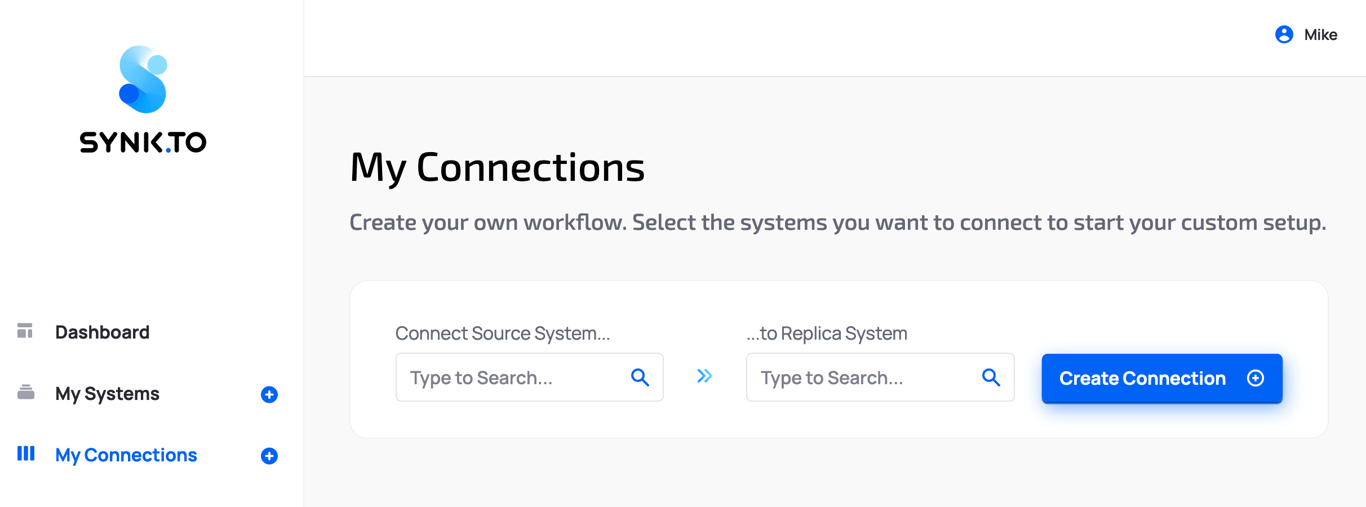
2. Choose Google Workspace as a Source System (which will be used as a reference for users and groups) and Entra ID as a Replica System (which will receive any users and groups updates made in Source System), and click “**Create Connection**”.
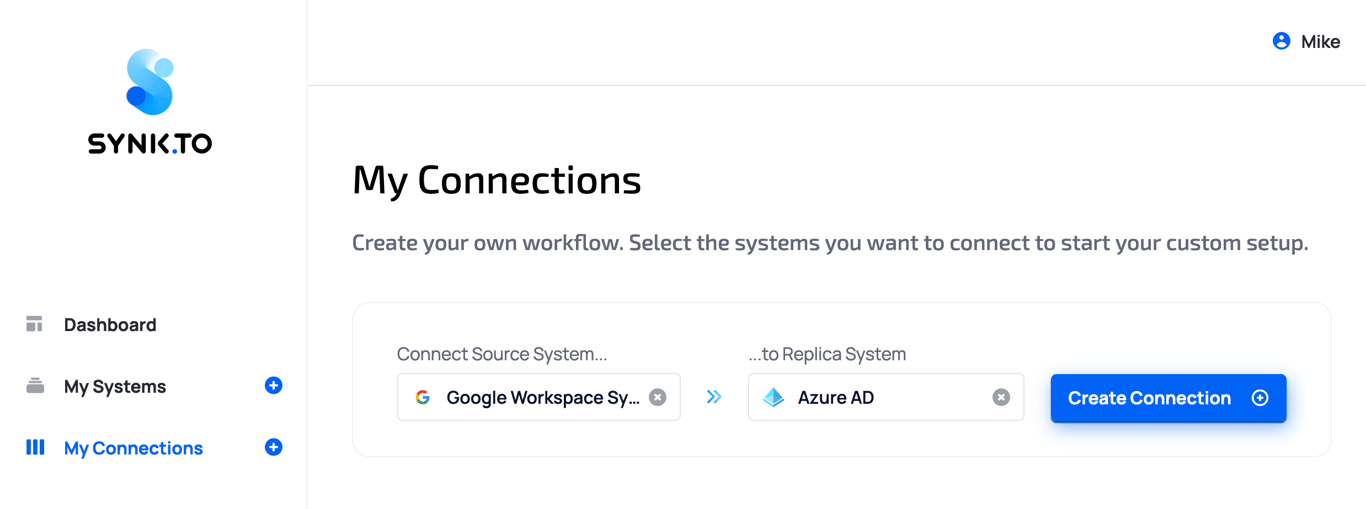
3. On a Step 1, set up “**Custom Name**”, sync intervals, “**Connection Description**”, and check the following settings, if you:
* Allow to automatically create new users in the Replica system,
* Allow to automatically deactivate/delete users in the Replica system.
Without that settings Synk.to can’t make any critical actions (creation, deletion and suspension) with **users** in Replica System.
### **1. Security Program and Policies**
1.1 Synk.to maintains and enforces a risk-based security program and framework that addresses how we manage security. Synk.to’s security framework is based on the ISO 27001 Information Security Management System and includes the following areas: Policies and Procedures, Asset Management, Access Management, Cryptography, Physical Security, Operations Security, Communications Security, Business Continuity Disaster Recovery Security, People Security, Product Security, Cloud and Network Infrastructure Security, Security Compliance, Third-Party Security, Vulnerability Management, and Security Monitoring and Incident Response.
1.2 Our security program includes:
* documented policies that we approve, publish and communicate to appropriate personnel internally and review at least annually,
* documented, clear assignment of responsibility and authority for security program activities,
* regular testing of the key controls, systems and procedures.
### **2. Risk and Asset Management**
2.1 Synk.to utilizes an integrated risk management approach with a focus on both technical and operational security practices. Ongoing and systematic risk assessment is a consistent part of selecting appropriate improvement protection controls and ensuring that Personal Data is safe.
2.2 Synk.to takes reasonable actions to identify assets and their level of criticality. The full inventory and categorization are the basis to select and implement optimal technical and organizational security measures to make sure that the assets and information are protected.
### **3. Personnel security and awareness**
3.1 Synk.to’s personnel (employees and contractors) do not process Personal Data without authorization. Personnel isare obligated to maintain the confidentiality of any Personal Data and this obligation continues even after their engagement ends.
3.2 Synk.to’s personnel (employees and contractors) acknowledge their data security and privacy responsibilities under Synk.to’s policies.
3.3 Synk.to is focused on employee security awareness as a key driver to improve overall security maturity level and culture. Synk.to’s personnel (employees and contractors) conduct security and privacy training at least annually.
### **4. Access Management**
4.1 Synk.to manages access based on “Need to know” and “Least privilege” principles. That means that personnel is only permitted to have access to customer data when needed for the performance of their functions.
4.2 Synk.to deactivates the authentication credentials of personnel immediately upon the termination of their employment or services.
4.3 In order to access the production environment and critical systems, a user must have a unique username and password and multi-factor authentication enabled.
4.4 Synk.to implements measures to prevent information systems from being used by unauthorized persons, including the following measures (a) user identification and authentication procedures; (b) unique username/password (c) password complexity policies (special characters, minimum length, change of password) (c) automatic blocking (e.g., password or timeout).
4.5 Synk.to performs access monitoring and logging for the production environment and critical systems.
### **5. Technical and Application Security Measures**
5.1 Synk.to has implemented and will maintain appropriate technical and application security measures, internal controls, and information security routines intended to protect Personal Data against accidental loss, destruction, or alteration; unauthorized disclosure or access; or unlawful destruction as follows:
* **Segregation of environments**. Synk.to segregates development and production environments to make sure that Personal Data is protected from any kind of unauthorized access.
* **Encryption in transit.** All external network communications are protected with encryption. We support the latest recommended secure cipher suites to encrypt all traffic in transit, including the use of TLS 1.2 protocols, AES256 encryption, and SHA2 hash functions, whenever supported by the clients.
* **Encryption at rest.** Customer data at rest is encrypted using FIPS 140-2 compliant encryption standards, which applies to all types of data at rest within Synk.to’s systems—relational databases, file drives, backups, etc. Access to cryptographic keys is restricted to a limited number of authorized Synk.to personnel.
* **Redundancy**. Synk.to selects IT Infrastructure suppliers that are committed to provide mechanisms with builtd-in security best practices for confidentiality, integrity, and availability. Synk.to’s main IaaS provider AWS is committed to meet the strict Disaster Recovery (DR) Service Level Agreement.
* **Vulnerability assessment**. Synk.to performs automated and manual application and infrastructure security testing to identify and patch potential security vulnerabilities. Critical software patches are evaluated, tested, and applied proactively.
* **Penetration Testing**. We engage independent service providers to perform penetration tests to assess the potential system security threats at least on an annual basis.
* **Software Development and Acquisition**. Synk.to follows security- by- design principles across different phases of the Service creation lifecycle from requirements gathering and product design all the way through product deployment. For the software developed by Synk.to, Synk.to follows secure coding standards and procedures set out in its standard operating procedures.
* **Storage.** Synk.to’s production databases and data processing servers are hosted in a data center located in AWS. Synk.to maintains complete administrative control over the databases and virtual servers, and no third-party vendors have logical access to Personal Data.
* **Change Management.** Synk.to implements documented change management procedures that provide a consistent approach for controlling, implementing, and documenting changes (including emergency changes) for Synk.to’s software, information systems or network architecture.
* **Network security.** All network access between servers is restricted, using access control lists to allow only authorized services to interact in the network. We utilize third-party tools to detect, mitigate, and prevent Distributed Denial of Service (DDoS) attacks.
### **6. Third-Party Provider Management**
6.1 Synk.to may use third- party providers to provide the Services. In selecting third- party providers who may gain access to, store, transmit or use Personal Data, Synk.to conducts a quality and security assessment pursuant to the provisions of its standard operating procedures.
6.2 Synk.to enters into written agreements with all of its providers which include confidentiality, privacy, and security obligations that provide an appropriate level of protection for Personal Data that these providers may Process.
### **7. Physical and Environmental Security**
7.1 Synk.to uses AWS data centers to host its production infrastructure. AWS data centers are strictly controlled both at the perimeter and at building ingress points by professional security staff utilizing video surveillance, intrusion detection systems, and other electronic means. Each data center has redundant electrical power systems that are available twenty-four (24) hours a day, seven (7) days a week.
7.2 Synk.to reviews third-party audit reports to verify that Synk.to’s service providers maintain appropriate physical access controls for the managed data centers.
### **8. Resilience and Service Continuity**
8.1 Synk.to implements measures to ensure the ability to restore the availability and access to Personal Data in a timely manner in the event of a physical or technical incident, including:
* Ongoing Personal Data backup procedures. Backups are retained redundantly across multiple availability zones and encrypted in transit and at rest.
* Synk.to uses specialized tools to monitor the Service performance. The alert is triggered in the event of any suboptimal server performance or overloaded capacity.
* Disaster recovery plans are in place to recover in case of Personal Data availability issues.
### **9. Information Security Incident Management**
9.1. Synk.to implements security incident management policies and procedures that address how we manage Data Breach and other security incidents.
9.2. In case of Data Breach Synk.to will promptly investigate the incident upon discovery. To the extent permitted by applicable law, Synk.to will notify Customer of a Data Breach. Data Breach incident notifications will be provided to Customers via email or in the other way agreed with Customer.
# Sync Google Workspace and Entra ID
Source: https://docs.synk.to/use-cases/gws-entra-id
Securely sync users and groups from Google Workspace to Microsoft Entra ID with Synk.to. Migrate from Google Workspace to Microsoft Entra ID.
Prior setting up Google Workspace and Microsoft Entra ID (or AzureAD) users and groups sync you should have Google Workspace and Entra ID connected in “**[My Systems](https://app.synk.to/systems)**” section of Synk.to application.
If you don’t have them, don’t worry and just follow the following articles first:
* [How to connect Google Workspace to Synk.to](https://docs.synk.to/connect/google-workspace)?
* [How to connect Entra ID to Synk.to](https://docs.synk.to/connect/entraid)?
1. Login to Synk.to and open “[My Connections](https://app.synk.to/connections)” section of the application.

2. Choose Google Workspace as a Source System (which will be used as a reference for users and groups) and Entra ID as a Replica System (which will receive any users and groups updates made in Source System), and click “**Create Connection**”.

3. On a Step 1, set up “**Custom Name**”, sync intervals, “**Connection Description**”, and check the following settings, if you:
* Allow to automatically create new users in the Replica system,
* Allow to automatically deactivate/delete users in the Replica system.
Without that settings Synk.to can’t make any critical actions (creation, deletion and suspension) with **users** in Replica System.
![]() 4. Choose Source group and Replica group that you want to keep in sync in terms of users.
5. Check user mapping in the table view. Initially all users are mapped by email and you can’t change that behavior. Use table search to facilitate the mapping.
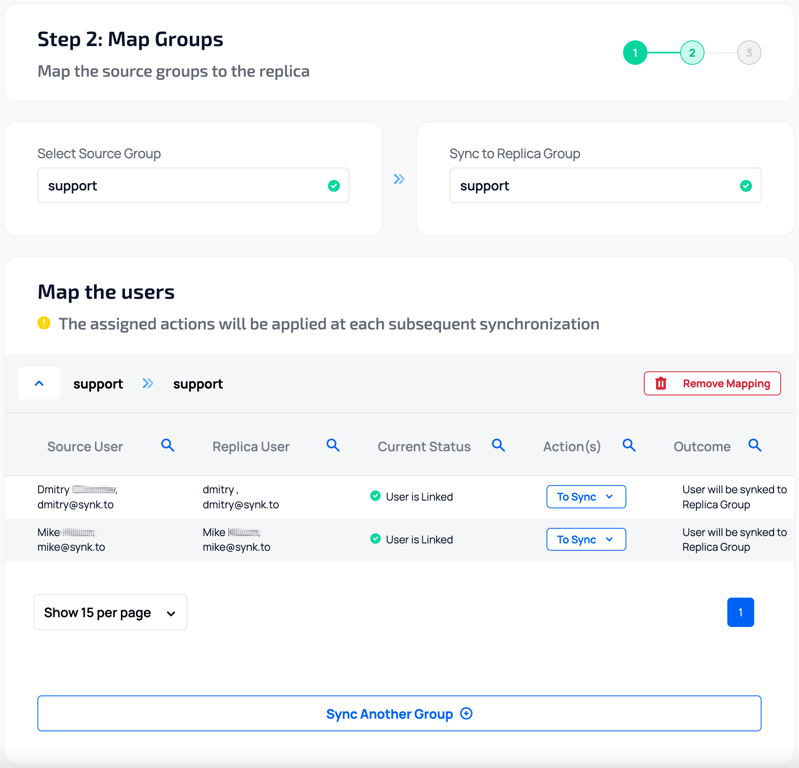
6. (optional) Change “**Action(s)**” from “**To Synk**” to “**To Ignore**” for all users you want to skip from synchronization (eg. service or group users). You can use table search to find all of them.
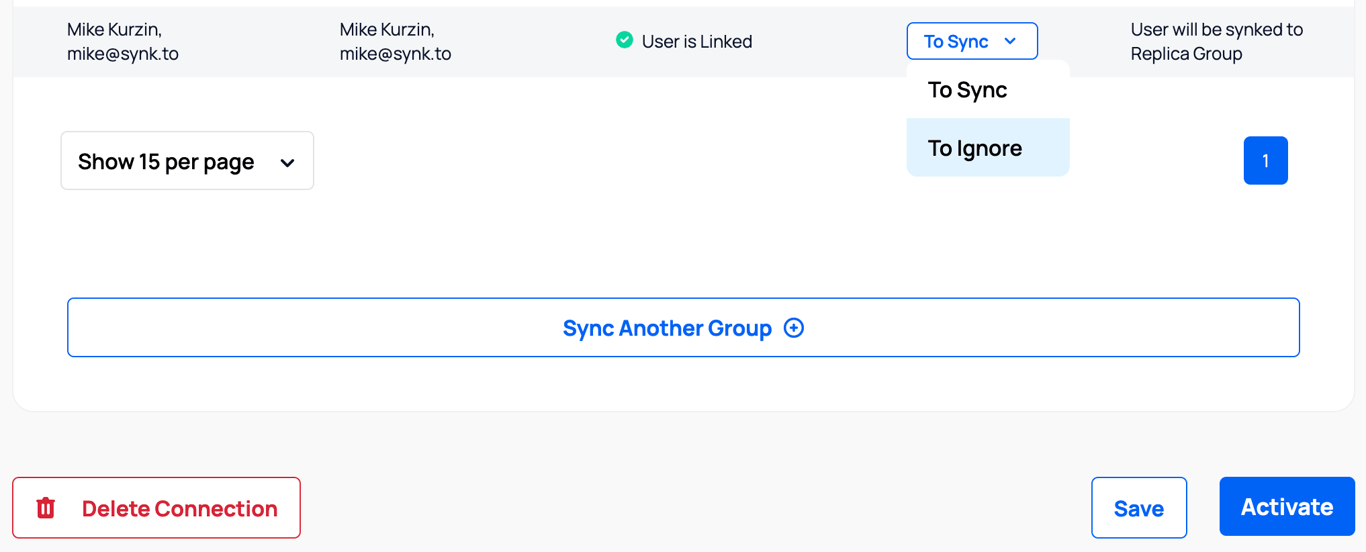
7. (optional) Click “**Sync Another Group**” if you want to add more groups in one Connection.
8. Click “**Activate**” to launch users synchronization.
4. Choose Source group and Replica group that you want to keep in sync in terms of users.
5. Check user mapping in the table view. Initially all users are mapped by email and you can’t change that behavior. Use table search to facilitate the mapping.

6. (optional) Change “**Action(s)**” from “**To Synk**” to “**To Ignore**” for all users you want to skip from synchronization (eg. service or group users). You can use table search to find all of them.

7. (optional) Click “**Sync Another Group**” if you want to add more groups in one Connection.
8. Click “**Activate**” to launch users synchronization.
![]() 9. Click “**Done**” to finish the connection.
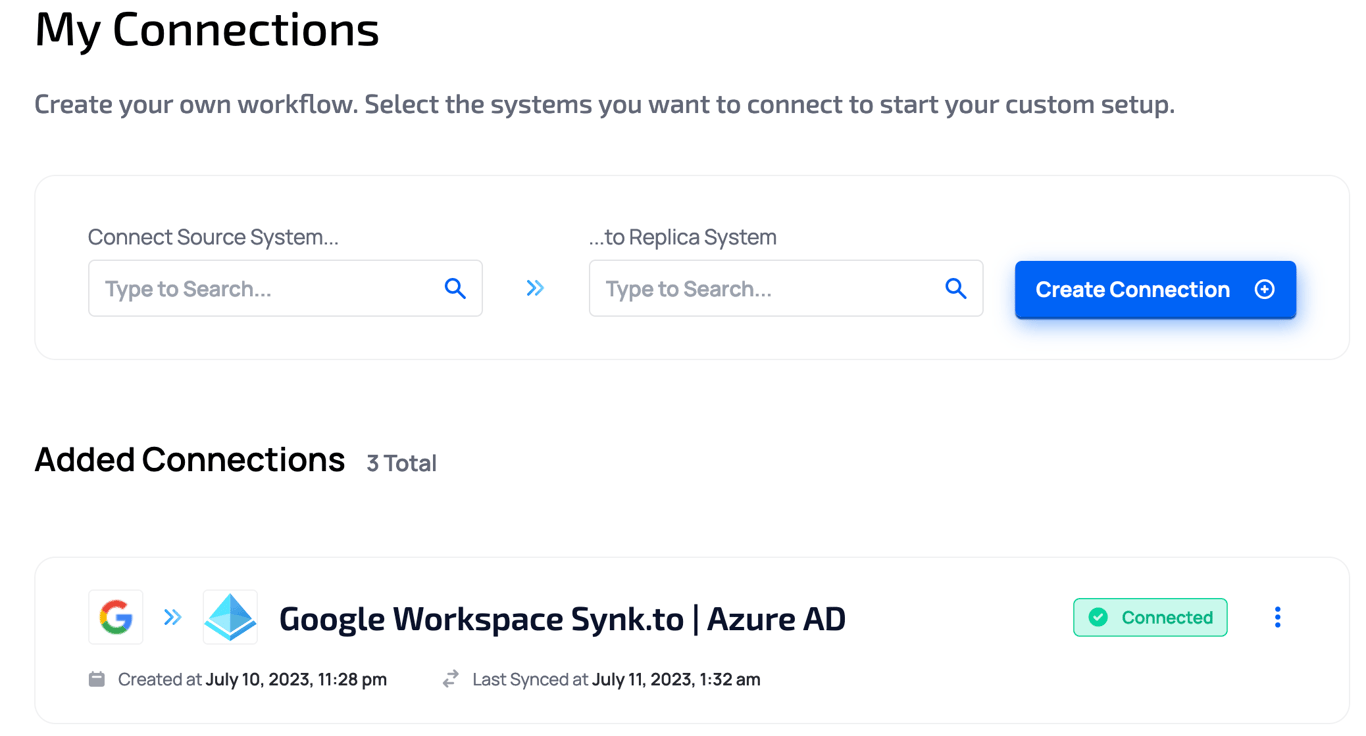
# Sync Google Workspace with Microsoft 365
Source: https://docs.synk.to/use-cases/gws-ms-365
Securely sync users and groups from Google Workspace to Microsoft 365 with Synk.to. Automate cloud identity management for seamless access control and compliance.
Prior setting up Google Workspace and Microsoft 365 Admin Center users and groups sync you should have Google Workspace and Entra ID (yes, that’s right. Entra ID and Microsoft 365 Admin Center have the same API) connected in “[My Systems](https://app.synk.to/systems)” section of Synk.to application.
If you don’t have them, don’t worry and just follow the following articles first:
* [How to connect Google Workspace to Synk.to](https://docs.synk.to/connect/google-workspace)?
* [How to connect Entra ID to Synk.to](https://docs.synk.to/connect/entraid)?
1. Login to Synk.to and open “[My Connections](https://app.synk.to/connections)” section of the application.

1. Choose Google Workspace as a Source System (which will be used as a reference for users and groups) and Entra ID as a Replica System (which will receive any users and groups updates made in Source System), and click “**Create Connection**”.

1. On a Step 1, set up “**Custom Name**”, sync intervals, “**Connection Description**”, and check the following settings, if you:Without that settings Synk.to can’t make any critical actions (creation, deletion and suspension) with **users** in Replica System.
* Allow to automatically create new users in the Replica system,
* Allow to automatically deactivate/delete users in the Replica system.
9. Click “**Done**” to finish the connection.

# Sync Google Workspace with Microsoft 365
Source: https://docs.synk.to/use-cases/gws-ms-365
Securely sync users and groups from Google Workspace to Microsoft 365 with Synk.to. Automate cloud identity management for seamless access control and compliance.
Prior setting up Google Workspace and Microsoft 365 Admin Center users and groups sync you should have Google Workspace and Entra ID (yes, that’s right. Entra ID and Microsoft 365 Admin Center have the same API) connected in “[My Systems](https://app.synk.to/systems)” section of Synk.to application.
If you don’t have them, don’t worry and just follow the following articles first:
* [How to connect Google Workspace to Synk.to](https://docs.synk.to/connect/google-workspace)?
* [How to connect Entra ID to Synk.to](https://docs.synk.to/connect/entraid)?
1. Login to Synk.to and open “[My Connections](https://app.synk.to/connections)” section of the application.

1. Choose Google Workspace as a Source System (which will be used as a reference for users and groups) and Entra ID as a Replica System (which will receive any users and groups updates made in Source System), and click “**Create Connection**”.

1. On a Step 1, set up “**Custom Name**”, sync intervals, “**Connection Description**”, and check the following settings, if you:Without that settings Synk.to can’t make any critical actions (creation, deletion and suspension) with **users** in Replica System.
* Allow to automatically create new users in the Replica system,
* Allow to automatically deactivate/delete users in the Replica system.
![]() 1. Choose Source group and Replica group that you want to keep in sync in terms of users. Both Entra ID ([Security groups](https://learn.microsoft.com/en-us/azure/active-directory/fundamentals/how-to-manage-groups)) and [Microsoft 365 groups](https://admin.microsoft.com/#/groups) will be in the list. Microsoft 365 groups have special description under the group name. [Learn more about Microsoft 365 group types](https://learn.microsoft.com/en-US/microsoft-365/admin/create-groups/compare-groups).
If Microsoft 365 group is [Microsoft Teams enabled group](https://learn.microsoft.com/en-US/microsoftteams/user-access), the user will be automatically added to the corresponding Microsoft Teams channel after synchronization. **Note**: Teams licensing plan (for example, Microsoft 365 Enterprise E3 or Microsoft 365 Business Premium) should be assigned to a user and the user is should be enabled for Teams prior synchronization.
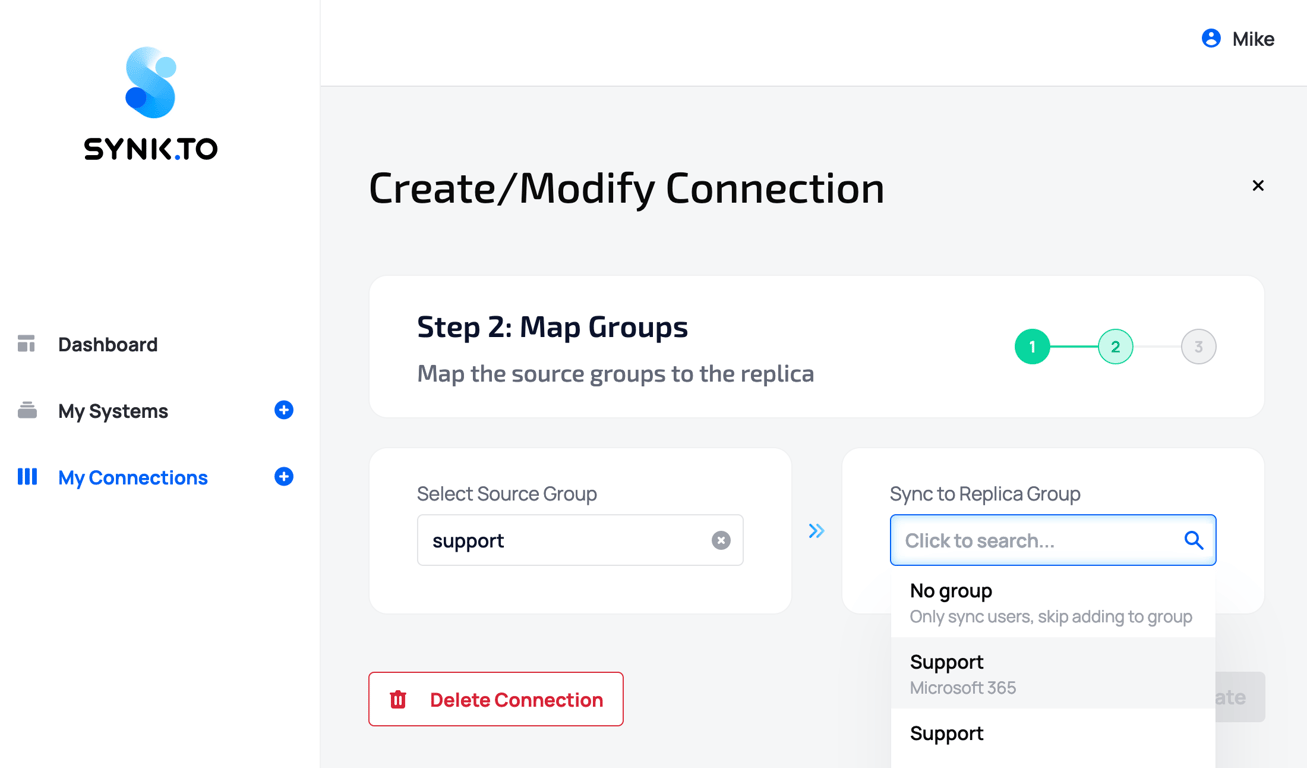
1. Choose Source group and Replica group that you want to keep in sync in terms of users. Both Entra ID ([Security groups](https://learn.microsoft.com/en-us/azure/active-directory/fundamentals/how-to-manage-groups)) and [Microsoft 365 groups](https://admin.microsoft.com/#/groups) will be in the list. Microsoft 365 groups have special description under the group name. [Learn more about Microsoft 365 group types](https://learn.microsoft.com/en-US/microsoft-365/admin/create-groups/compare-groups).
If Microsoft 365 group is [Microsoft Teams enabled group](https://learn.microsoft.com/en-US/microsoftteams/user-access), the user will be automatically added to the corresponding Microsoft Teams channel after synchronization. **Note**: Teams licensing plan (for example, Microsoft 365 Enterprise E3 or Microsoft 365 Business Premium) should be assigned to a user and the user is should be enabled for Teams prior synchronization.

![]() 1. Check user mapping in the table view. Initially all users are mapped by email and you can’t change that behavior. Use table search to facilitate the mapping.
1. Check user mapping in the table view. Initially all users are mapped by email and you can’t change that behavior. Use table search to facilitate the mapping.
![]() 1. (optional) Change “**Action(s)**” from “**To Synk**” to “**To Ignore**” for all users you want to skip from synchronization (eg. service or group users). You can use table search to find all of them.

2. (optional) Click “**Sync Another Group**” if you want to add more groups in one Connection.
3. Click “**Activate**” to launch users synchronization.
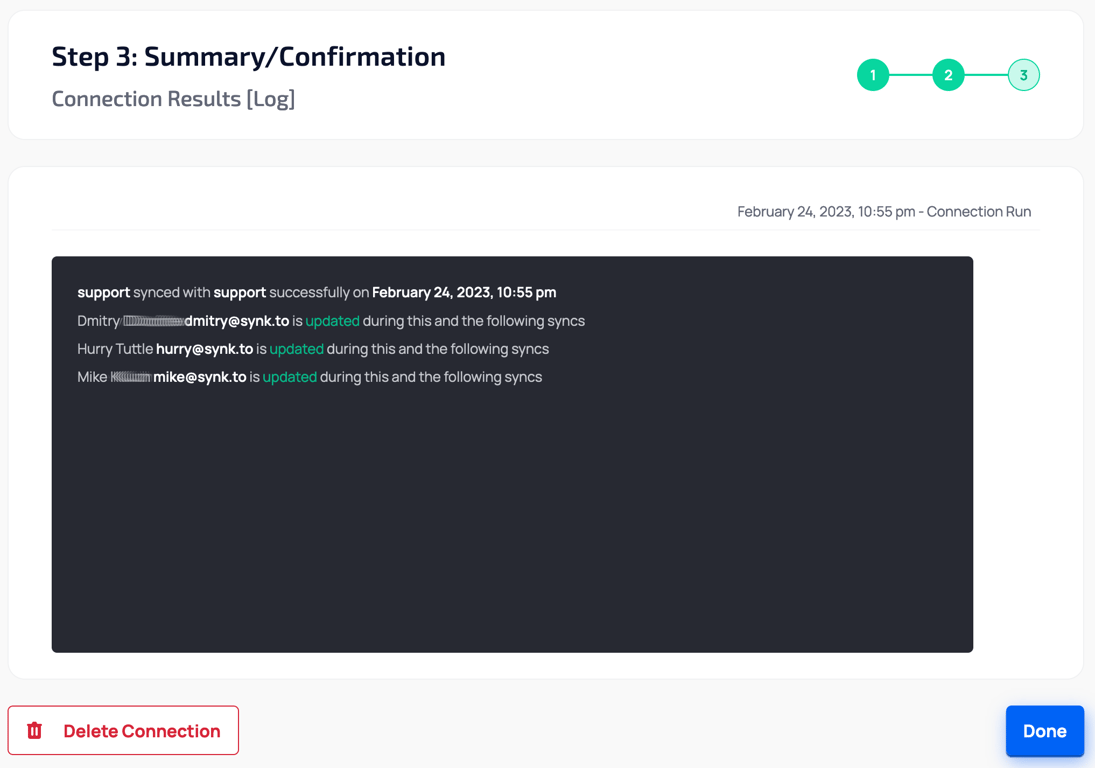
4. Click “**Done**” to finish the connection.

# Sync Google WS and Slack
Source: https://docs.synk.to/use-cases/gws-slack
Securely sync users and groups from Google Workspace to Slack with Synk.to. Automate cloud identity management for seamless access control and compliance.
Prior setting up Google Workspace and Slack users and groups sync you should have Google Workspace and Slack connected in “[**Systems**](https://app.synk.to/systems)” section of Synk.to application.
If you don’t have them, don’t worry and just follow the following instructions first:
* [How to connect Google Workspace to Synk.to](https://docs.synk.to/connect/google-workspace)?
* [How to connect Slack to Synk.to](https://docs.synk.to/connect/slack)?
1. Login to Synk.to and open “[Connections](https://app.synk.to/connections)” section of the application.
2. Choose Google Workspace as a Source System (which will be used as a reference for users and groups) and Slack as a Replica System (which will receive any updates made in Source System), and click “**Next**”.
1. (optional) Change “**Action(s)**” from “**To Synk**” to “**To Ignore**” for all users you want to skip from synchronization (eg. service or group users). You can use table search to find all of them.

2. (optional) Click “**Sync Another Group**” if you want to add more groups in one Connection.
3. Click “**Activate**” to launch users synchronization.

4. Click “**Done**” to finish the connection.

# Sync Google WS and Slack
Source: https://docs.synk.to/use-cases/gws-slack
Securely sync users and groups from Google Workspace to Slack with Synk.to. Automate cloud identity management for seamless access control and compliance.
Prior setting up Google Workspace and Slack users and groups sync you should have Google Workspace and Slack connected in “[**Systems**](https://app.synk.to/systems)” section of Synk.to application.
If you don’t have them, don’t worry and just follow the following instructions first:
* [How to connect Google Workspace to Synk.to](https://docs.synk.to/connect/google-workspace)?
* [How to connect Slack to Synk.to](https://docs.synk.to/connect/slack)?
1. Login to Synk.to and open “[Connections](https://app.synk.to/connections)” section of the application.
2. Choose Google Workspace as a Source System (which will be used as a reference for users and groups) and Slack as a Replica System (which will receive any updates made in Source System), and click “**Next**”.
![Screenshot 2026 10 08 At 23 37 39]() 3. On a Step 1, set up “**Custom Name**”, sync intervals, “**Connection Description**”, and choose the following options, if you:
* Allow to automatically create new users in the Replica system,
* Allow to automatically deactivate/delete users in the Replica system.
Without that options Synk.to won’t do any critical actions (creation, deletion and suspension) with **users** in Replica System.
3. On a Step 1, set up “**Custom Name**”, sync intervals, “**Connection Description**”, and choose the following options, if you:
* Allow to automatically create new users in the Replica system,
* Allow to automatically deactivate/delete users in the Replica system.
Without that options Synk.to won’t do any critical actions (creation, deletion and suspension) with **users** in Replica System.
![Screenshot 2026 10 08 At 23 38 13]() 4. Next, click "+Add Rule" and setup either 1-1 group mapping, or mapping by group name or description.
4. Next, click "+Add Rule" and setup either 1-1 group mapping, or mapping by group name or description.
![Screenshot 2026 10 08 At 23 52 35]()
![Screenshot 2026 10 08 At 23 53 45]() 4. Check user mapping in "View users" view. Initially all users are mapped by email and you can’t change that behavior.
4. Check user mapping in "View users" view. Initially all users are mapped by email and you can’t change that behavior.
![Screenshot 2026 10 08 At 23 39 27]() 4. Click “**Next**” to launch users synchronization.
4. Click “**Next**” to launch users synchronization.
![Screenshot 2026 10 08 At 23 40 00]() 4. Click “**Finish & Save**” to finish the connection.
4. Click “**Finish & Save**” to finish the connection.