> ## Documentation Index
> Fetch the complete documentation index at: https://docs.synk.to/llms.txt
> Use this file to discover all available pages before exploring further.
# Connect Slack to Synk.to
> Guide on connecting Slack to Synk.to
Prerequisites:
1. Slack Workspace Owner or Admin user account
2. Slack Business+ or Enterprise+ plan
## **Step 1**: Create Slack application for [Synk.to](http://Synk.to)
1. Go to [https://api.slack.com/apps](https://api.slack.com/apps) using Slack Workspace Owner or Admin user account.
2. Click “**Create New App**” green button.
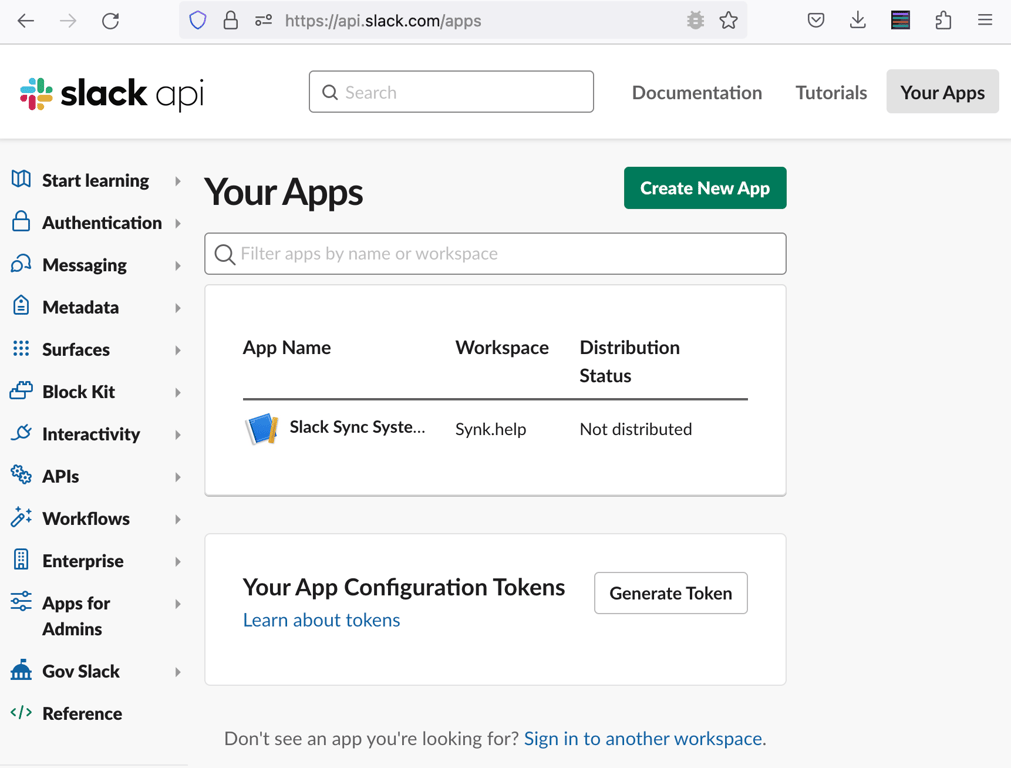
3. Choose “**From an app manifest**”.
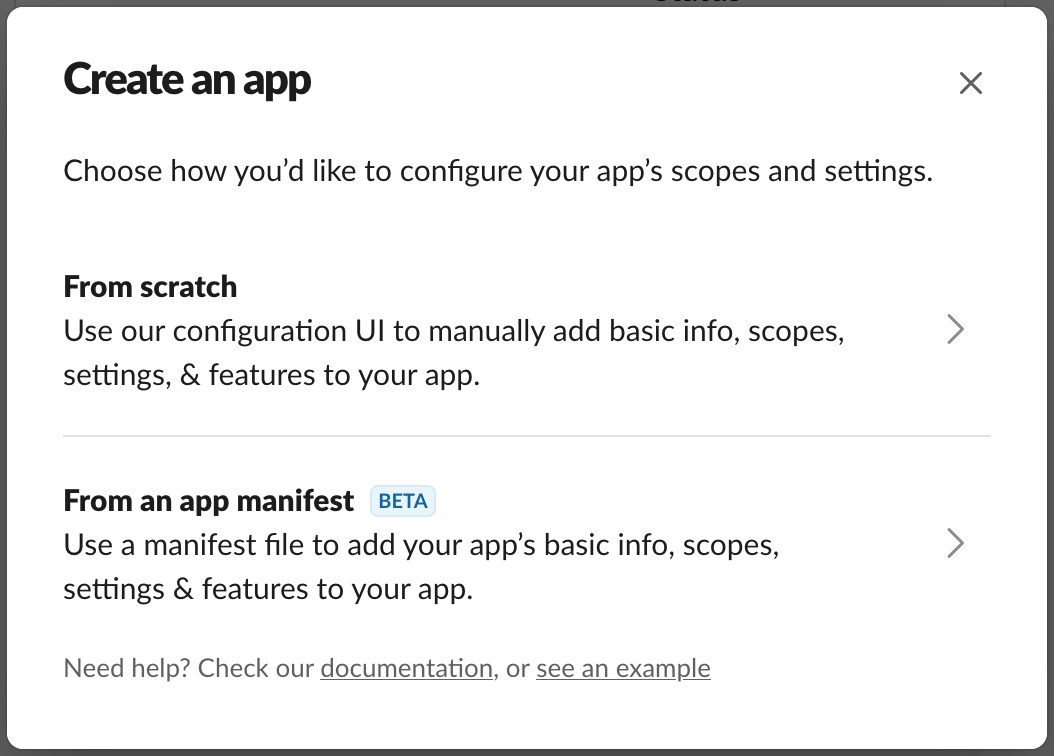 4. (optional - if you have access to multiple Slack Workspaces) Pick a target workspace you want to provide access to and click “**Next**”.
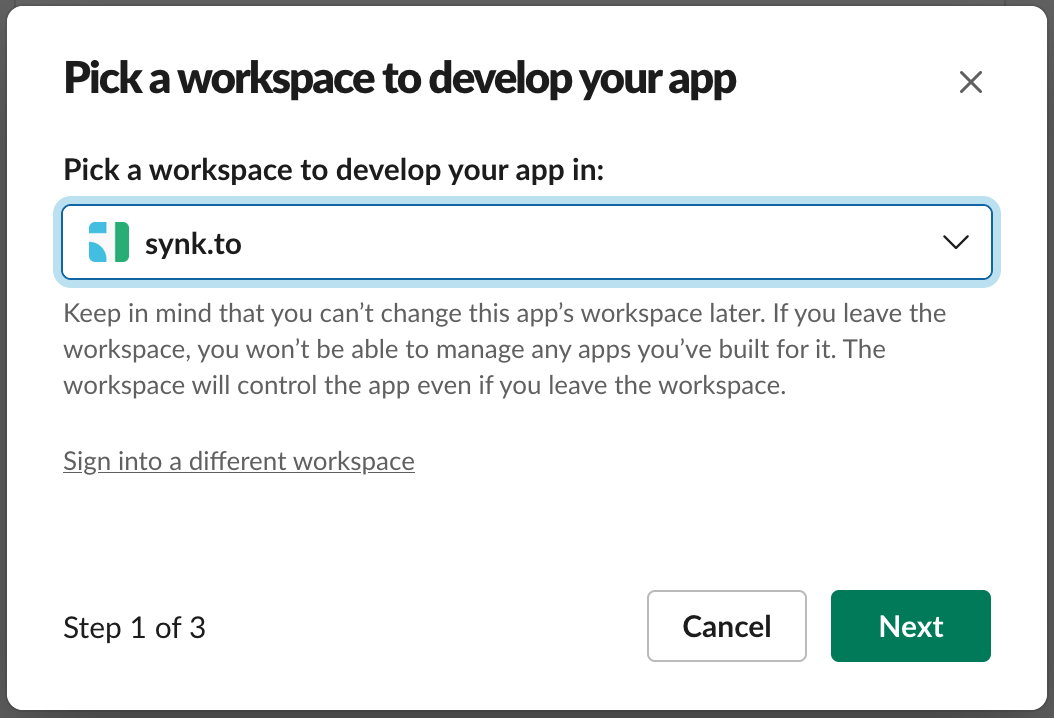 5. Copy the following JSON Slack application manifest, paste it into the JSON window, and click “**Next**” (please check “List of User Scopes” section for additional details below).
**Option 1 (RECOMMENDED)**. Provide **read\&write** **access** to users and groups.
```jsx theme={null}
{
"display_information": {
"name": "Synk.to APP RW"
},
"oauth_config": {
"redirect_urls": [
"https://app.synk.to/systems/auth/slack/callback"
],
"scopes": {
"user": [
"admin",
"groups:read",
"groups:write",
"users.profile:read",
"users.profile:write",
"users:read",
"users:read.email"
]
}
},
"settings": {
"org_deploy_enabled": false,
"socket_mode_enabled": false,
"token_rotation_enabled": true
}
}
```
**What will Synk.to app be able to view and do with Option 1 app?**
* View profile details about people in your workspace
* View information about your identity
* View user groups in your workspace
* View email addresses of people in your workspace
* View people in your workspace
* Edit your profile information and status
* Create and manage user groups
* Administer your workspace\
\
**Option 2**. Provide **read\&write** **access** to manage groups, and only **read access** to user management.
```jsx theme={null}
{
"display_information": {
"name": "Synk.to APP RO"
},
"oauth_config": {
"redirect_urls": [
"https://app.synk.to/systems/auth/slack/callback"
],
"scopes": {
"user": [
"groups:read",
"groups:write",
"users.profile:read",
"users:read",
"users:read.email"
]
}
},
"settings": {
"org_deploy_enabled": false,
"socket_mode_enabled": false,
"token_rotation_enabled": true
}
}
```
**What will Synk.to app be able to view and do with Option 2 app?**
* View profile details about people in your workspace
* View information about your identity
* View user groups in your workspace
* View email addresses of people in your workspace
* View people in your workspace
* View your profile information and status
* Create and manage user groups
5. Copy the following JSON Slack application manifest, paste it into the JSON window, and click “**Next**” (please check “List of User Scopes” section for additional details below).
**Option 1 (RECOMMENDED)**. Provide **read\&write** **access** to users and groups.
```jsx theme={null}
{
"display_information": {
"name": "Synk.to APP RW"
},
"oauth_config": {
"redirect_urls": [
"https://app.synk.to/systems/auth/slack/callback"
],
"scopes": {
"user": [
"admin",
"groups:read",
"groups:write",
"users.profile:read",
"users.profile:write",
"users:read",
"users:read.email"
]
}
},
"settings": {
"org_deploy_enabled": false,
"socket_mode_enabled": false,
"token_rotation_enabled": true
}
}
```
**What will Synk.to app be able to view and do with Option 1 app?**
* View profile details about people in your workspace
* View information about your identity
* View user groups in your workspace
* View email addresses of people in your workspace
* View people in your workspace
* Edit your profile information and status
* Create and manage user groups
* Administer your workspace\
\
**Option 2**. Provide **read\&write** **access** to manage groups, and only **read access** to user management.
```jsx theme={null}
{
"display_information": {
"name": "Synk.to APP RO"
},
"oauth_config": {
"redirect_urls": [
"https://app.synk.to/systems/auth/slack/callback"
],
"scopes": {
"user": [
"groups:read",
"groups:write",
"users.profile:read",
"users:read",
"users:read.email"
]
}
},
"settings": {
"org_deploy_enabled": false,
"socket_mode_enabled": false,
"token_rotation_enabled": true
}
}
```
**What will Synk.to app be able to view and do with Option 2 app?**
* View profile details about people in your workspace
* View information about your identity
* View user groups in your workspace
* View email addresses of people in your workspace
* View people in your workspace
* View your profile information and status
* Create and manage user groups
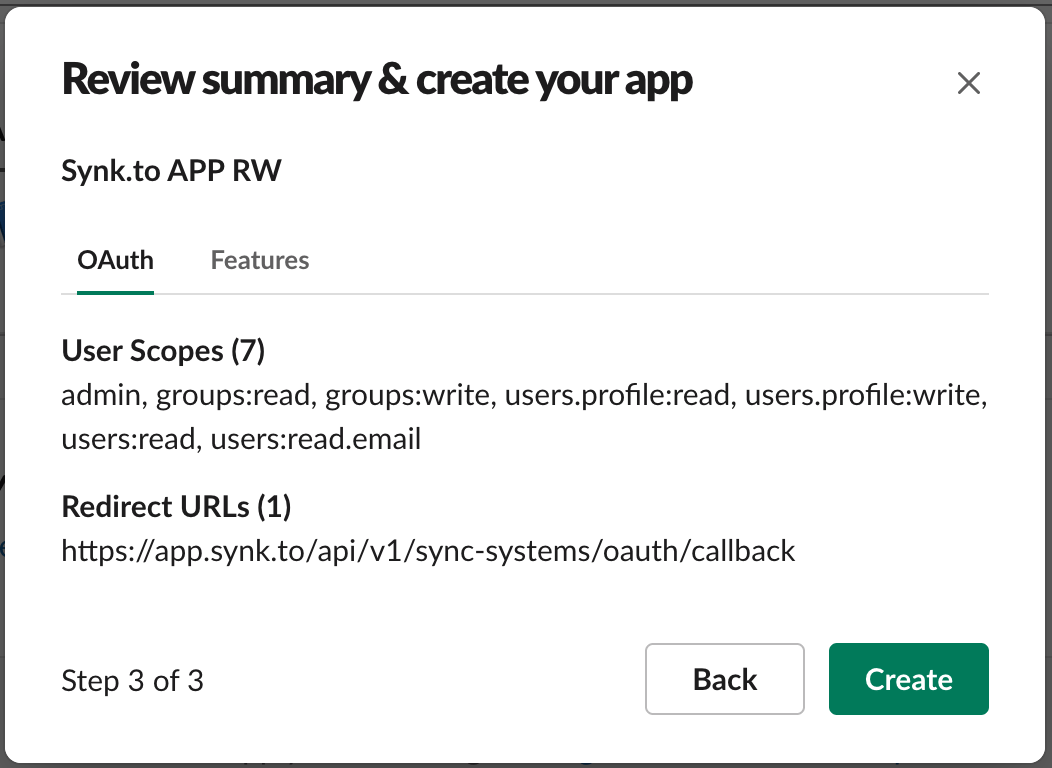
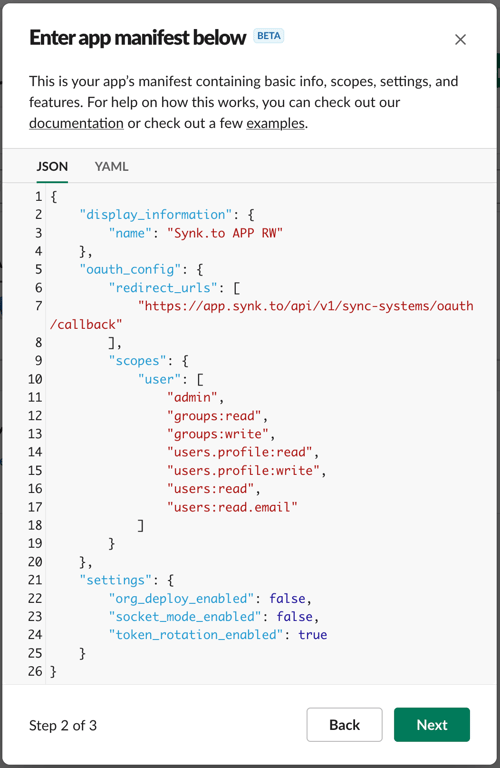 6. Click “**Create**”.
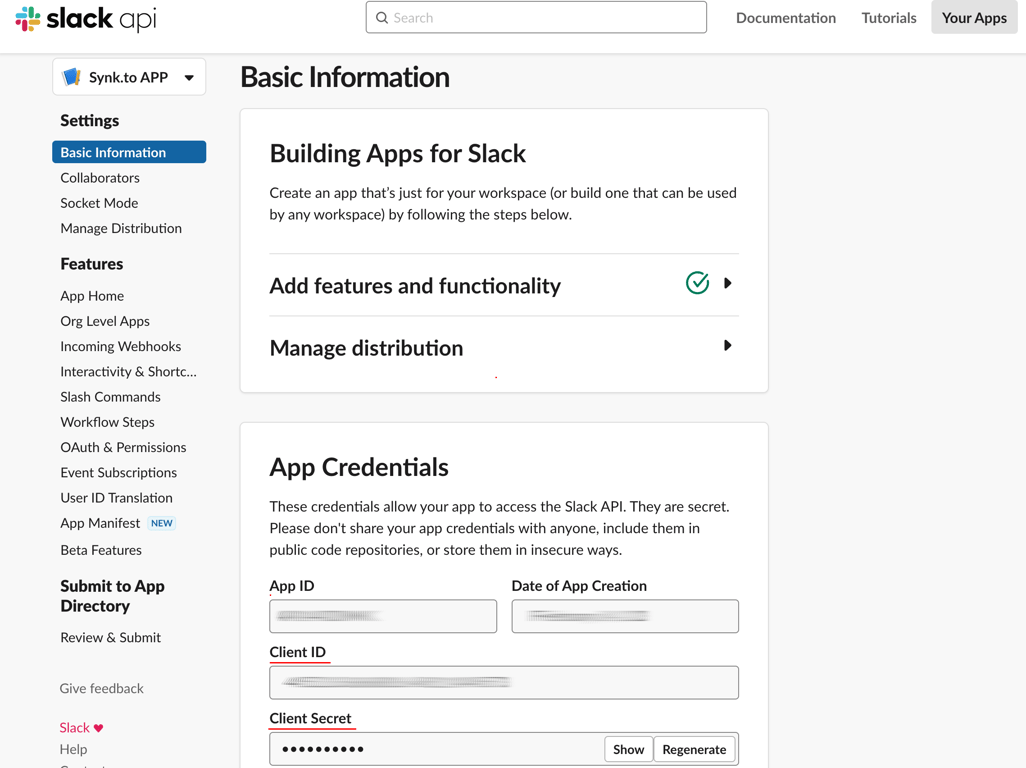
 7. In the application window copy your “**Client ID**” and “**Client Secret**” in “**Basic Information**” → “**App Credentials**” section. You will need them for Synk.to connection.
## **Step 2**: Connect Slack to Synk.to
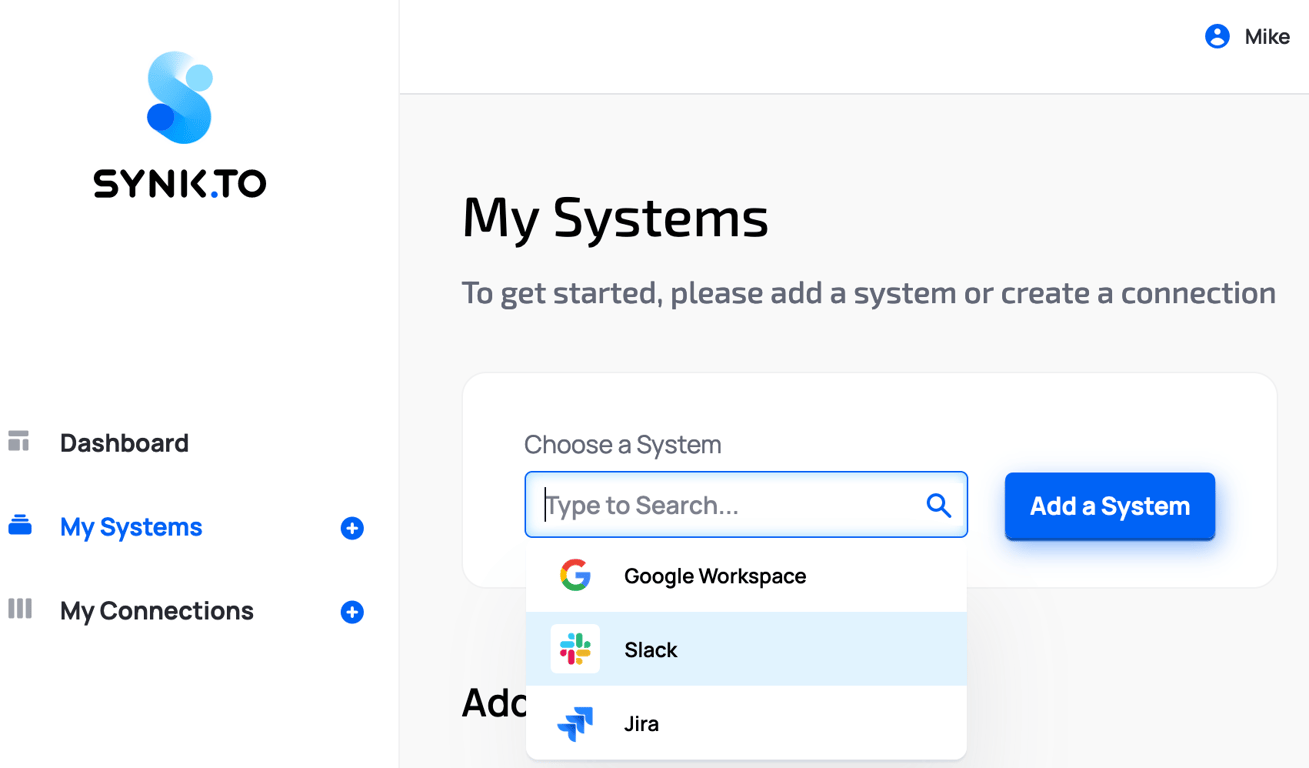
1. Go to the [SynkTo Systems](https://app.synk.to/systems) page, find **Slack** in “Choose a System” field, and click “**Add a System**”.
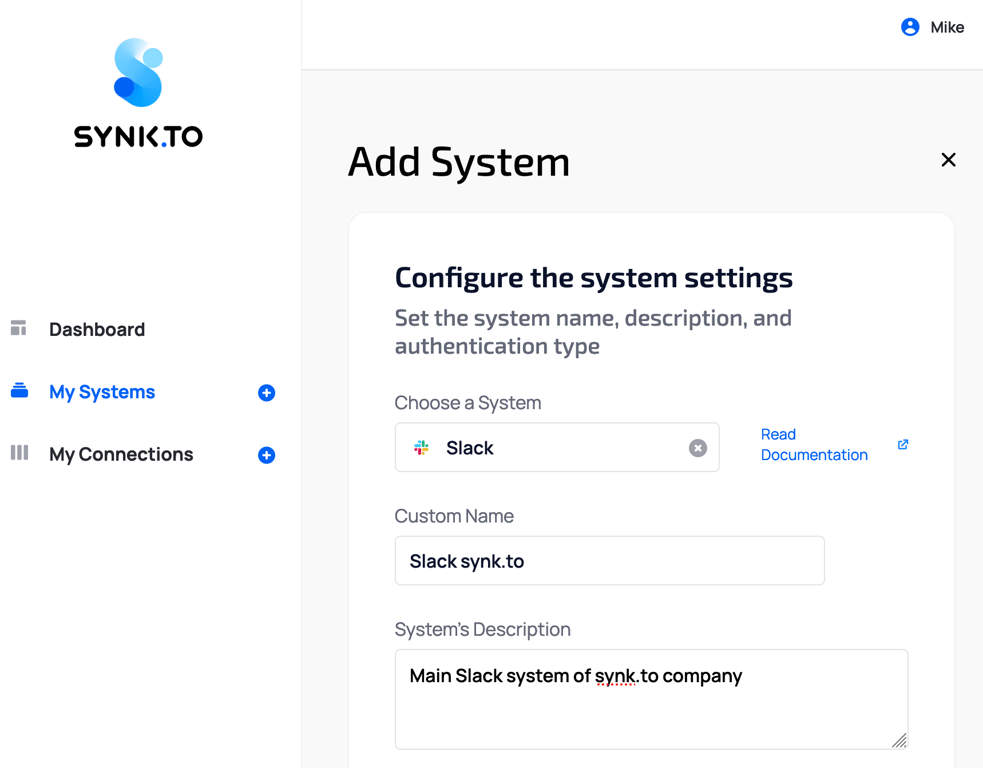
2. Provide “**Custom Name**” and “**Description**” to the system in order to remember it. It will be used in “My Connections” section.
3. In “**Authentication settings**” provide your “**Client ID**” and “**Client Secret**” from Step 1 of the guide.
7. In the application window copy your “**Client ID**” and “**Client Secret**” in “**Basic Information**” → “**App Credentials**” section. You will need them for Synk.to connection.

## **Step 2**: Connect Slack to Synk.to
1. Go to the [SynkTo Systems](https://app.synk.to/systems) page, find **Slack** in “Choose a System” field, and click “**Add a System**”.

2. Provide “**Custom Name**” and “**Description**” to the system in order to remember it. It will be used in “My Connections” section.

3. In “**Authentication settings**” provide your “**Client ID**” and “**Client Secret**” from Step 1 of the guide.
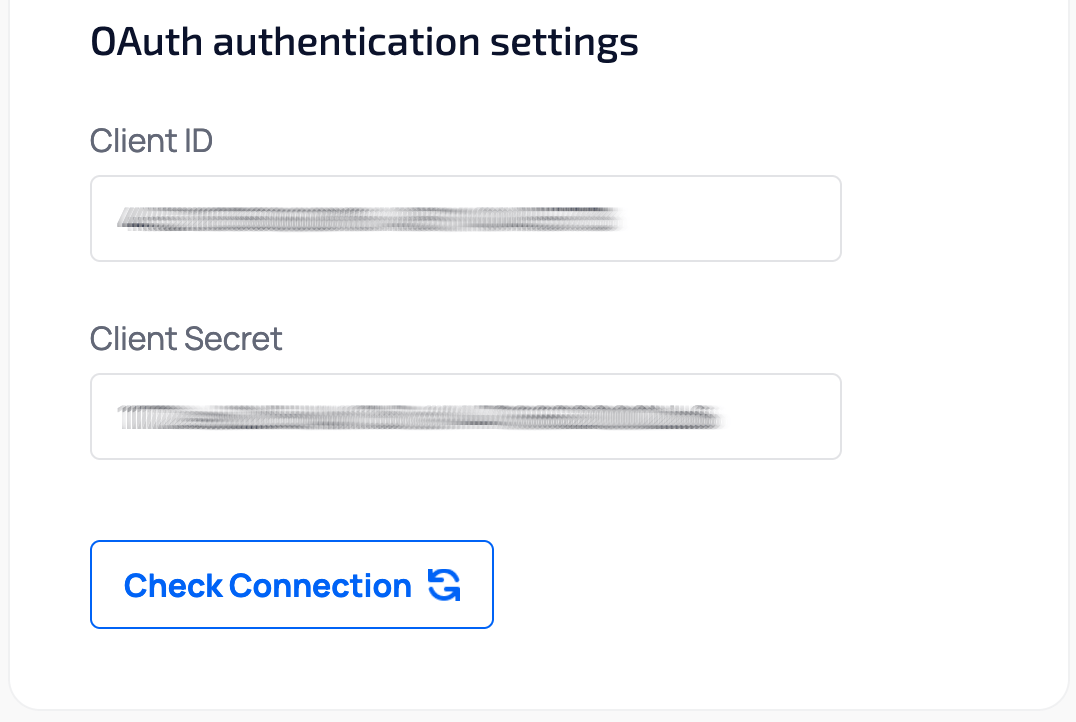 4. Click “**Check connection**”.
5. In a pop-up Slack window, click “**Allow**”.
4. Click “**Check connection**”.
5. In a pop-up Slack window, click “**Allow**”.
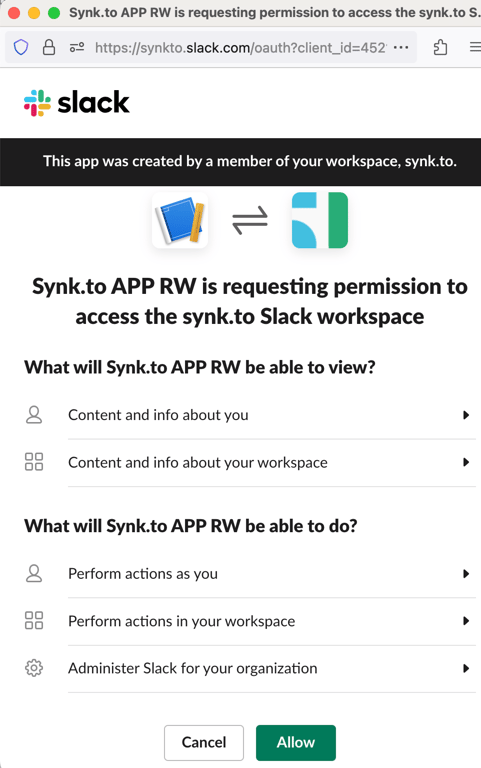 6. If everything is fine, you will see “**Account Connected**” green mark and the number of users and groups in the system in the bottom.
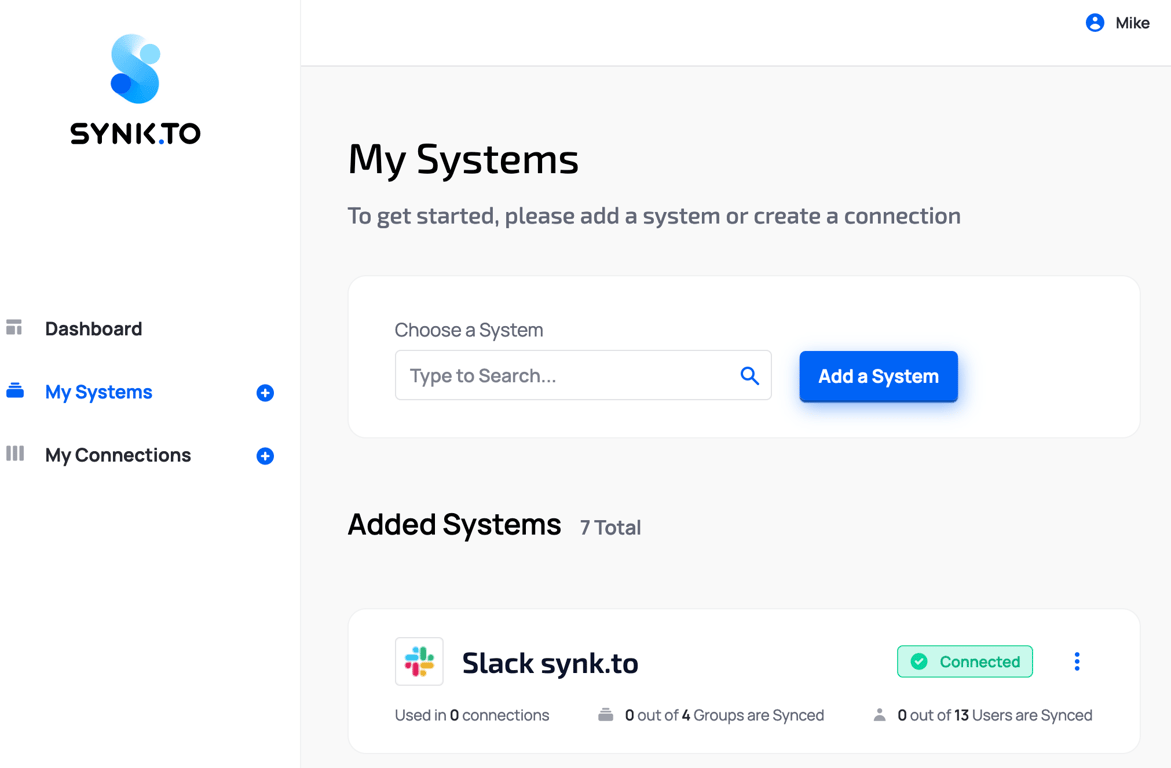
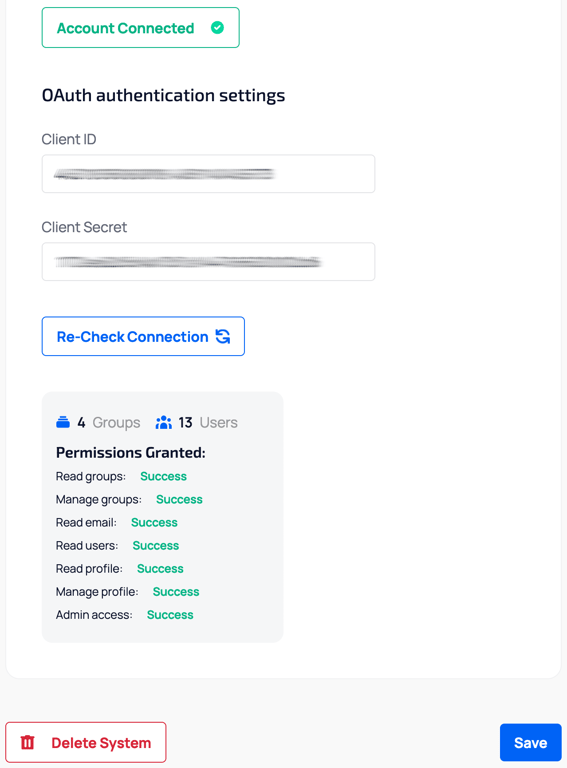 7. Click “**Save**” and you will see the system in My Systems list. Congrats!!! Now you can use it in “My Connections” section of Synk.to.
### List of User Scopes required by Synk.to Slack app
1. [**admin**](https://api.slack.com/scopes/admin) (only for Option 1 extended access)
1. **Why do we need it?** New user account activation and deactivation.
2. [**groups: read**](https://api.slack.com/scopes/groups:read)
* **Why do we need it?** View basic information about user groups in your Slack Workspace.
* **Methods we use:**
* c\_onversations.list\_
* users.conversations
3. [**groups: write**](https://api.slack.com/scopes/groups:write)
* **Why do we need it?** Manage user groups in your Slack Workspace.
* **Methods we use:**
* c\_onversations.list\_
* users.conversations
4. [**users.profile: read**](https://api.slack.com/scopes/users.profile:read)
* **Why do we need it?** Read a user’s profile information and status.
* **Methods we use:**
* c\_onversations.list\_
* users.conversations
5. [**users.profile: write**](https://api.slack.com/scopes/users.profile:write) (only for Option 1 extended access)
* **Why do we need it?** Edit a user’s profile information (eg. first and last names) and status.
* **Methods we use:**
* c\_onversations.list\_
* users.conversations
6. [**users: read**](https://api.slack.com/scopes/users:read)
* **Why do we need it?** Get a user list to add them to the database.
* **Methods we use:**
* u\_sers.list\_
* **Events we use:**
* u\_ser\_profile\_changed\_
* t\_eam\_join\_
7. [**users: read.email**](https://api.slack.com/scopes/users:read.email)
* **Why do we need it?** View user’s email.
* **Methods we use:**
* users.lookupByEmail
7. Click “**Save**” and you will see the system in My Systems list. Congrats!!! Now you can use it in “My Connections” section of Synk.to.

### List of User Scopes required by Synk.to Slack app
1. [**admin**](https://api.slack.com/scopes/admin) (only for Option 1 extended access)
1. **Why do we need it?** New user account activation and deactivation.
2. [**groups: read**](https://api.slack.com/scopes/groups:read)
* **Why do we need it?** View basic information about user groups in your Slack Workspace.
* **Methods we use:**
* c\_onversations.list\_
* users.conversations
3. [**groups: write**](https://api.slack.com/scopes/groups:write)
* **Why do we need it?** Manage user groups in your Slack Workspace.
* **Methods we use:**
* c\_onversations.list\_
* users.conversations
4. [**users.profile: read**](https://api.slack.com/scopes/users.profile:read)
* **Why do we need it?** Read a user’s profile information and status.
* **Methods we use:**
* c\_onversations.list\_
* users.conversations
5. [**users.profile: write**](https://api.slack.com/scopes/users.profile:write) (only for Option 1 extended access)
* **Why do we need it?** Edit a user’s profile information (eg. first and last names) and status.
* **Methods we use:**
* c\_onversations.list\_
* users.conversations
6. [**users: read**](https://api.slack.com/scopes/users:read)
* **Why do we need it?** Get a user list to add them to the database.
* **Methods we use:**
* u\_sers.list\_
* **Events we use:**
* u\_ser\_profile\_changed\_
* t\_eam\_join\_
7. [**users: read.email**](https://api.slack.com/scopes/users:read.email)
* **Why do we need it?** View user’s email.
* **Methods we use:**
* users.lookupByEmail